
How do I turn my testimonials into images?
Turn your testimonials into images you can use on landing pages, sales pages, social posts, emails and slides. Resize them for any platform, and save your design as a template so every image matches.
Images are available on all Senja plans: Free, Starter, and Pro.
Create an image
Go to Studio → Create → Image: https://app.senja.io/studio?tab=images
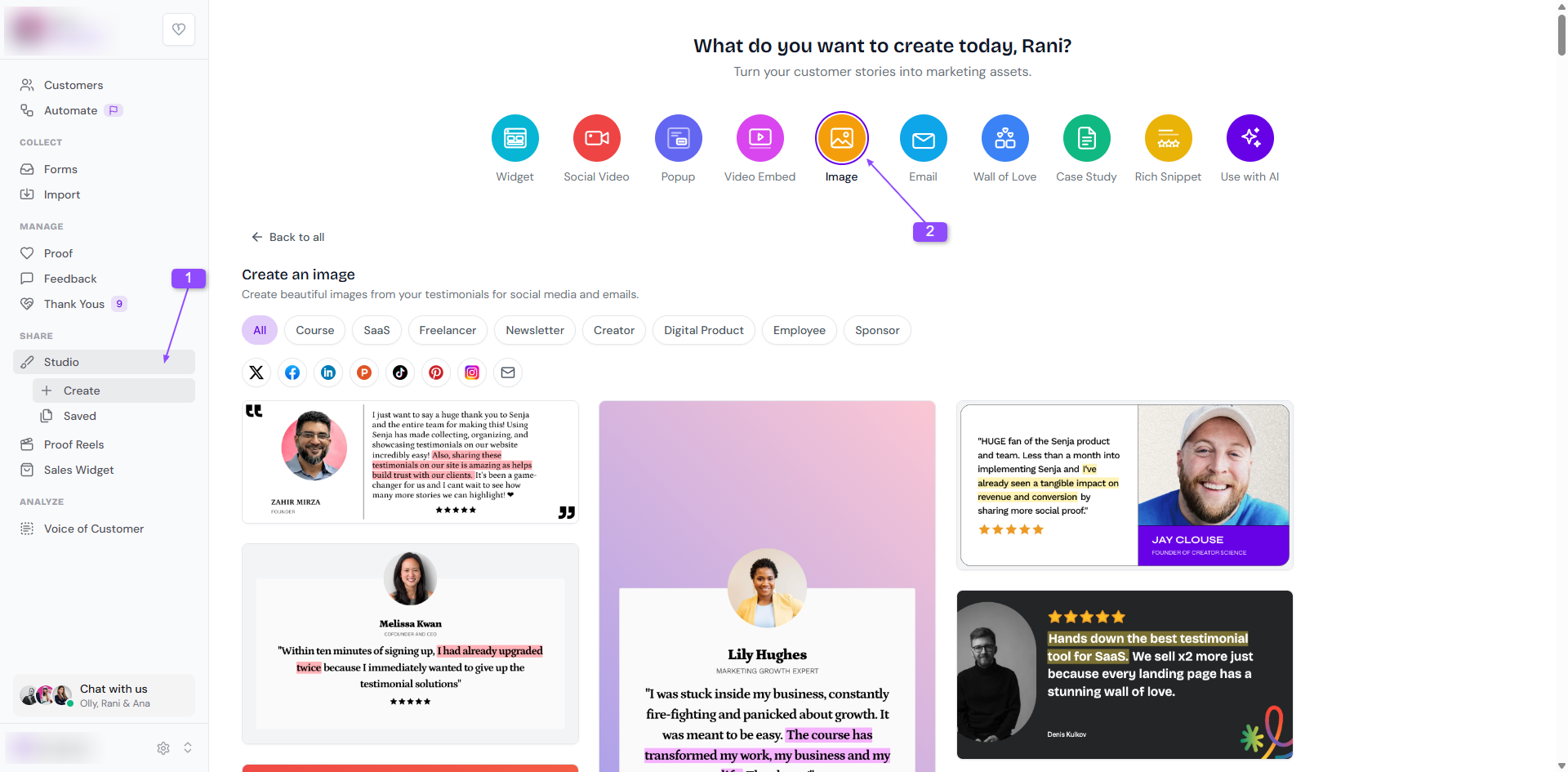
Choose a template. You can switch templates at any point in the editor
Use the Customize sidebar to pick your testimonials and change the background, branding and more
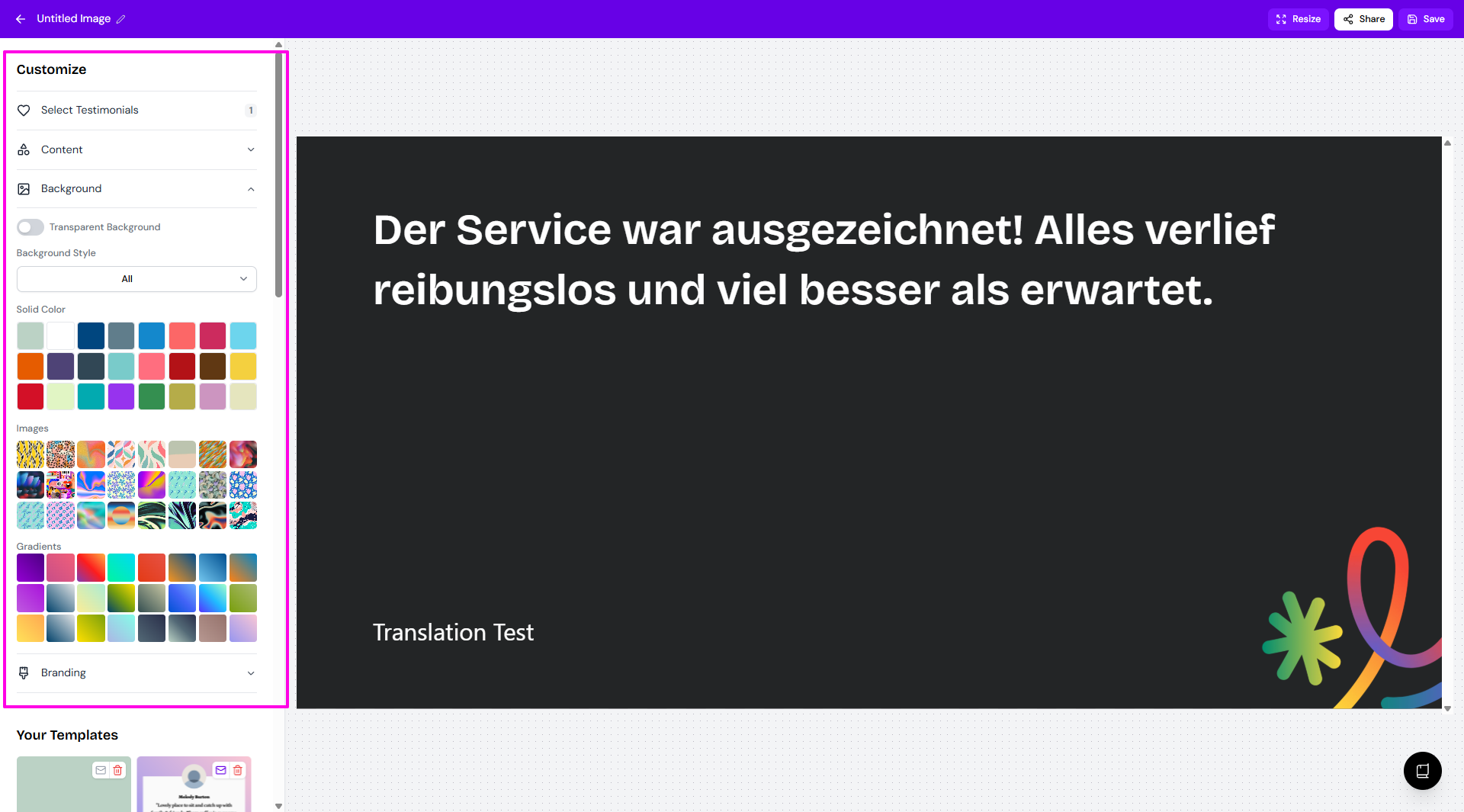
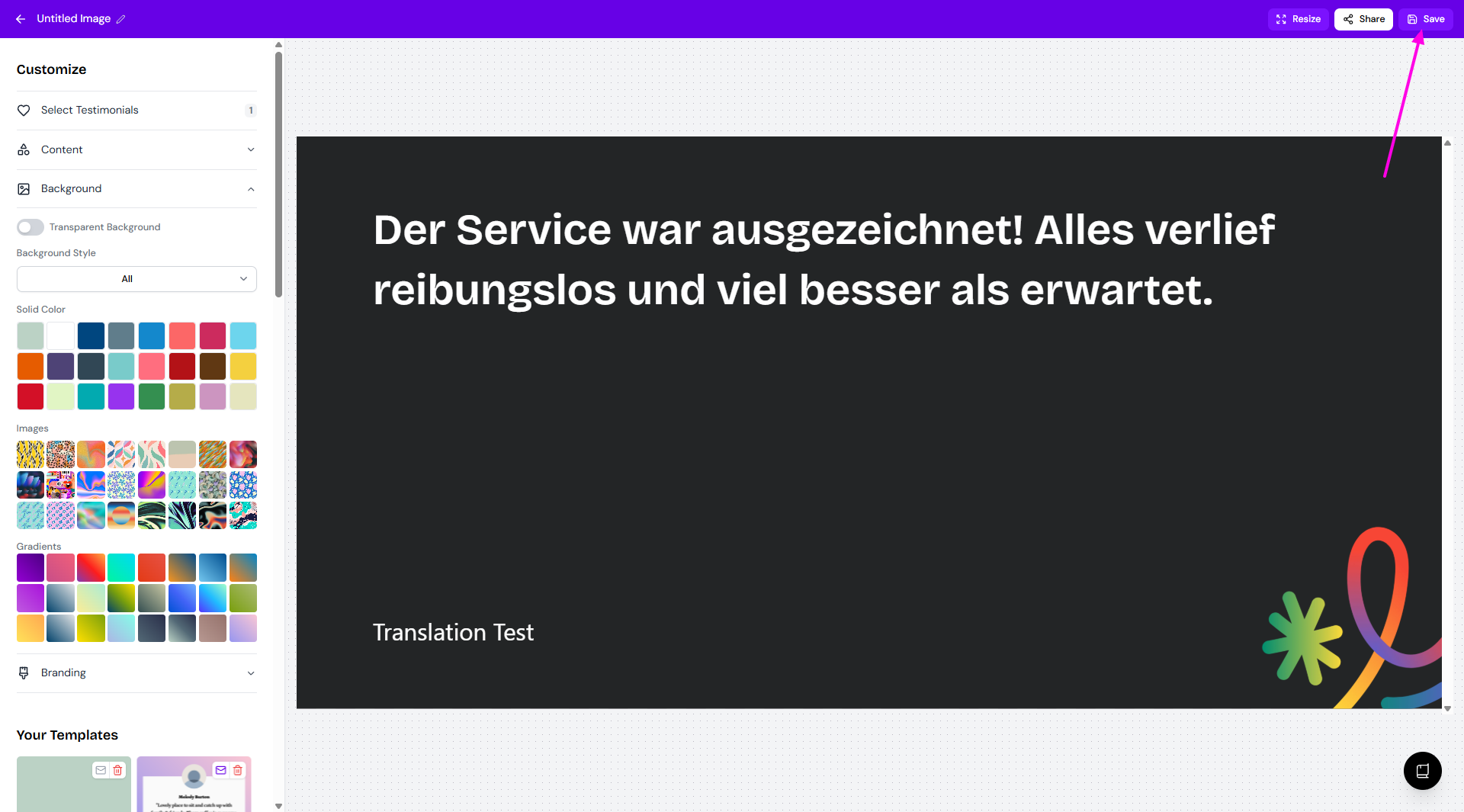
Click Save so you can come back and edit it later
For every option in the Customize sidebar, see How do I edit the design of my testimonial image?
Start from a testimonial on your Proof page
Already looking at the testimonial you want to use?
Go to your Proof page: https://app.senja.io/
Open the testimonial and click Share
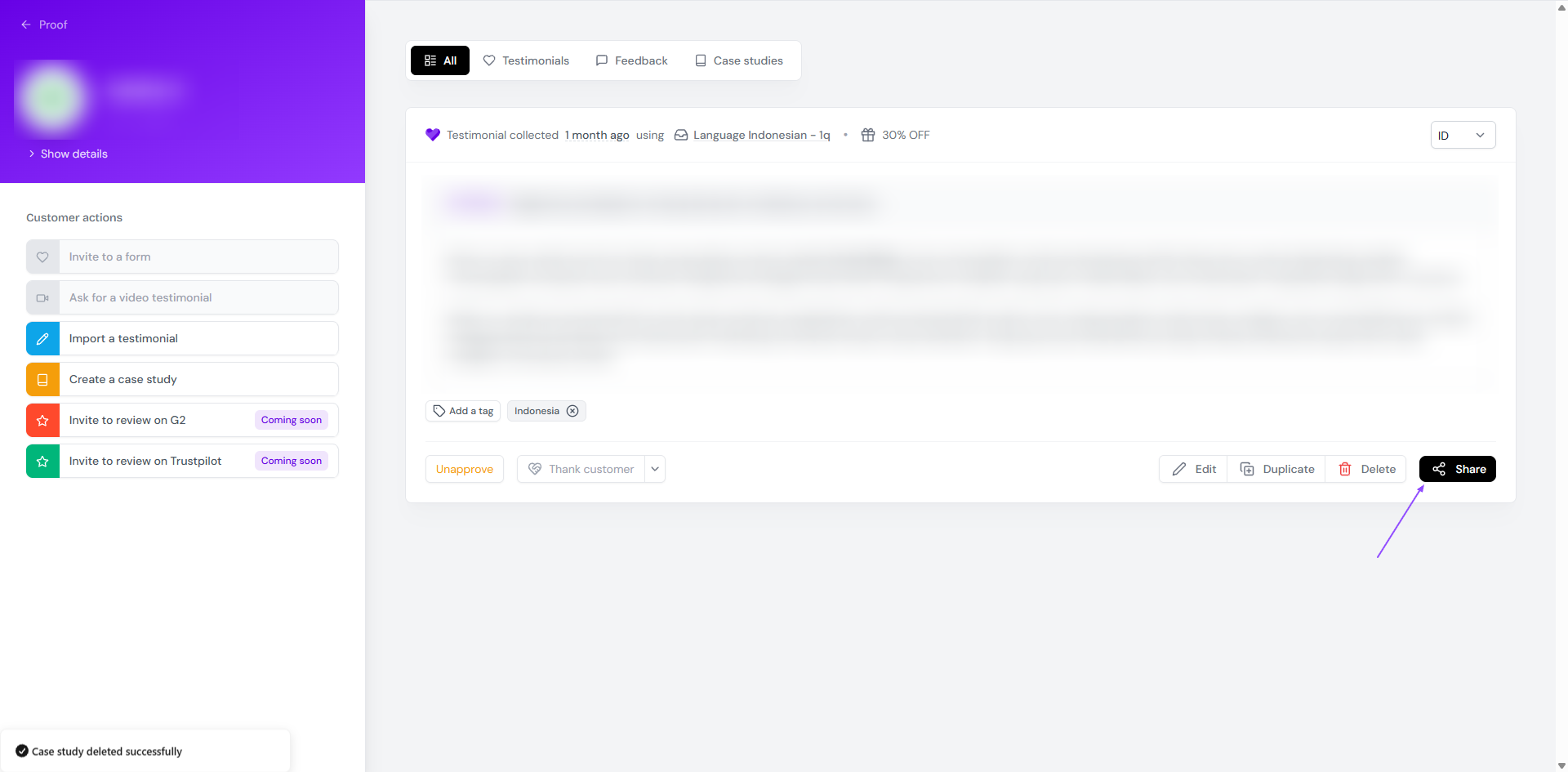
Click Create an image or click on the image template that you want
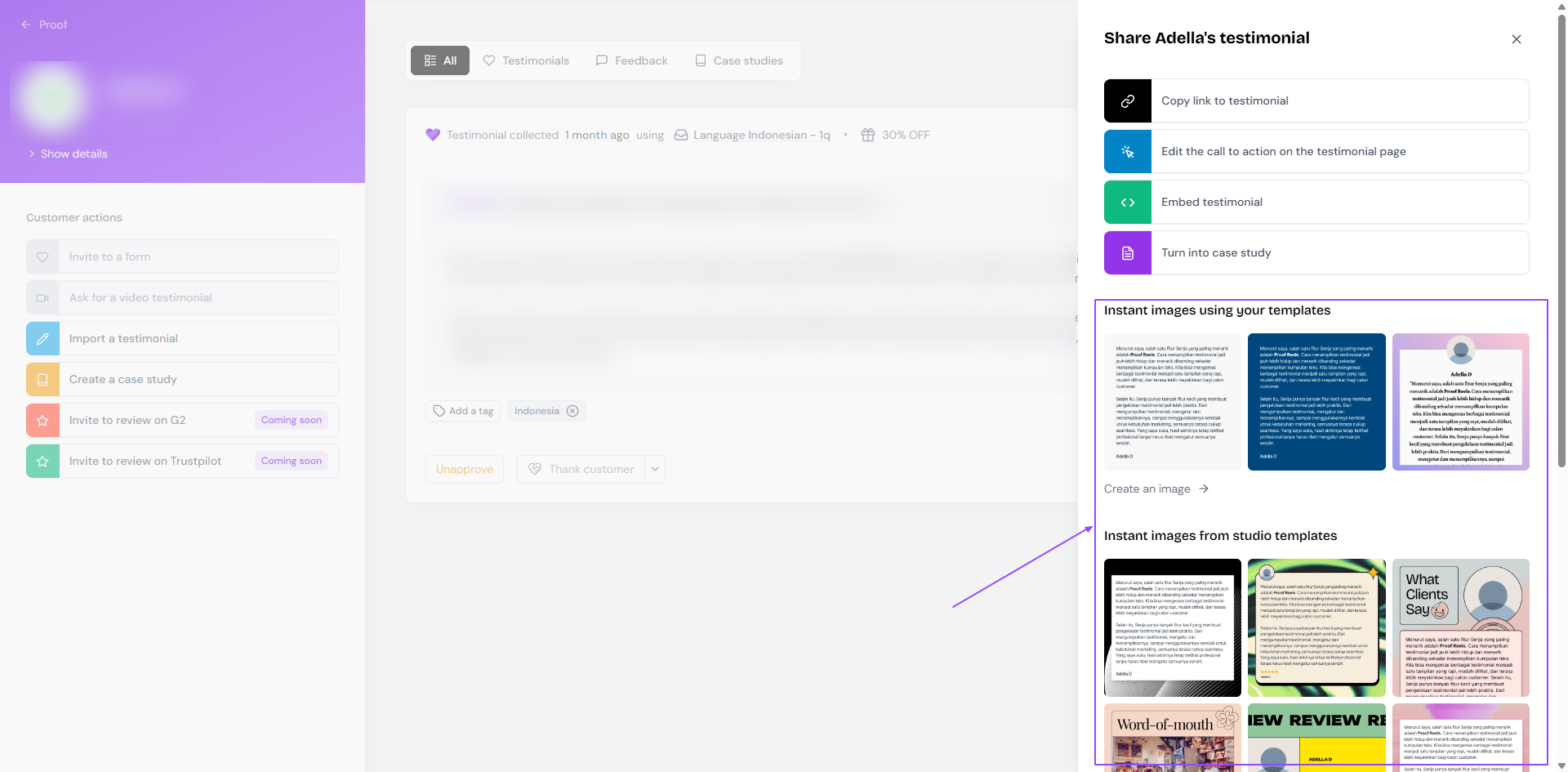
The image editor opens with that testimonial already added
Resize your image
In the image editor, click Resize in the top right
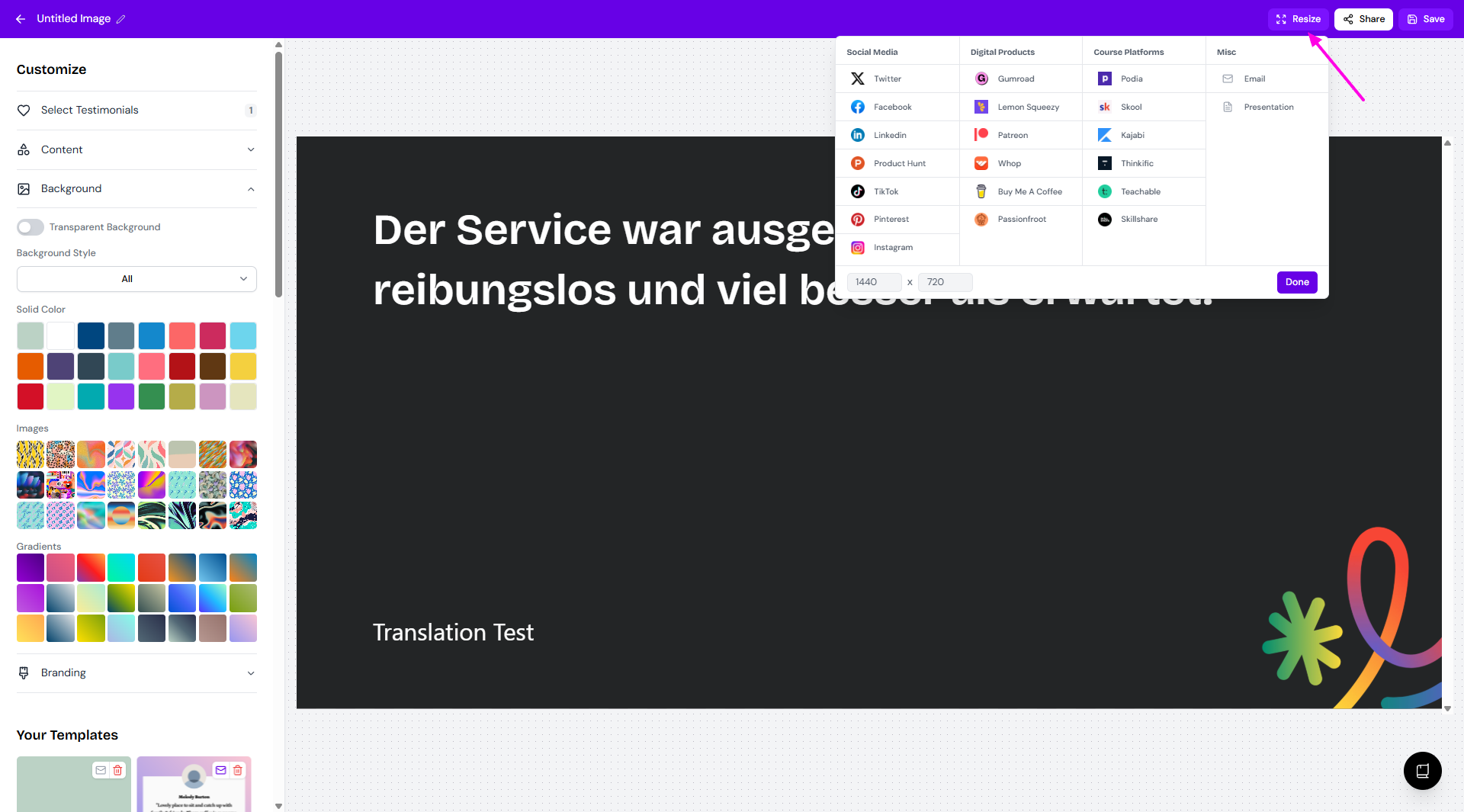
Choose how to resize:
By platform: pick a preset size, like Instagram, LinkedIn or Linktree
By dimensions: enter your own width and height
Download or copy your image
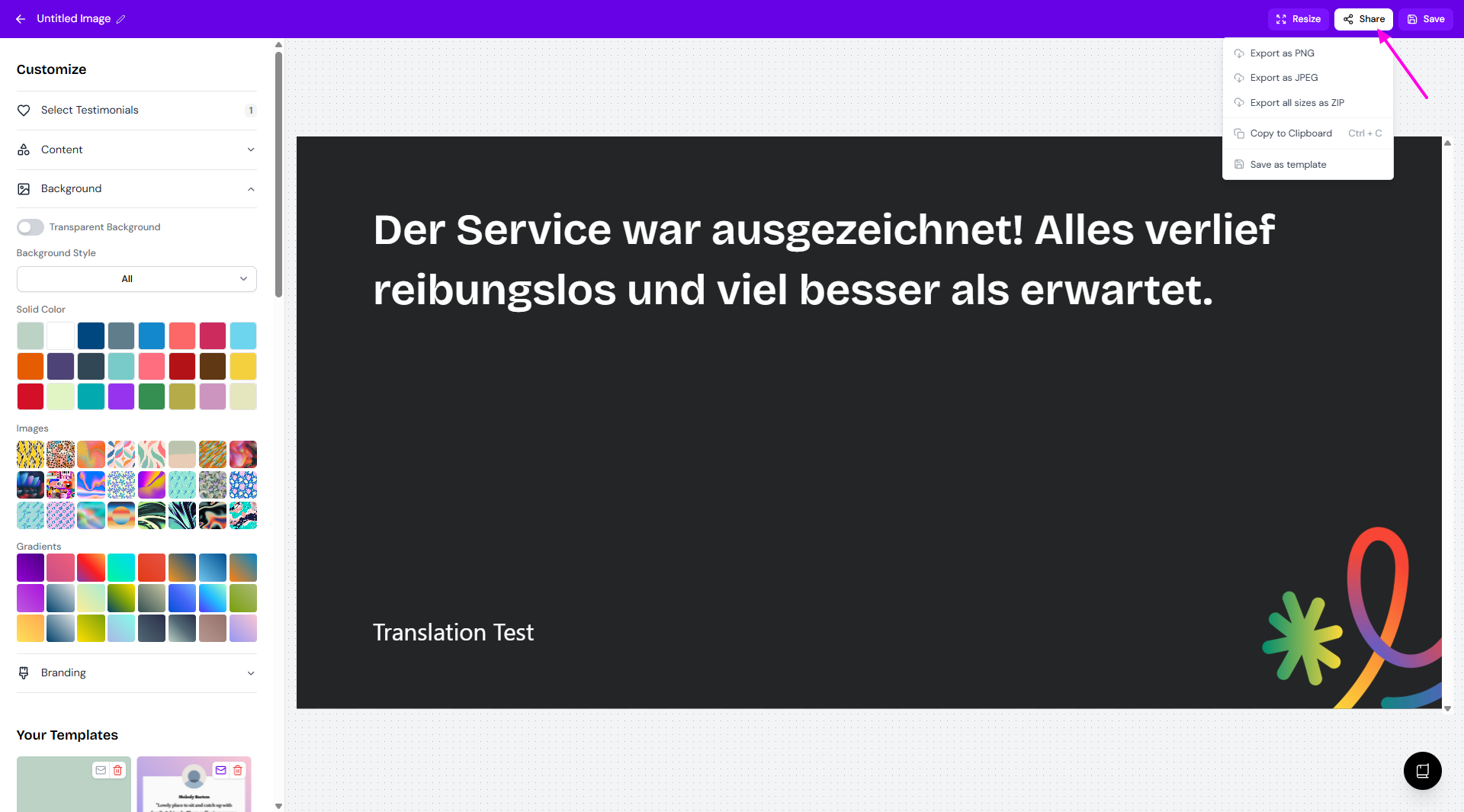
Click Share in the top right
Choose how you want it:
PNG, JPEG or ZIP to download it
Copy to Clipboard to paste it straight into an email, doc or post
Save and reuse a template
Made a design you like? Save it as a template, so your next images match without redoing the styling.
In the image editor, click Share → Save as template
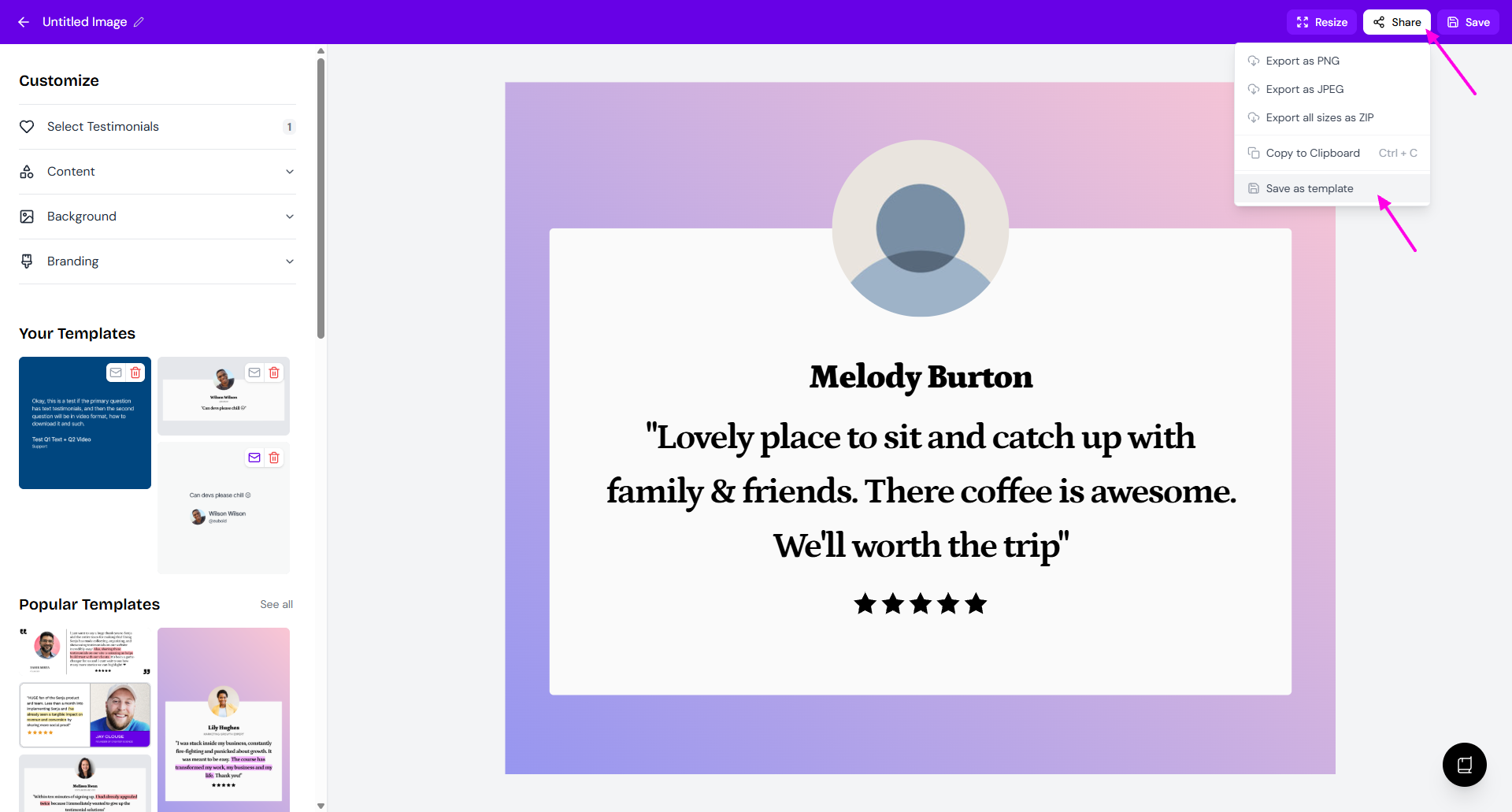
Your template now shows in the Your Templates section when you create an image
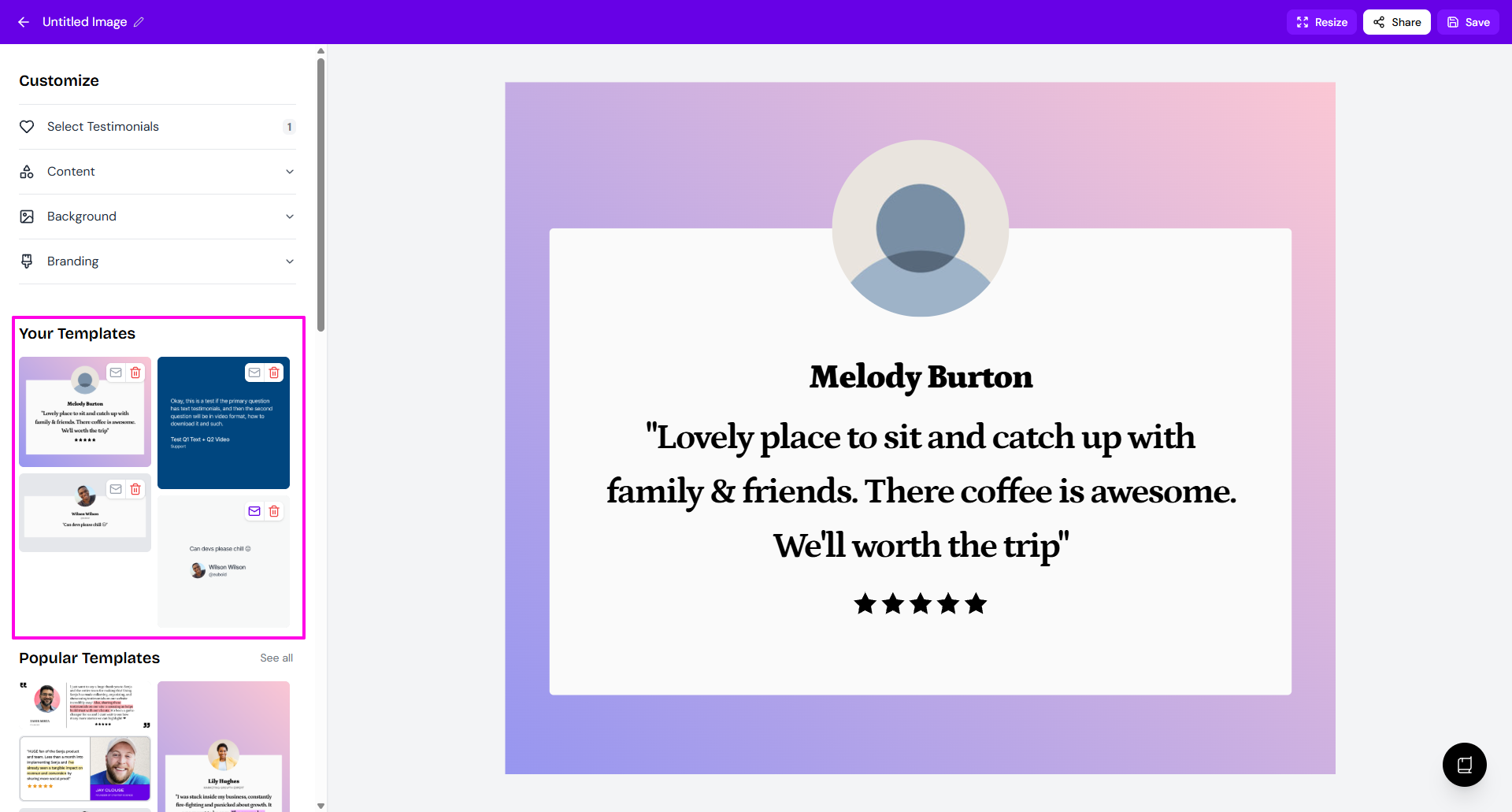
To use it, click it in Your Templates and your design is applied straight away
Want your own background in every image? In Customize → Background, choose Images as the Background Style and click Upload Image before you save the template.
Assign primary image template
Once you created an image template, you can use it as your main template in your email communications.
Go to Studio → Image: https://app.senja.io/studio?tab=images
Use/open the image template you want to to set as primary
Click the envelope icon to make it primary
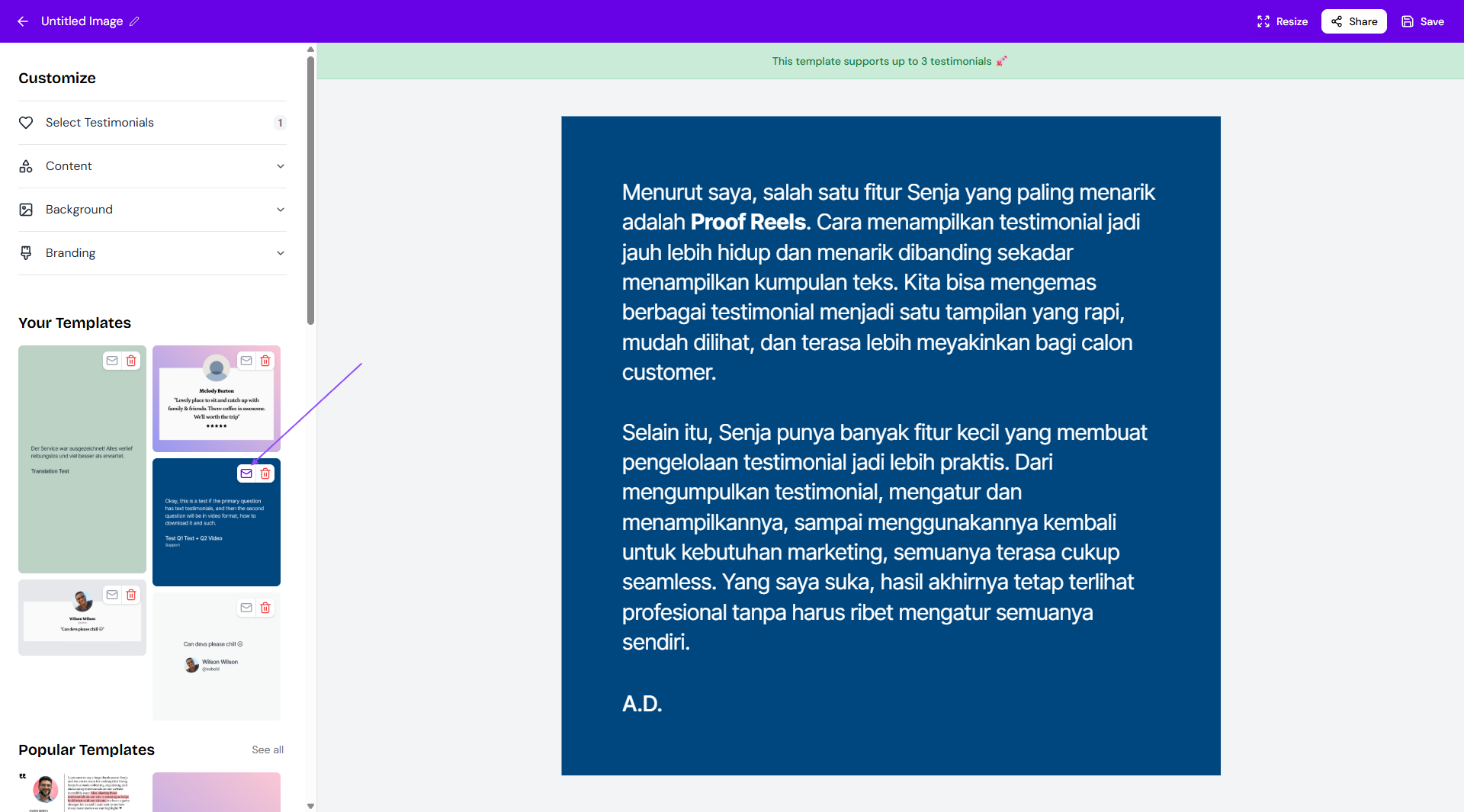
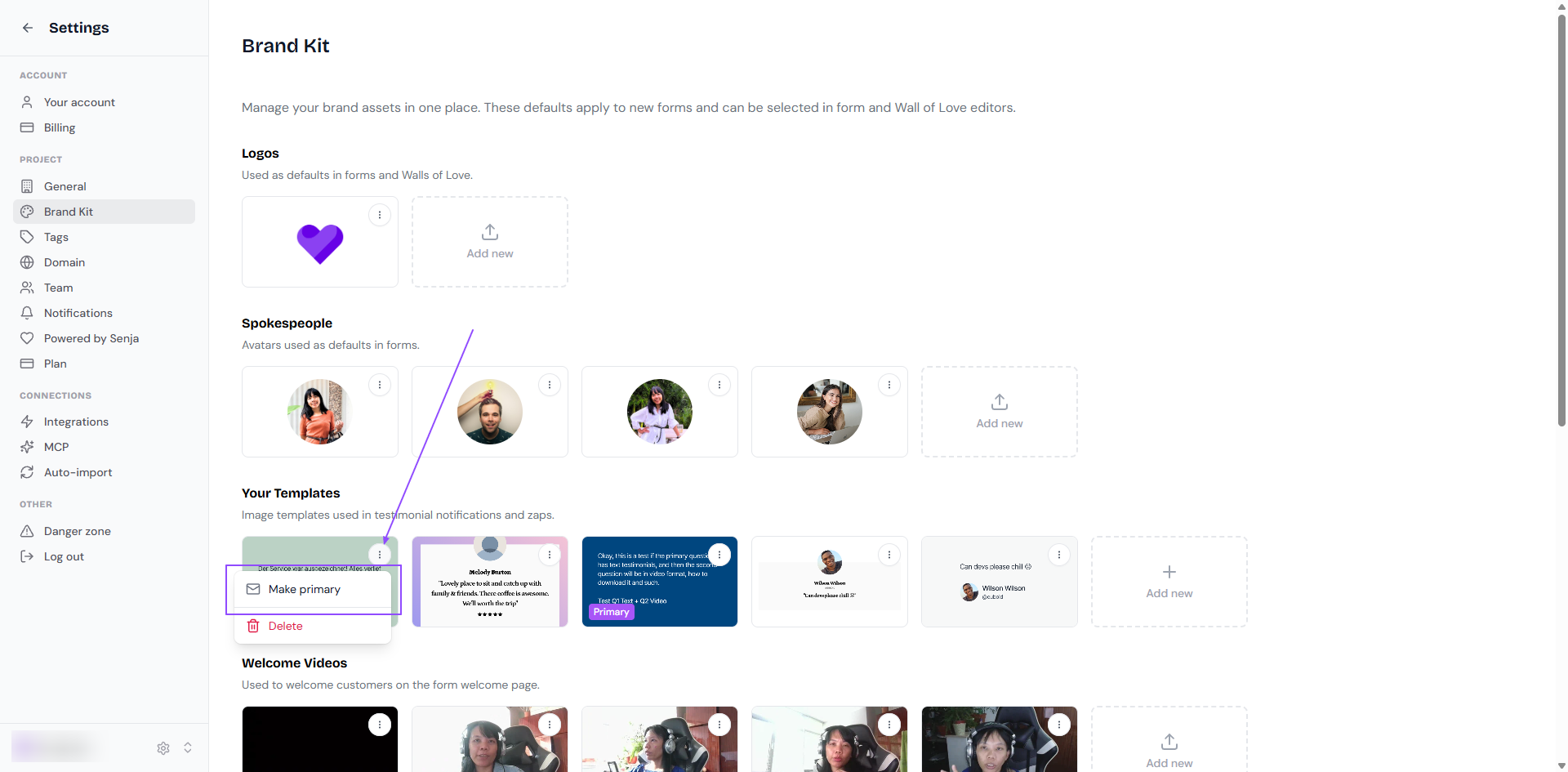
You can also do it from your Brand Kit:
Go to Brand Kit settings: https://app.senja.io/settings/brand-kit
Click the 3-dots on the image template you want as a primary
Choose Mark primary
Using your images somewhere specific? See How do I share my testimonials? for guides for each platform.