
How to create sizzle reels
Senja's sizzle reels creator uses our AI Director to automatically transform your video testimonials into compelling, ready-to-share sizzle reels.
This is available on all Senja plan (Free, Starter, and Pro) with 5 sizzle reels credit per month.
Start creating
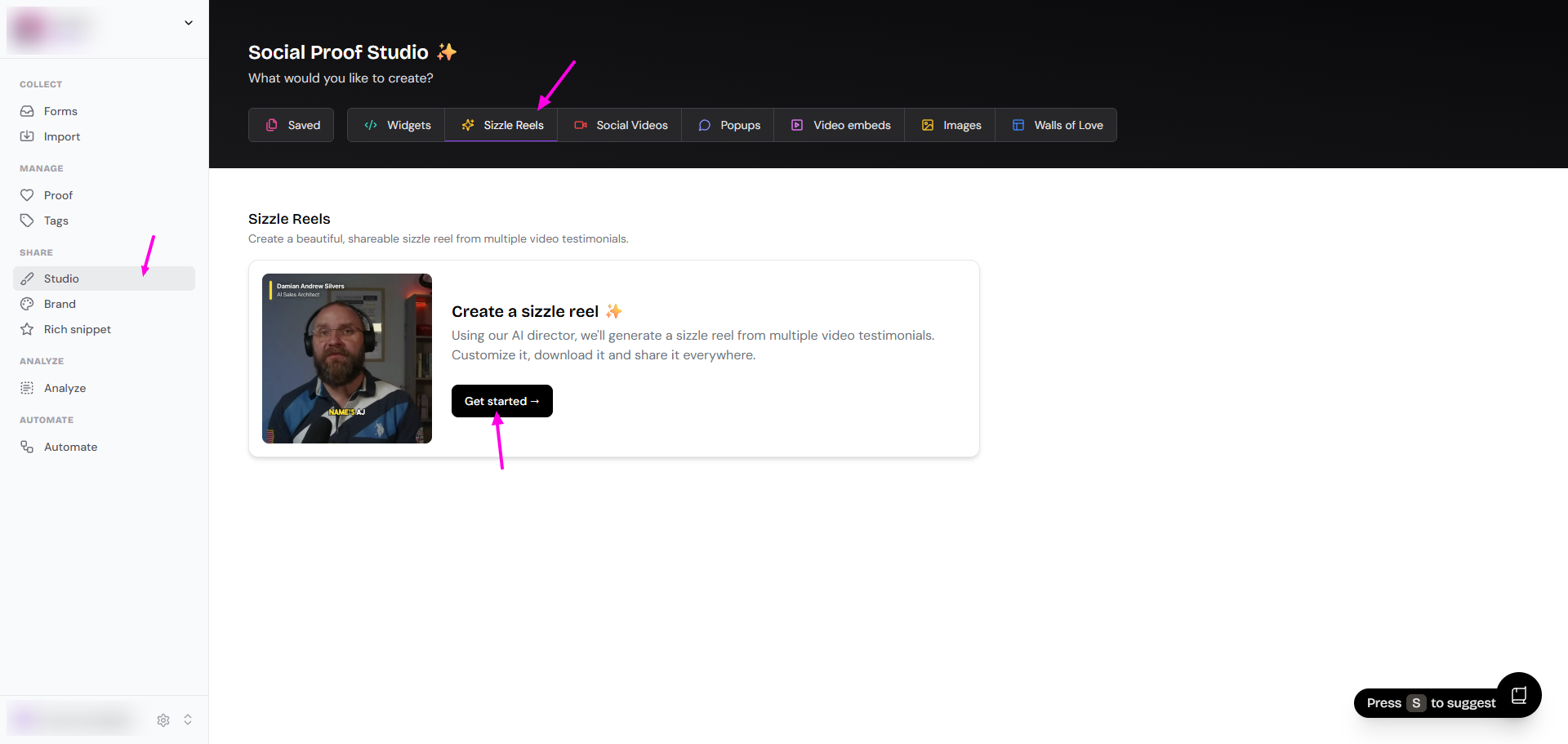
Go to your Studio page: https://app.senja.io/studio
Click Sizzle Reels tab
Click Get started
For a detailed guide on creating sizzle reeels, watch this video tutorial.
Workflow overview
You will go through 4-steps process:
Duration: Choose the length of your video
Testimonials: Select the videos you want to include
Direction: Tell our AI Director the story you want to tell
Review: Customize and download your finished sizzle reel
Step 1: Choose the duration
First, decide how long you want your final sizzle reel to be. This helps the AI Director pace the video and select the best clips to fit the timeframe.
On the Create a magic video ✨ screen, you'll see several duration options.
Click on your desired length (e.g., 30 seconds, 45 seconds, 1 minute).
Click the Continue button to proceed
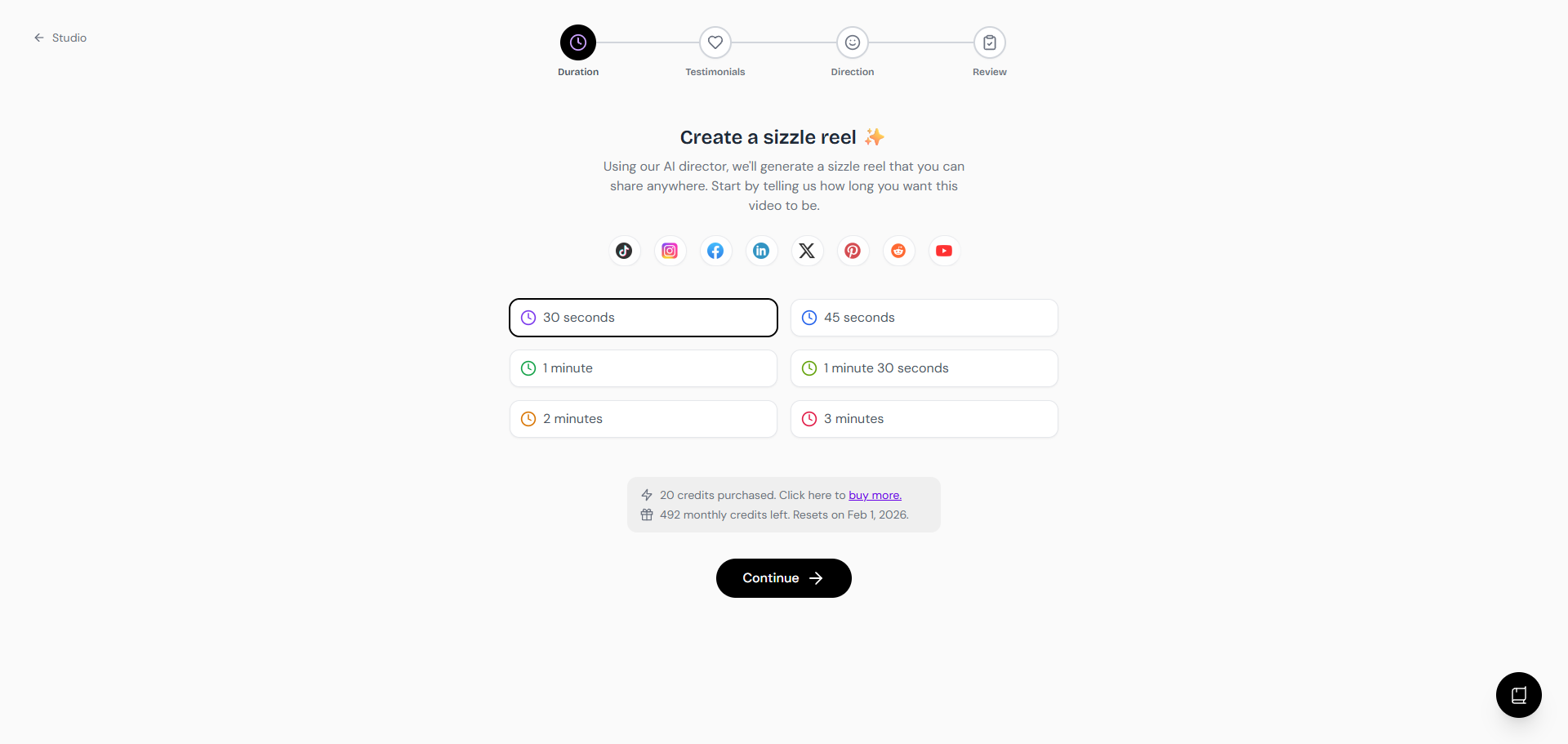
On this section, you can also see the remaining credit of your sizzle reels. You'll have 5 new credits every month.
Step 2: Select your testimonials
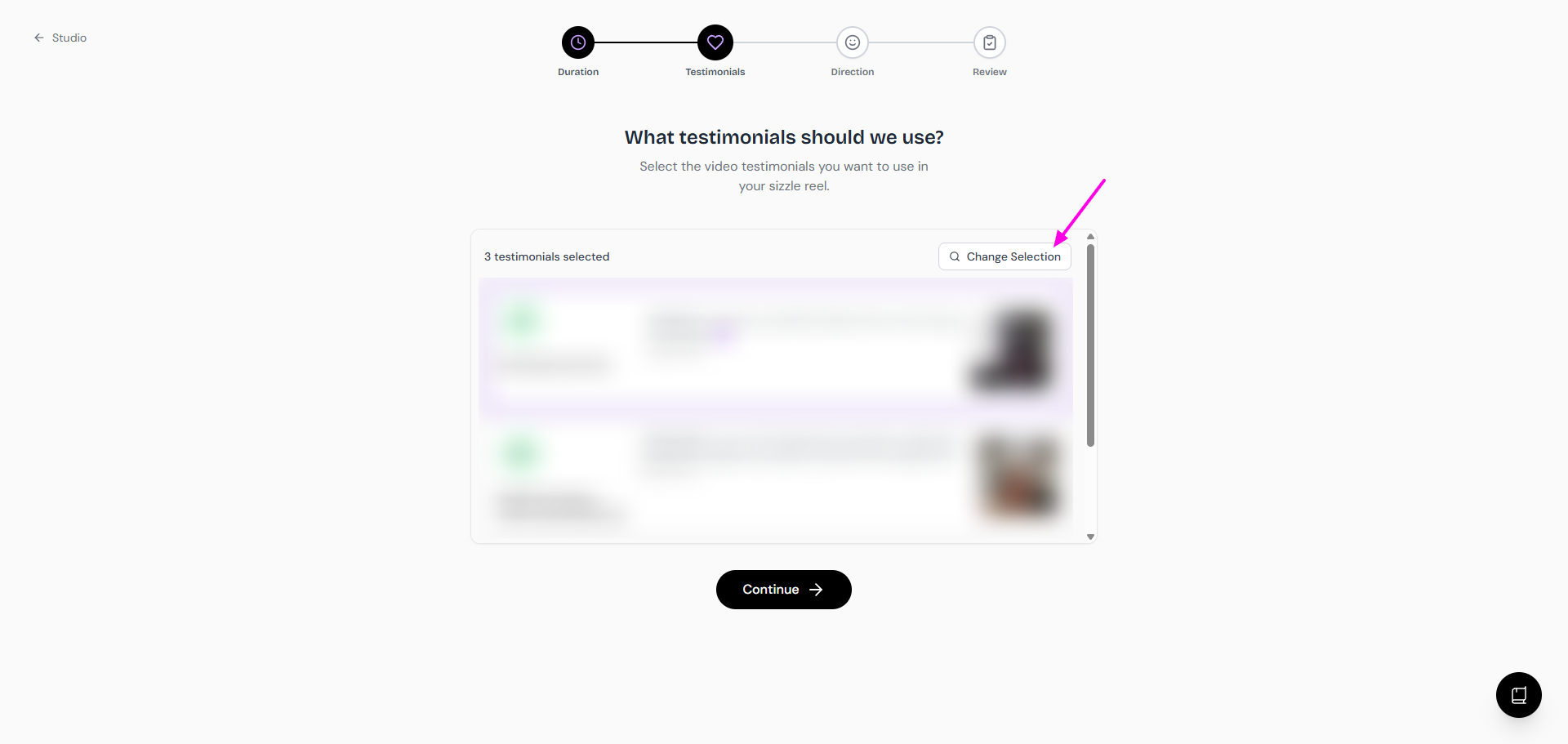
Next, choose the source material for your video. You can choose up to 5 videos.
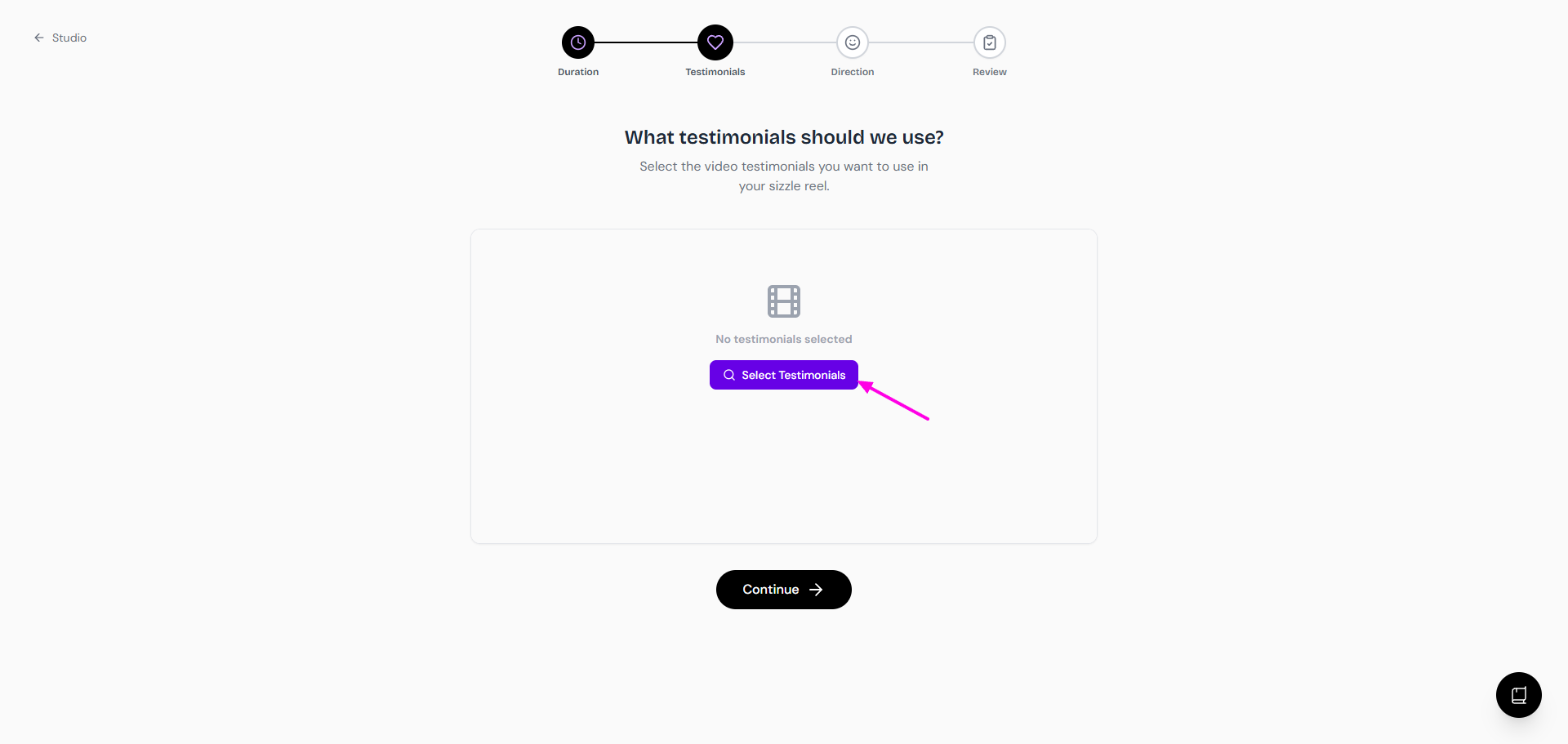
If you want to change the testimonials after you select them, you can click Change Selection.
Important: Sizzle reels only works with video testimonials—it does not animate still images with audio. If you select testimonials that contain only text or still images with audio, they will not appear in your sizzle reels.
Step 3: Direct the AI
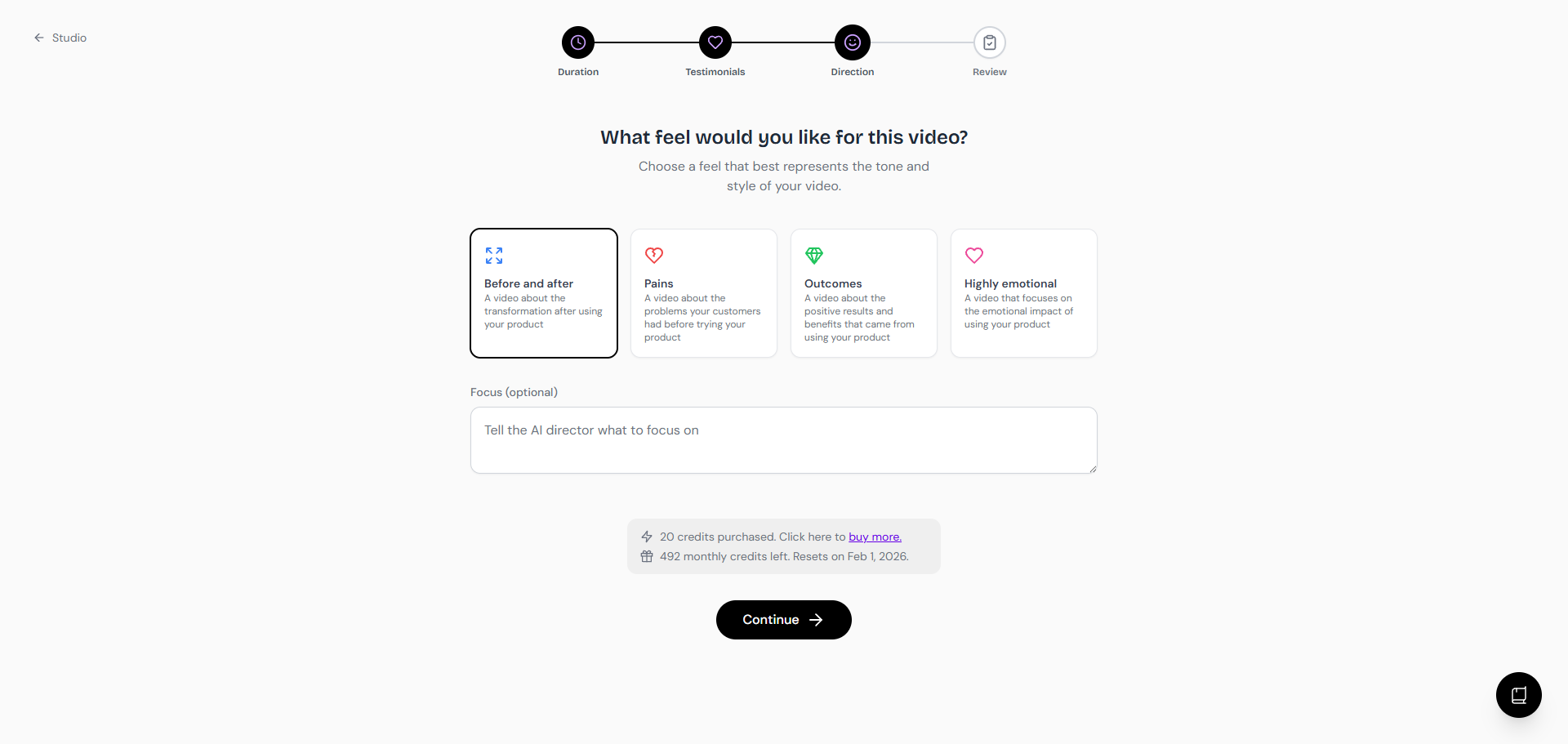
This is where you give our AI Director creative instructions. You can choose a pre-defined "feel" for the video and even provide a custom focus.
Choose a Feel
Select a theme that best represents the tone and style you're aiming for.
Before and after: Creates a narrative focused on the transformation your customers experienced.
Pains: Highlights the problems and challenges customers faced before using your product.
Outcomes: Focuses on the positive results, benefits, and successes customers achieved after using your product.
Highly emotional: Creates a video that pulls at the heartstrings by focusing on the emotional impact of your product.
Focus (Optional)
For even more customization, you can give the AI Director a specific text prompt. Use the Tell the AI director what to focus on text box to guide the narrative.
Example prompt: "Create an energetic video focusing on how our product saves users time and makes their workflow easier."
Once you've made your selections, click Continue.
Step 4: Review, customize, and download
Now, sit back and relax. If this is your first time generating a video, you will see the Sizzle Reels Generator start up. Our AI is hard at work:
Uploading testimonials
Fetching transcripts
Reading timestamps
Feeding to our most powerful model
Generating script
Filming clips
Stitching everything together
Adding royalty-free music
Downloading final result
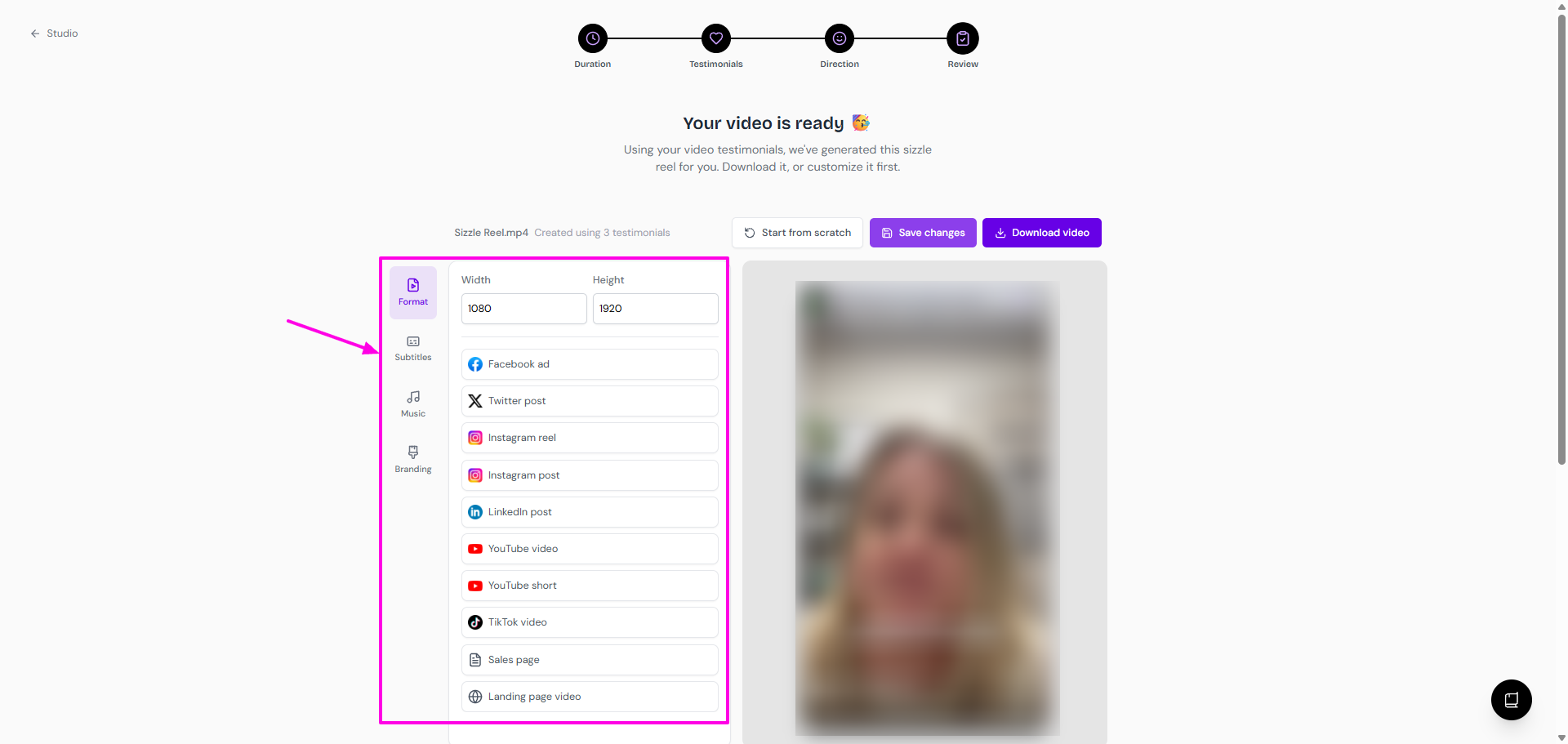
Your sizzle reel is ready! On the final screen, you can preview your video and use the powerful editor on the left to fine-tune every detail before you download.
Already have a sizzle reel?
The sizzle reels that you've created will go to your Saved tab in the Studio: https://app.senja.io/studio
Click on the saved sizzle reels to edit/download it
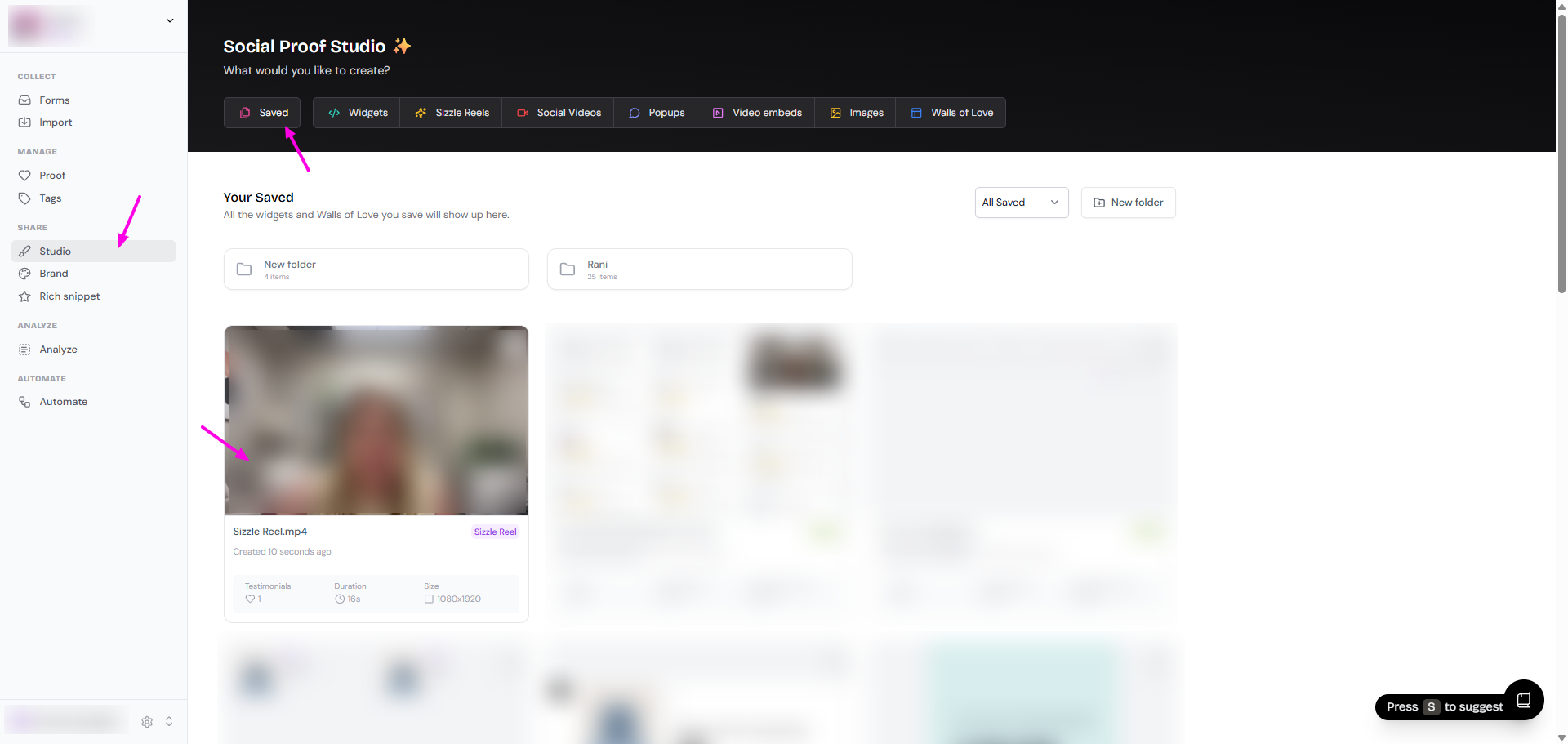
You'll be directed to the Review page
Make the changes as you wish, Save changes, and Download video
Editing options
Format
Quickly resize your video for any platform.
Select from presets like Instagram reel, TikTok video, YouTube short, or Facebook ad
Alternatively, you can enter a custom Width and Height
Subtitles
Make your video accessible and engaging with customizable subtitles.
Enable/disable the subtitles
Choose a Subtitle Font
Set a Highlight Color for keywords
Adjust the Font Size and Vertical Position (Top, Middle, Bottom)
Music
Add a backing track to enhance the mood of your video.
Enable/disable music
Browse and select a track from our royalty-free library.
Branding
Ensure the video matches your brand identity perfectly.
Set your Primary Color
Toggle the visibility of the Customer Tagline, Customer Company, and the Show Senja branding options
Once you are satisfied with all your customizations, click the purple Download video button to save the file to your computer. You're now ready to share it with the world!
Managing your sizzle reels credits
Sizzle Reels Maker operates on a credit system. You have two types of credits:
Monthly Allowance: These are free 5 credits that are included with your plan and reset every month
Purchased Credits: You can buy these credits at any time and they do not expire
You can see your credit balance in the banner at the bottom on the Duration section. It will show both your purchased credits and your remaining monthly credits.
The banner will display a message like:
{X} credits purchased. Click here to buy more.
{Y} monthly credits left. Resets on {Date}.
How to buy more credits
If you run out of credits, you can easily purchase more:
In the credits banner, click on the buy more link.
You will be redirected to our secure payment page, powered by Stripe
After a successful purchase, you'll be taken back to the Sizzle Reels Maker
A confirmation message will appear: Credits purchased! Thanks for buying credits! It might take a few minutes for them to be show up in your account.
Troubleshooting
Here are some common issues you might encounter:
"Video Generation Failed" Error
If you see a Video Generation Failed error, it could be for a few reasons.
The most common is that you don't have enough credits. The error message will specify if that's the case. If so, you'll need to purchase more credits to proceed.
If the error is not credit-related, try clicking the Retry button. If the issue persists, please contact our Support team.
"No credits left" message
If you see a No credits left. Buy more to generate more videos. message, it means you've used up both your monthly allowance and any purchased credits.
To continue creating videos, you'll need to purchase more credits using the buy more link in the credits banner.
Videos cutting off mid-sentence
Our AI Director does its best to create natural-sounding edits, but sometimes it might cut a sentence a little short.
If this happens, you can try regenerating the video with a slightly different Focus in the Direction step. Providing more specific instructions can often lead to a better result.
No video output or still-image with audio
If your sizzle reel shows only a still image with audio or doesn't produce video clips as expected, the selected testimonials likely do not contain video content.
Sizzle reel only works with video testimonials that have recorded video footage.
Verify that the testimonials you selected are actual video recordings, not just images or text testimonials
If you've uploaded a still image with an audio file, sizzle reels cannot animate it—you'll need actual video testimonials
Go back to Step 2 and ensure you're selecting testimonials that have the video icon
Selected testimonials not appearing in sizzle reels
If some of your selected testimonials don't appear in the final video:
Check that all selected testimonials are video testimonials with actual video footage
Text-only or image-based testimonials will be filtered out automatically
Only testimonials with video content and transcripts can be used by the AI Director