
How to add testimonials to Weblium
You can embed your Senja testimonial widgets into your Weblium website using the embed code. Here's how to add testimonials to Weblium with Senja.
Before you begin: You'll need a Weblium Pro plan to add custom code to your site.
What you can do
Upload testimonials to Weblium as images? | Yes |
Add widgets to Weblium using the Senja code snippet? | Yes |
Add testimonials to Weblium with an app integration? | No |
The steps
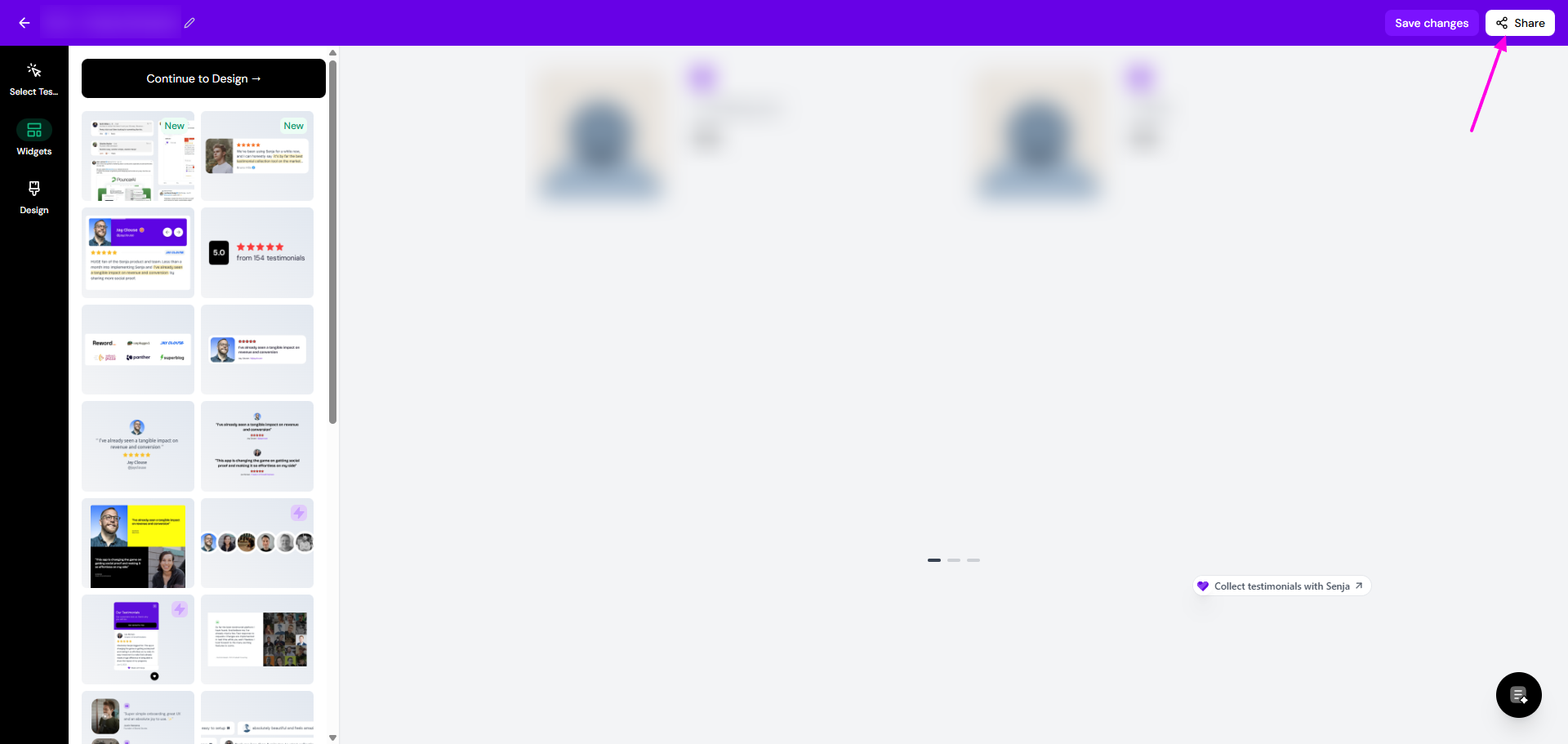
Click Share
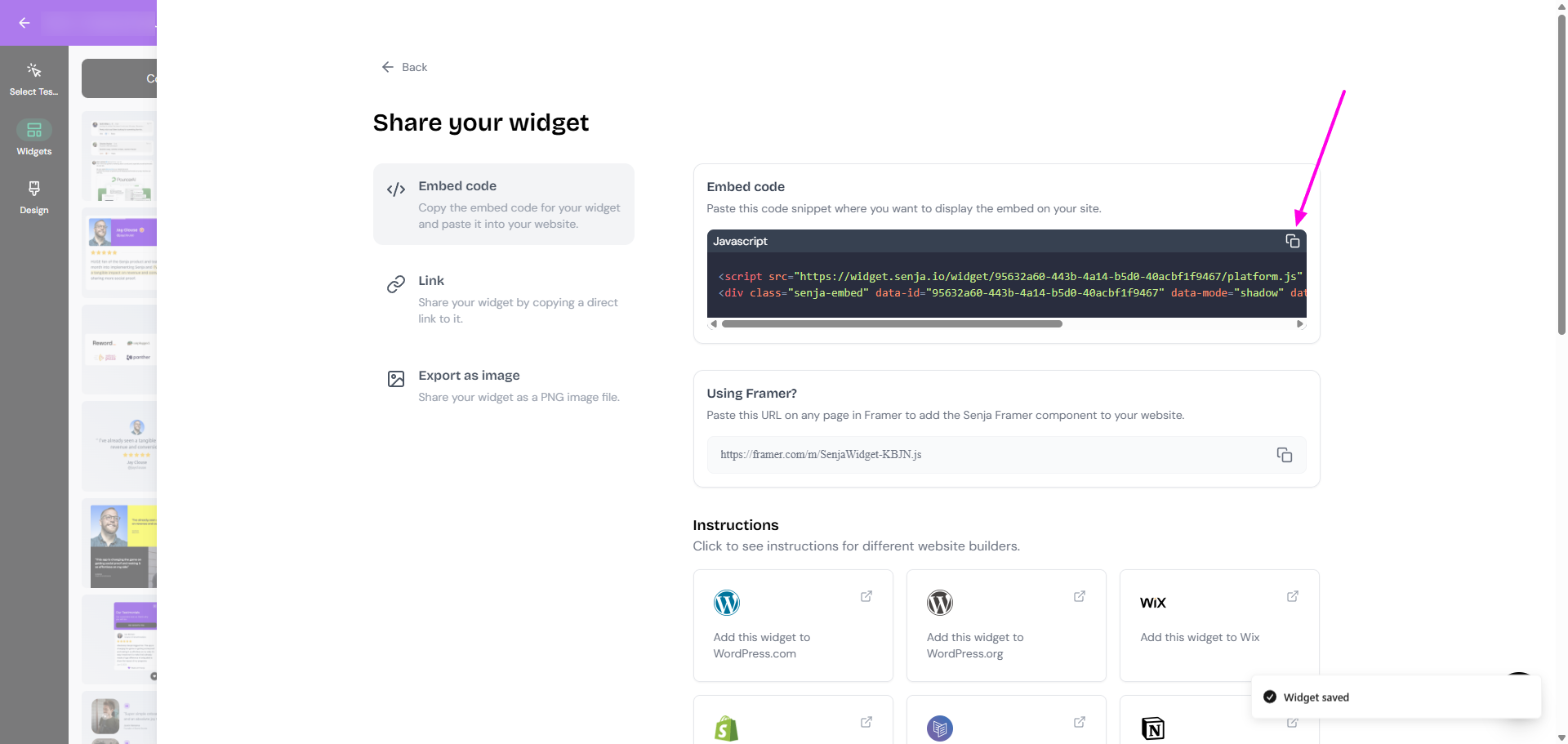
Click on the copy icon on the Embed code box
Want a faster way to copy your widget code? Use Senja's free Chrome Extension to copy your widget code and form URLs without leaving the page you're on.
Add the widget to Weblium
Go to your Weblium account: https://weblium.com/
Go to the page where you want to add your testimonial widget
In the Weblium editor, go to the Block gallery
Find and add the Embed code block to your page
Hover over the embed code block and click the gear icon
Paste the Senja widget embed code
Click Save
Click the Publish button to make your testimonial widget live
Your testimonial widget is now live on your Weblium website 🥳 Not working? Contact our Support and we'll assist you.