
How do I select testimonials for my widget
You can choose which testimonials appear in your widget using filters or manual selection. This lets you show only the most relevant testimonials for each page or campaign.
You can read how to create widget in How do I turn my testimonials into a widget?
Testimonial selection mode
Senja offers 2 options to select your testimonials:
Auto-add — Set filters once, and new testimonials that match will automatically appear in your widget
Manual selection — Hand-pick specific testimonials; the widget won't update when you receive new ones
Change the selected testimonials
If you want to change the testimonials in your existing widget:
Go to your Studio page: https://app.senja.io/studio
Open your widget
Click Select Testimonials
Click Continue
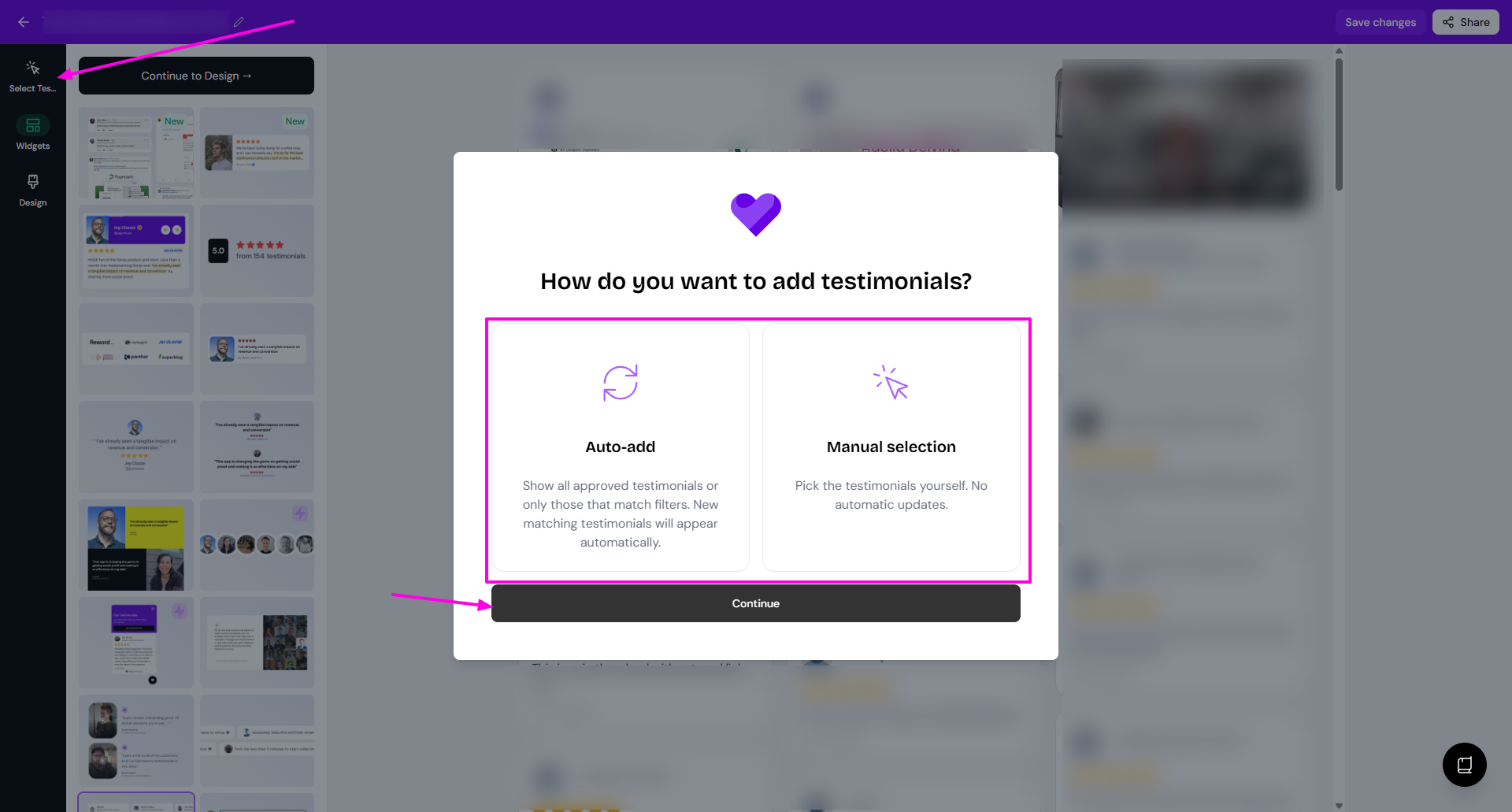
You can set the Filters if you want a specific type of testimonials
Finish the selection
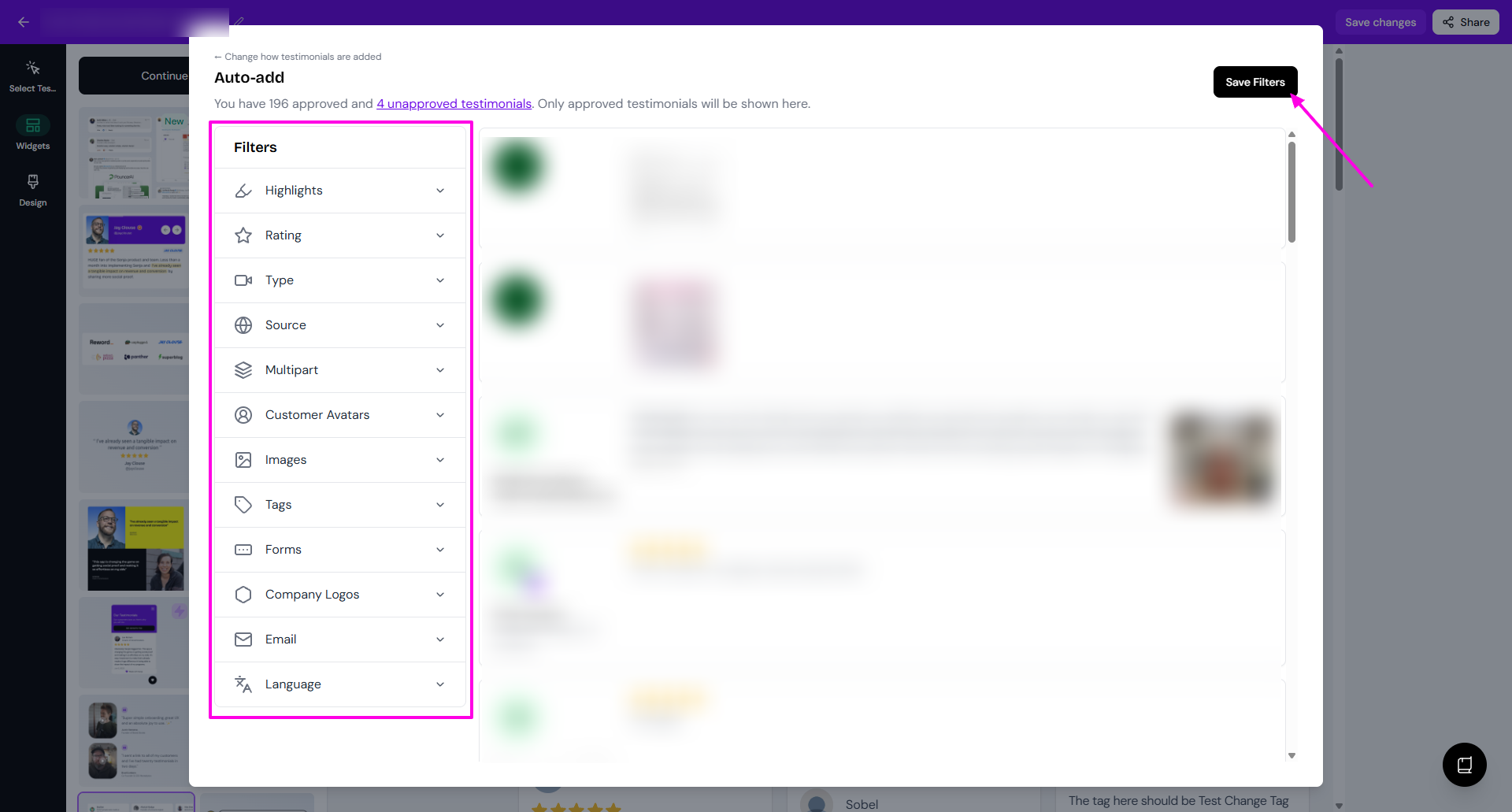
Auto-add: click Save Filters
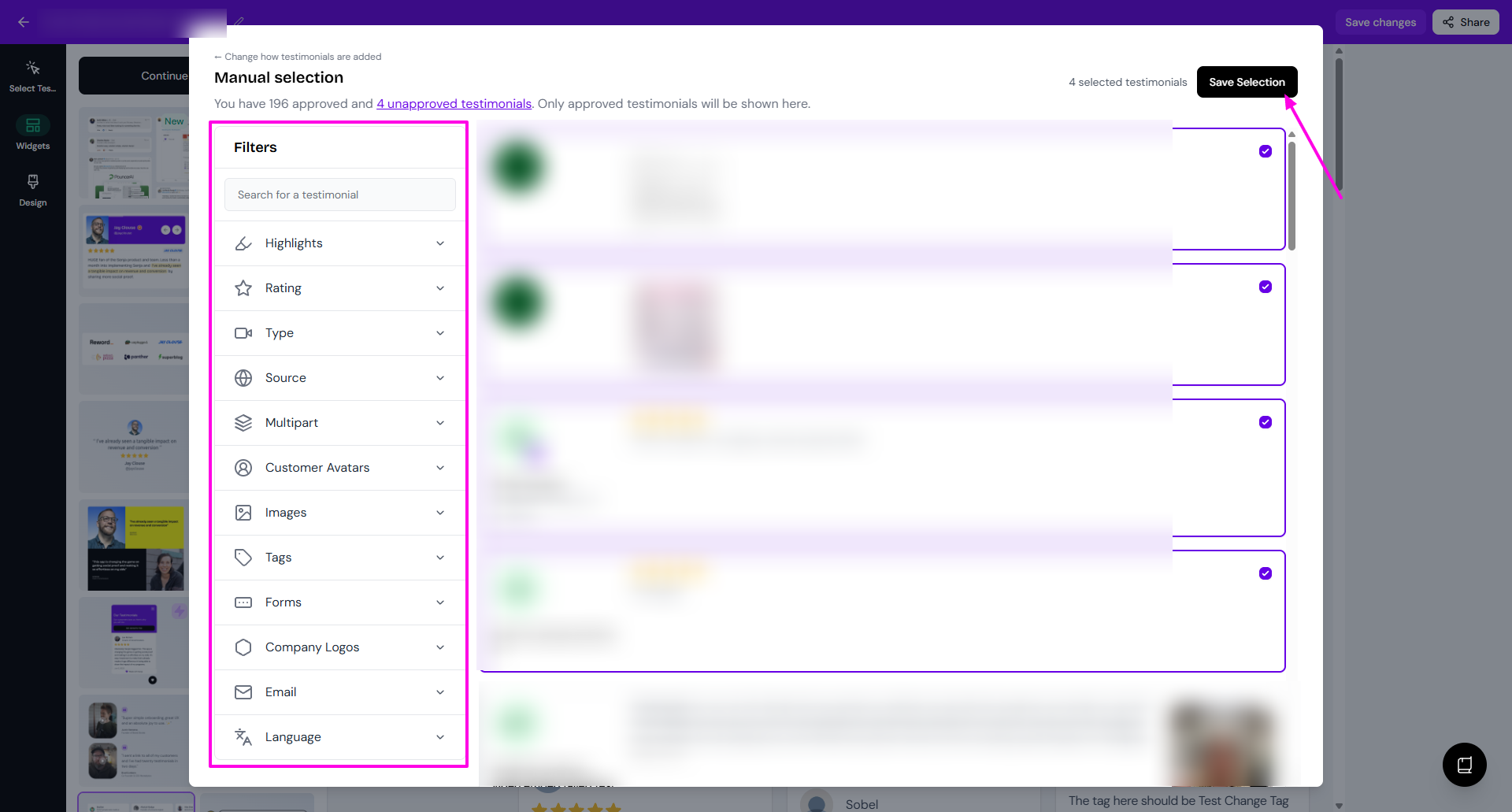
Manual selection: put the check mark on the testimonials that you want, and then click Save Selection
Filter testimonials (Auto-add mode)
Use the filters sidebar to narrow down which testimonials appear:
Highlights: All testimonials, Only with highlight, Only without highlights
Rating: 1 - 5 stars
Type: All testimonials, Only text, Only video
Source (only 1 choice possible): Senja, Twitter, Product Hunt, Google, ...
Multipart (if you have testimonials collected with multiple-questions form): Show primary response only, Show all responses, Use Multiclip (video responses only)
Customers Avatar: All testimonials, Only with avatar, Only without avatar
Images: All testimonials, Only with images, Only without images
Tags (you can select multiple tags)
Forms (you can select multiple forms)
Company Logos: All testimonials, Only with company logo, Only without company logo
Email: All testimonials, Only with email, Only without email
Language (only 1 choice possible): All languages, Englih, Mandarin Chinese, ...
The preview updates as you adjust filters. Click Save Filters when you're done.
Pick testimonials manually
In Manual selection mode, use the search bar or filters to find testimonials, then click to select them. Selected testimonials appear with a badge showing the count.
Click Save Selection when you're done.
You can also filter widgets by URL using query parameters. See how to filter by URL for dynamic filtering.
Add section filters (optional)
For Walls of Love, you can add clickable filter tabs so visitors can browse by category. Go to Design > Filters and create tabs based on your tags.
Learn more in How to add filters to your Wall of Love.