
How do I customize my form design?
Make your form look like it belongs to your brand. You can change your logo, colors, fonts, layout, and button style, all from the Design subtab.
This is available on all Senja plans: Free, Starter, and Pro. Removing Senja branding needs a paid plan (Starter or Pro).
Open the Design subtab
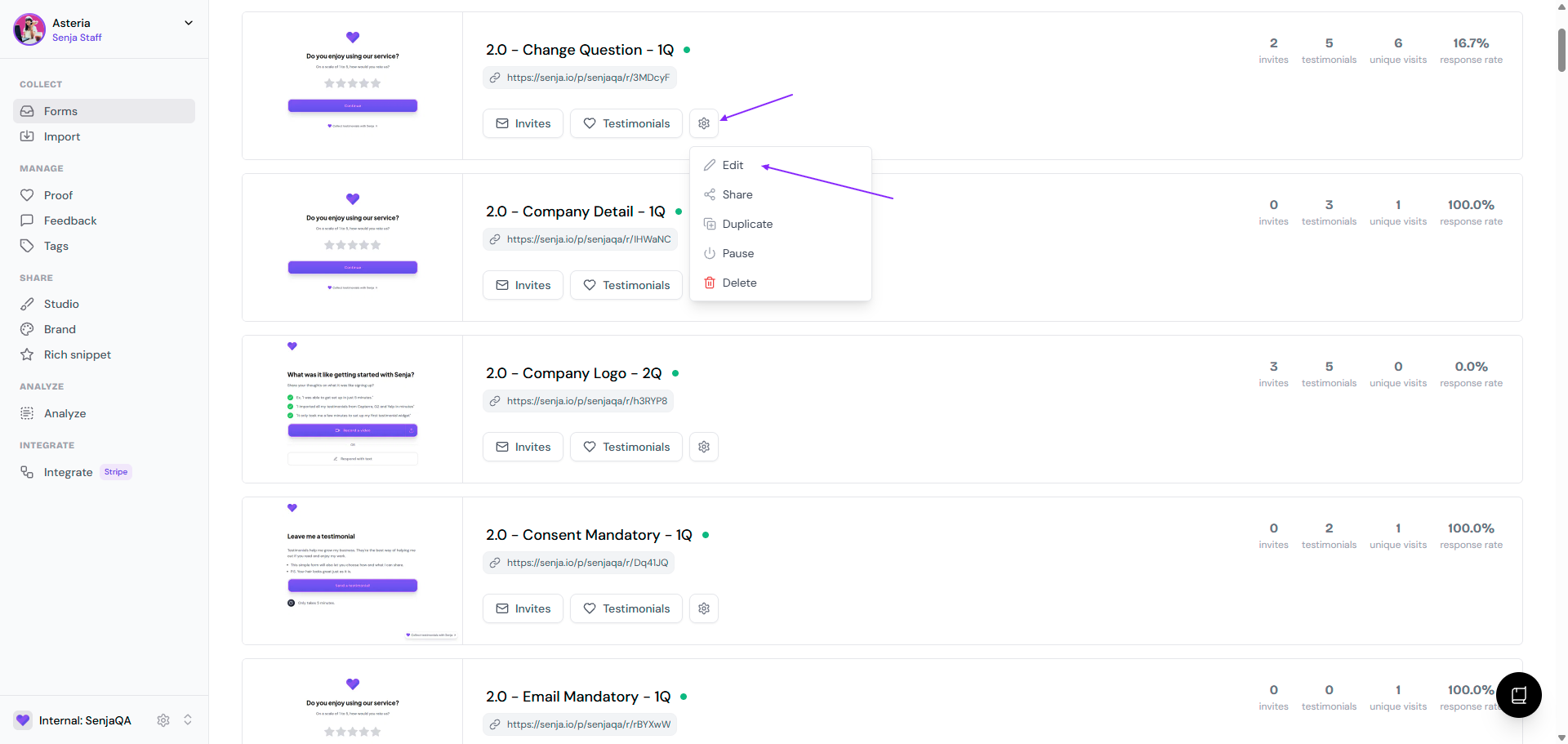
Go to your Forms page: https://app.senja.io/forms
Click the ⚙️ icon on your form and choose Edit
Stay in the Form tab and click the Design subtab
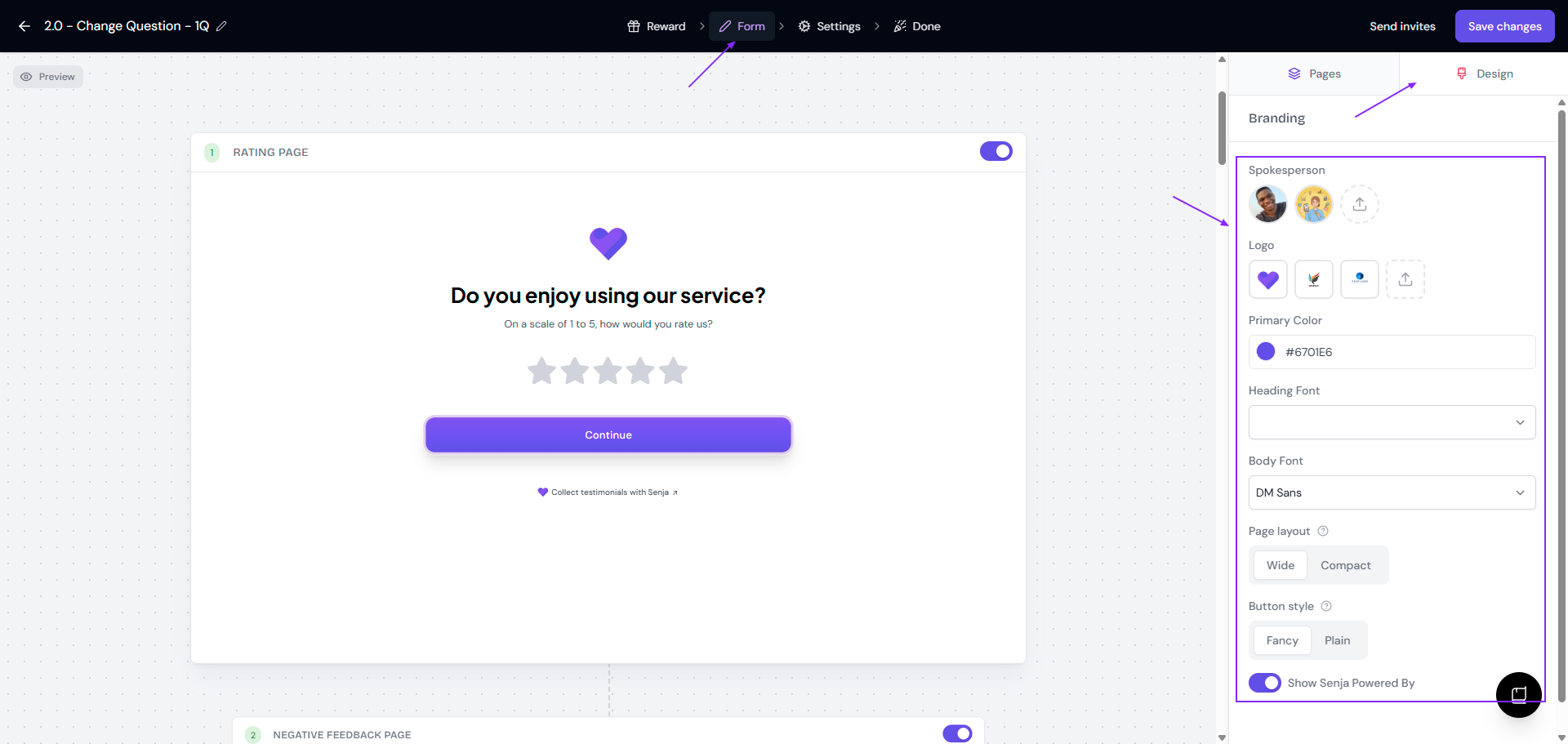
Make your changes, then click Save changes
Changes appear in the preview instantly, so you can see how your form looks before saving.
What you can change
Spokesperson avatar: the face your customers see on the form (click on the chosen avatar to remove the avatar completely)
Logo: shown at the top of your form (click on the chosen logo to remove the logo completely)
Primary color: used for your buttons
Fonts: one for headings and one for body text
Page layout: wide or compact
Button style: fancy or plain
Senja branding: remove the "Powered by Senja" badge (paid plans only)
Want the same logo, colors, and fonts across everything you make in Senja? See How to set up and use your brand kit.
Looking for something else?
Questions, button text, and other copy: see How to set up questions and pages in Senja form
Rewards for customers who submit: see How to reward customers for testimonials
Form link, tags, notifications, and the confirmation email: see How to set up the form settings