
How to find your Senja account and email
Not sure if you have a Senja account, or which email you used for it? This article shows how to check, how to find your email and website once you're logged in, and what to do if you can't remember your email at all.
This is applicable on all Senja plans: Free, Starter, and Pro.
Check if an email has a Senja account
Go to the Senja login page: https://app.senja.io/signin
Enter the email address you want to check and click Continue
Senja shows one of two results:
Account exists: you'll get a login link or password reset email
No account found: you'll see a message saying the email isn't registered
Not sure which email you used? Try each address you commonly use, like your work and personal email.
Forgot your password?
On the login page, click Forgot Password?
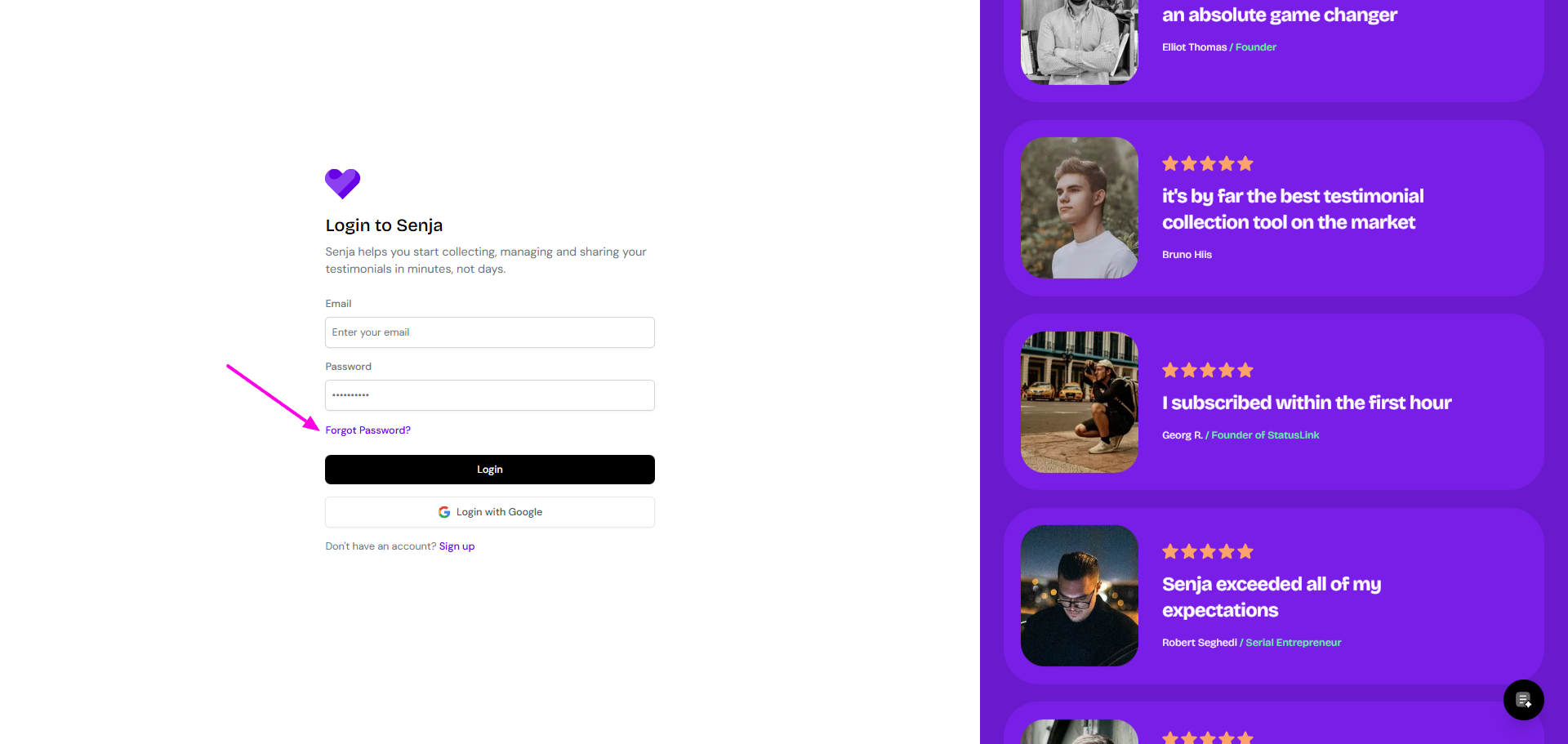
Enter your email and follow the instructions in the reset email
More details in How to manage your account.
Find your email when you're logged in
From your avatar
Log in to Senja: https://app.senja.io/signin
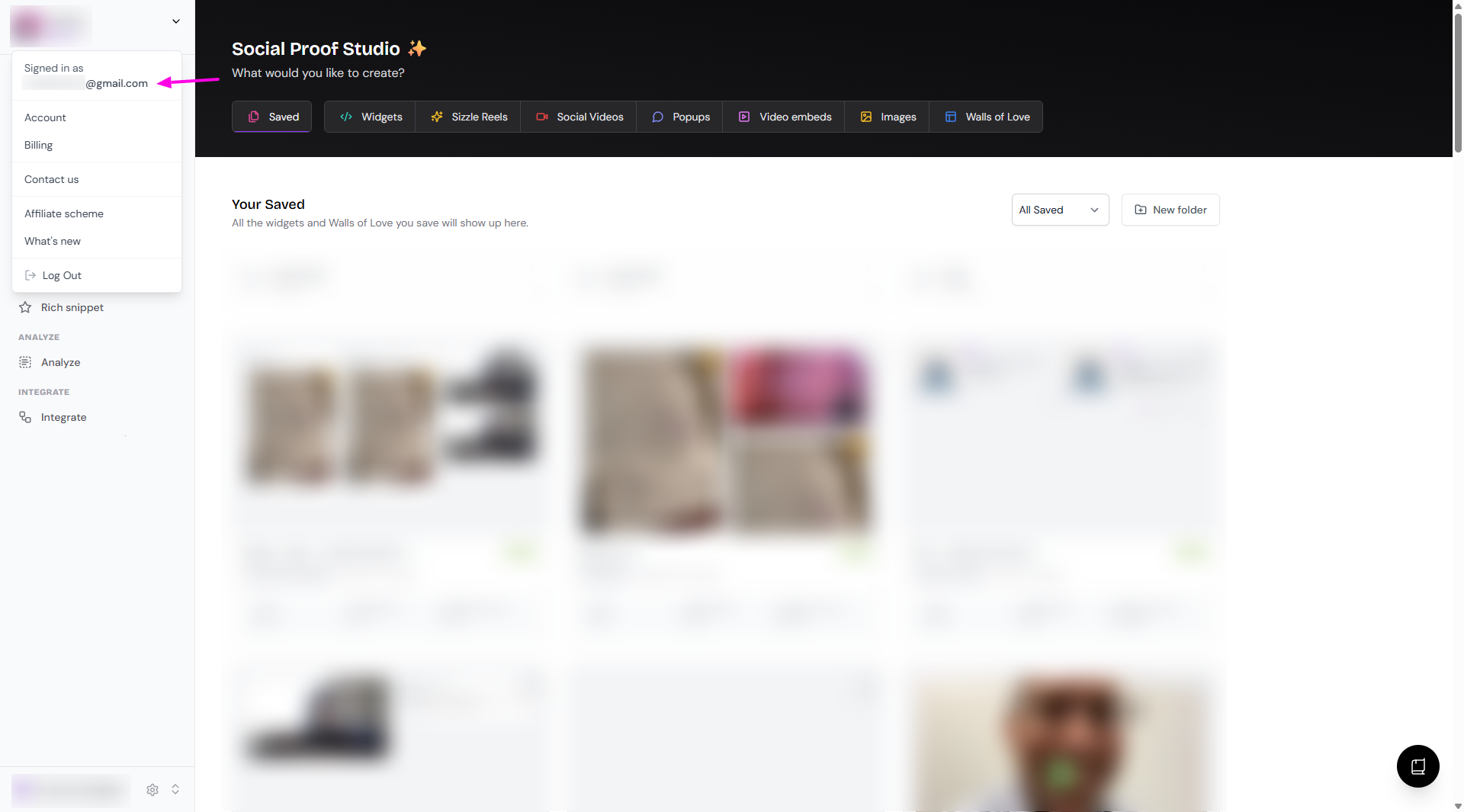
Click your avatar in the top left
Your email appears at the top under Signed in as
From your account page
Go to Your account: https://app.senja.io/account
Your email is under Personal information → Email
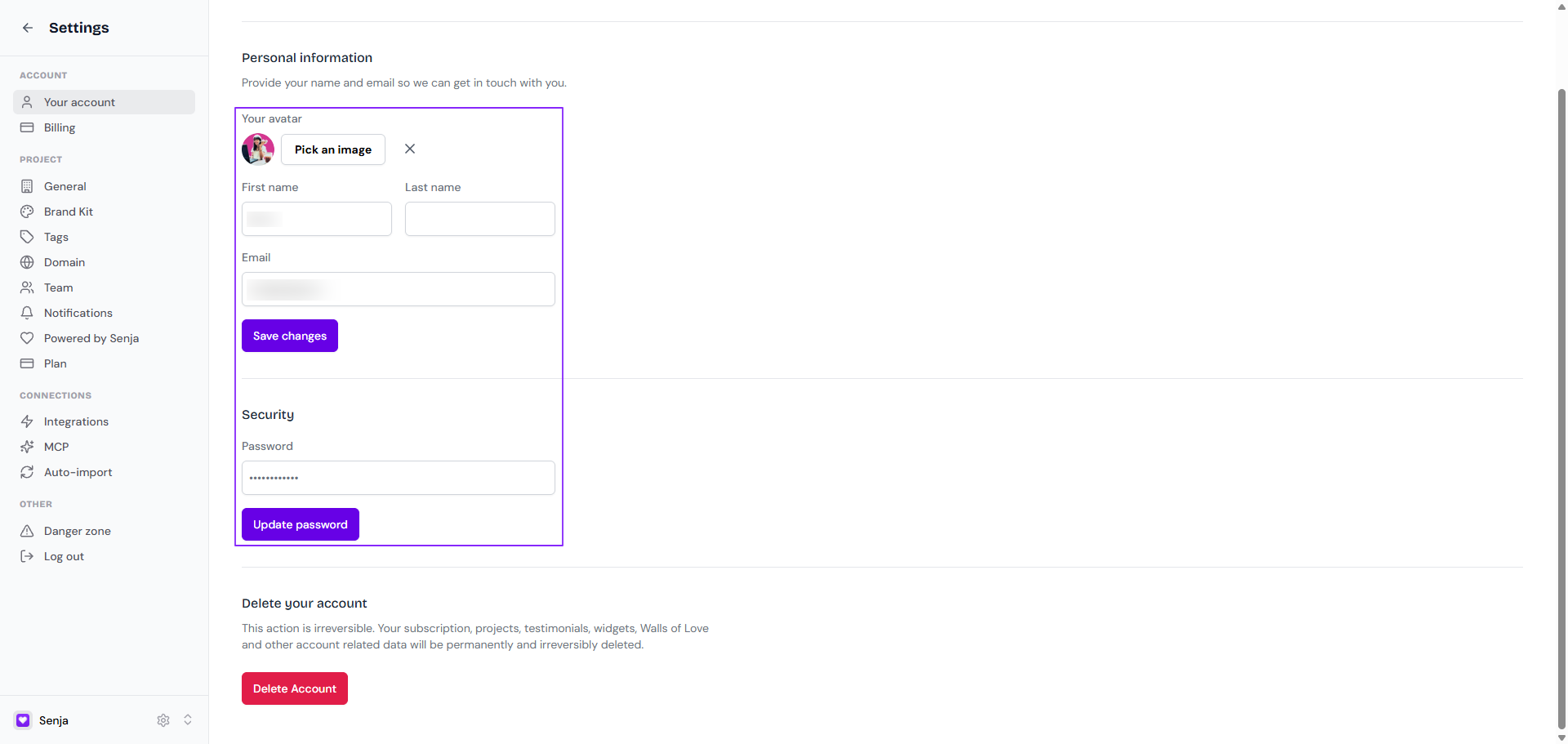
Your account email is what you log in with and where notifications go. It's separate from the website connected to your project.
Find your connected website
Go to Project Settings at the bottom of the sidebar
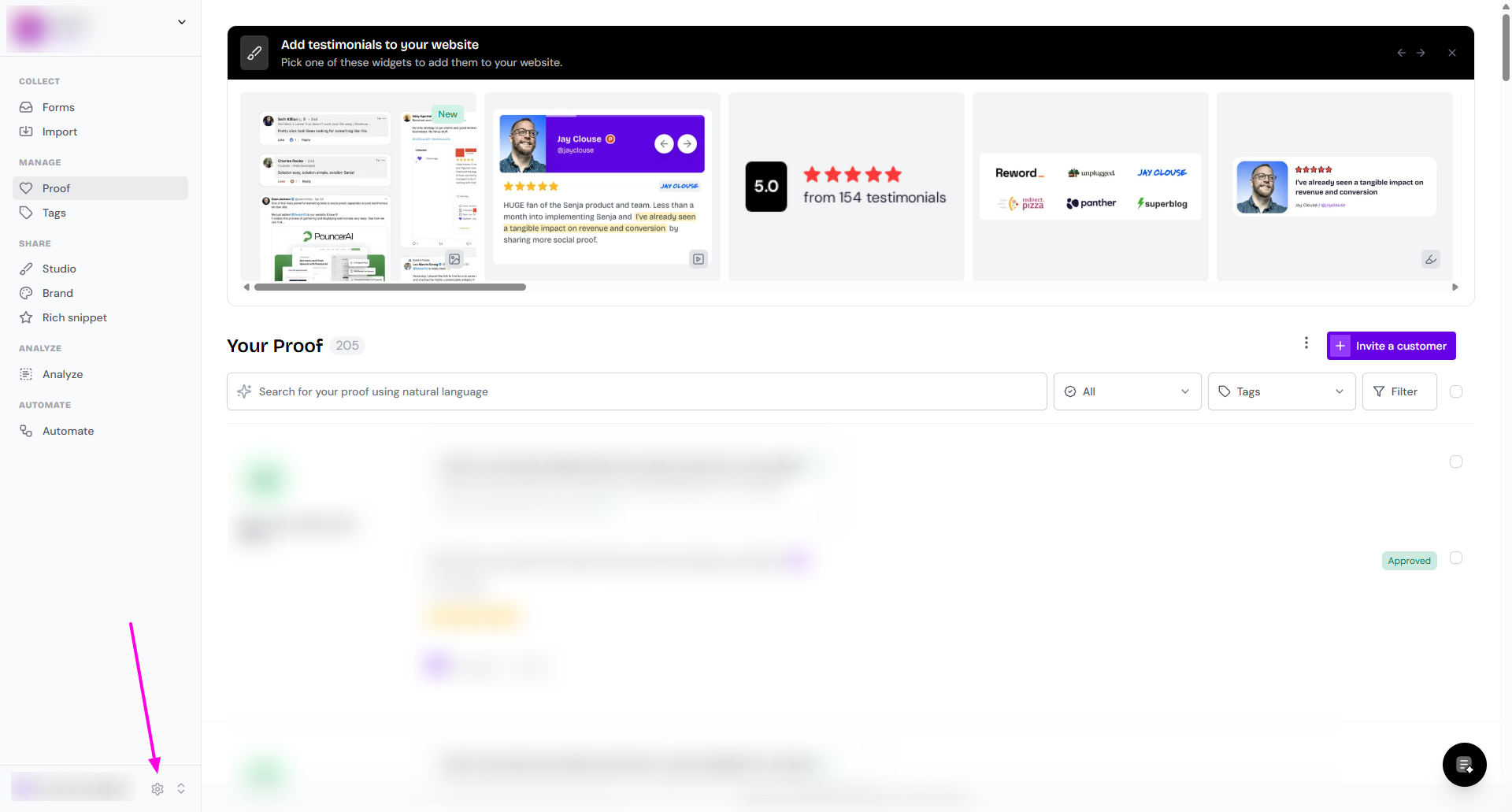
The website connected to your project is under Project URL
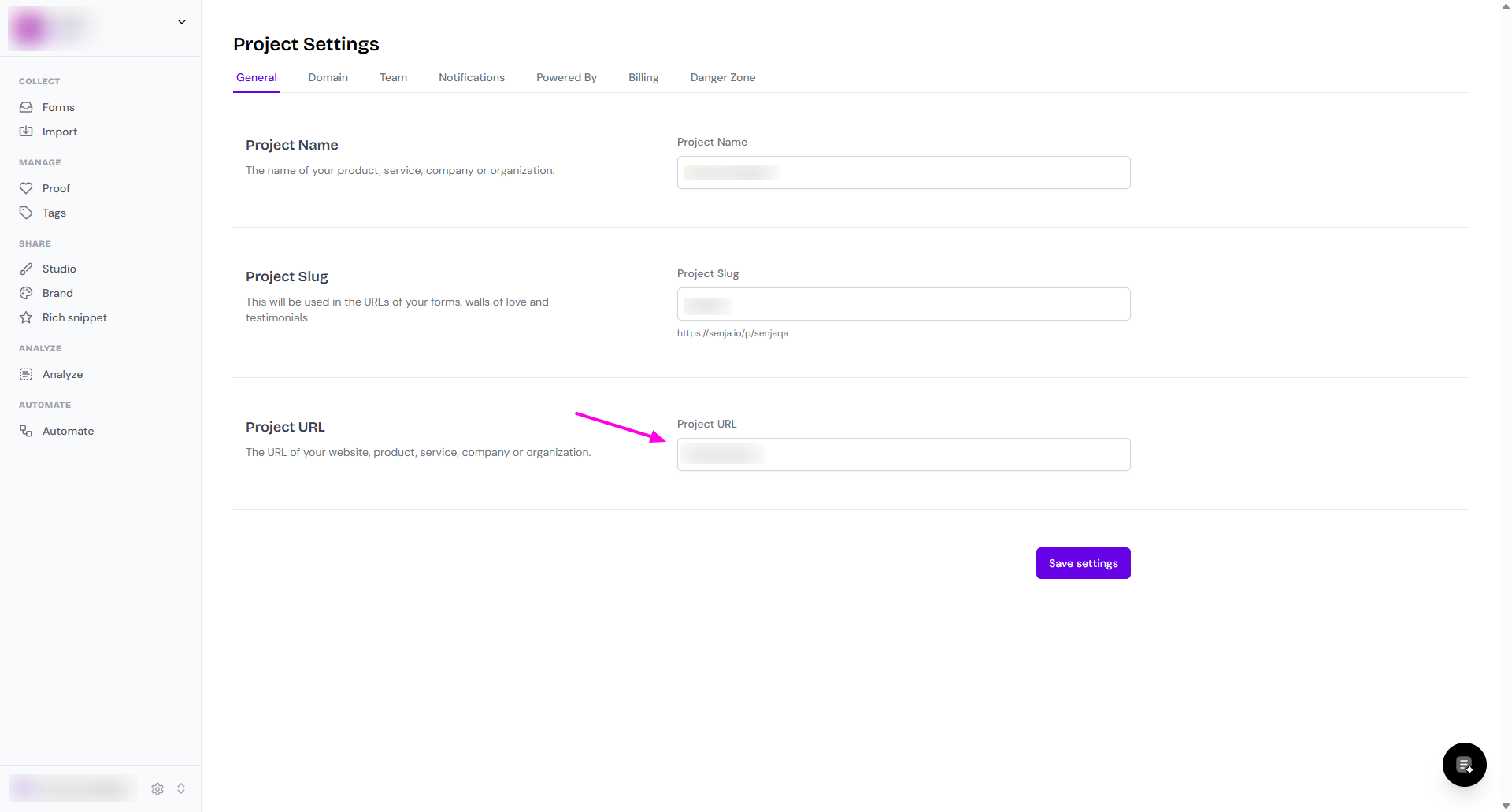
Have more than one project? Switch between them by clicking the project name in the bottom-left corner. Each project has its own connected website.
Forgot which email you used?
If you can't log in and none of your emails work, our Support team can find your account from your Senja widget ID.
Find your widget ID
Your widget ID is in the code of any webpage where you've embedded a Senja widget.
Go to the webpage with your Senja widget
Right-click the widget and choose Inspect or Inspect Element to open your browser's developer tools
Look for a
<div>with the classsenja-embed. The widget ID is the value ofdata-id
Here's what the code looks like:
<div data-id="33eb83f5-b4f6-429c-b427-bbb94fd86f18" data-mode="shadow" data-lazyload="false" class="senja-embed"></div>In this example, the widget ID is 33eb83f5-b4f6-429c-b427-bbb94fd86f18.
Contact Support
Contact our Support team and include:
Your widget ID, or the website where it's embedded if you can't find the ID
The email addresses or domains you might have used, like your personal and work email
We'll reply with the email address linked to your account. Log in with it, or reset your password if you need to.
For security reasons, we can only share the email address with the account owner. We may ask for extra details to confirm it's you.
Sometimes a widget is linked to more than one email, because the project has an owner and team members (Admin, Editor, or Sharer). We'll let you know if that's the case. Then:
To change the project owner, see How to transfer ownership of my Senja account
To change a team member's email or delete their account, see How to manage your account
Lost access to the email you signed up with?
If your old email address no longer exists, contact Support with:
Your old email address
The new email address you want to use
Proof that the account is yours, like a screenshot of your website's backend showing the Senja widget