
How do I add Senja testimonial to my email?
Add testimonials to your email campaigns as images to build trust and boost conversions. You can copy images directly from Senja or upload them to your email platform.
If you use Kit for emails, we have a dedicated app that makes this even faster. Learn how to add testimonials to Kit emails
This feature is available on any Senja plans: Free, Starter, and Pro.
Two ways to add testimonials
You can add testimonial images to your emails using:
Copy and paste — fastest method, works in most email platforms
Upload — alternative if your platform doesn't support copy and paste
You cannot embed Senja's testimonial widgets into emails, which is why we use images instead
Copy your testimonial image from Senja Chrome extension
Load Senja Chrome Extension and click Create image
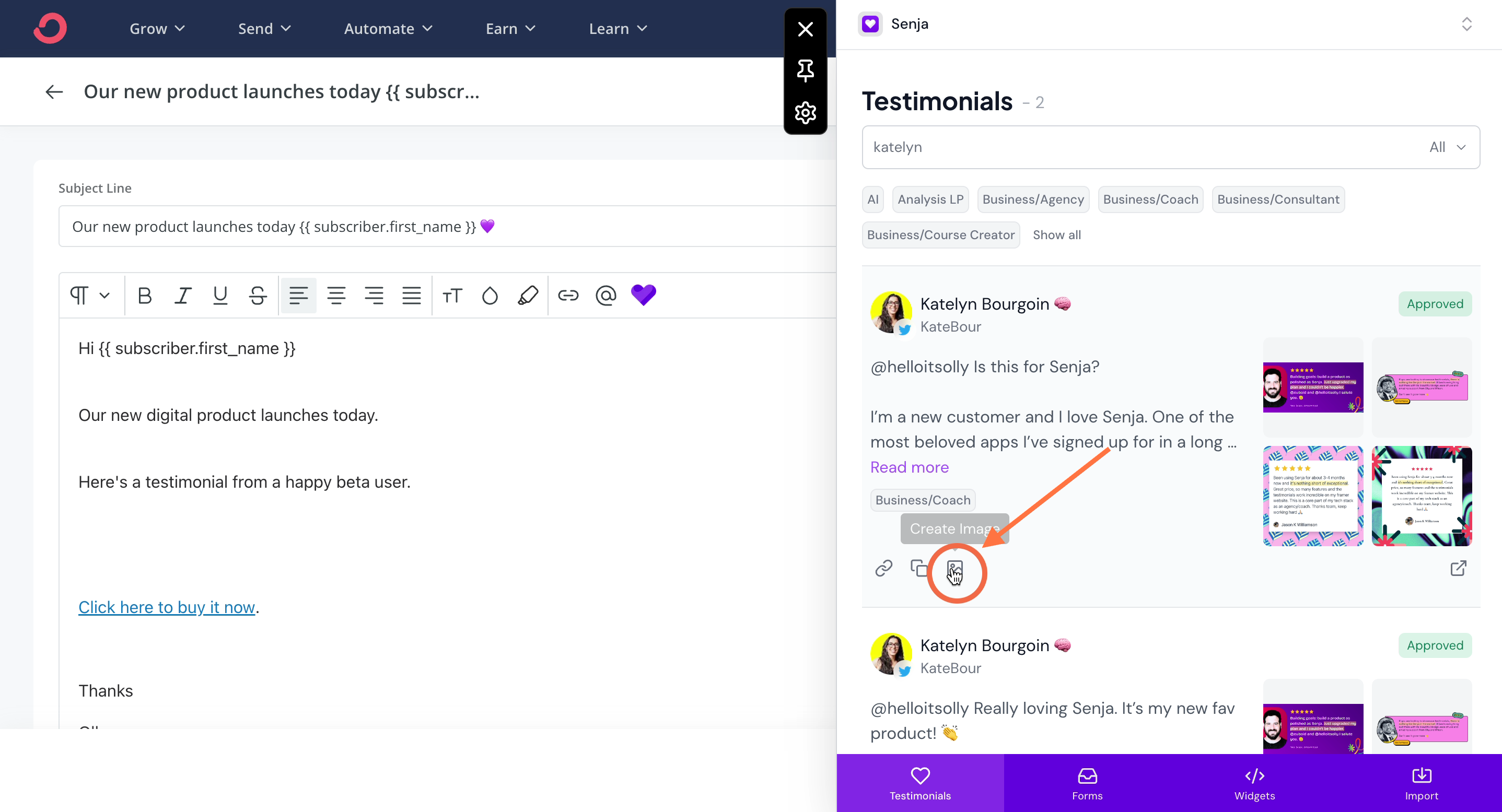
Choose a design template for your testimonial
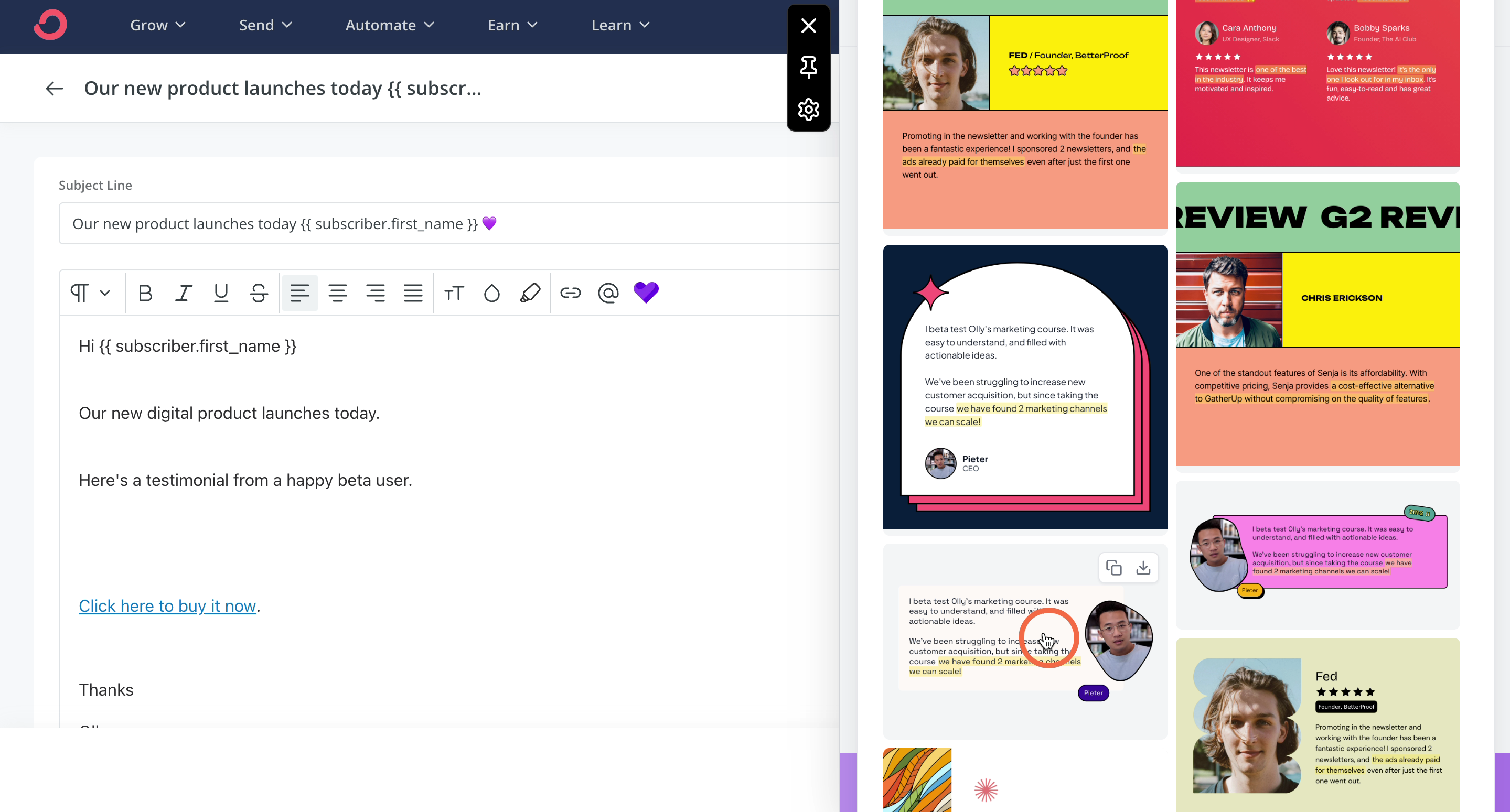
The testimonial image is now copied and ready to paste into your email client or anywhere else
In some email tools you can load the Chrome Extension directly from the email composer
Copy your testimonial image from Proof page
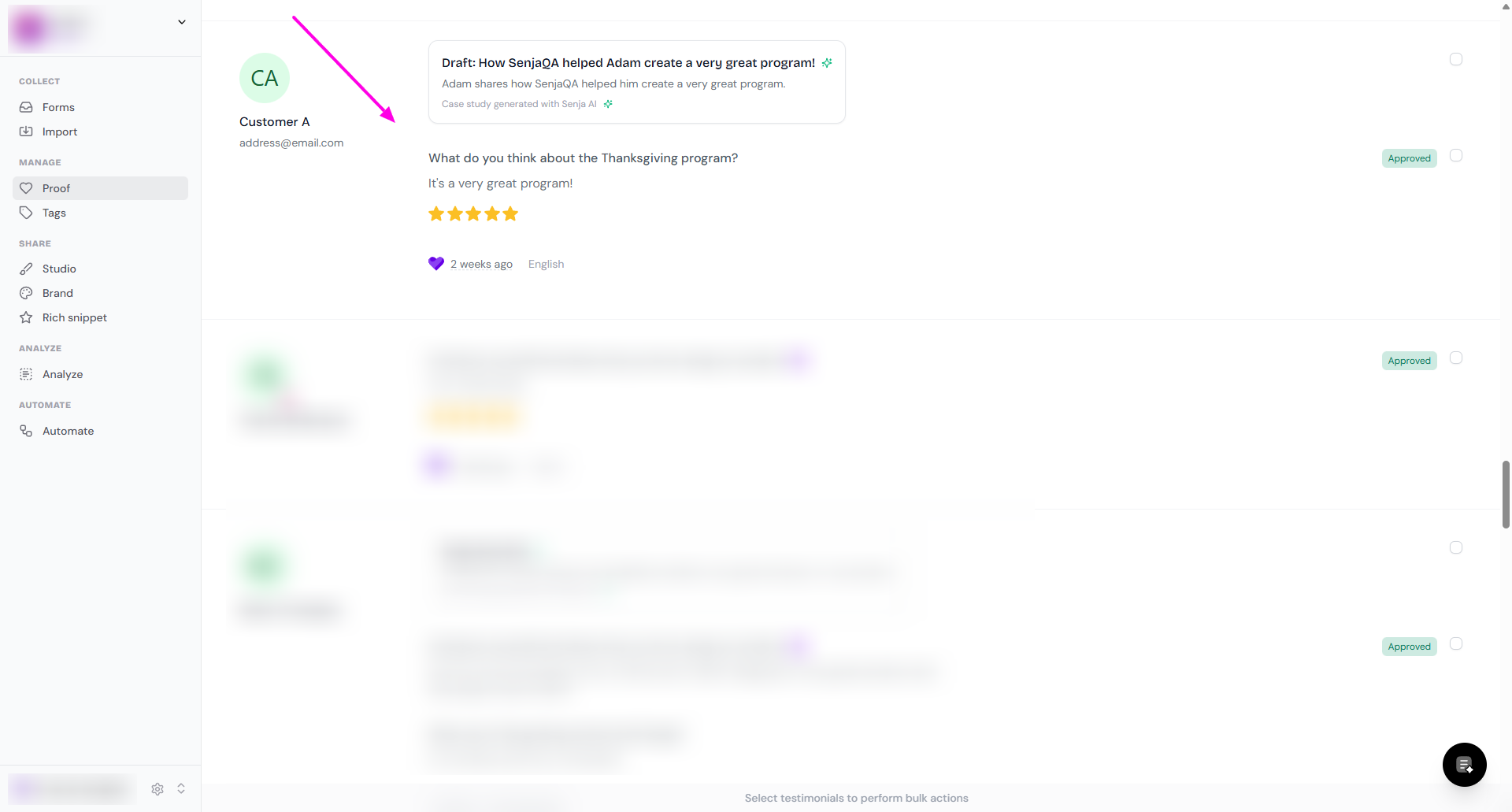
Go to your Proof page: https://app.senja.io/
Click on the testimonial that you want to use
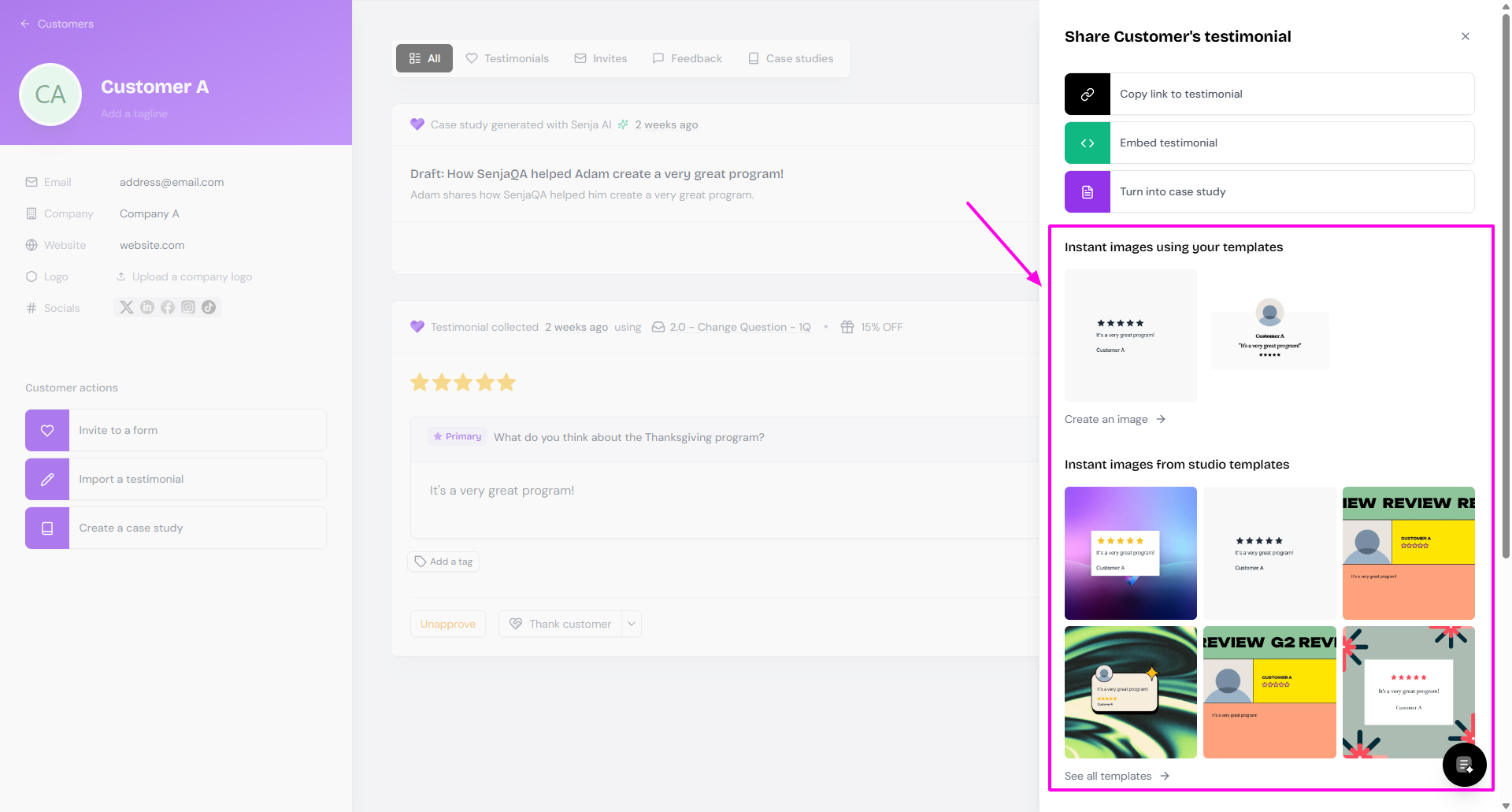
On the customer page, click Share
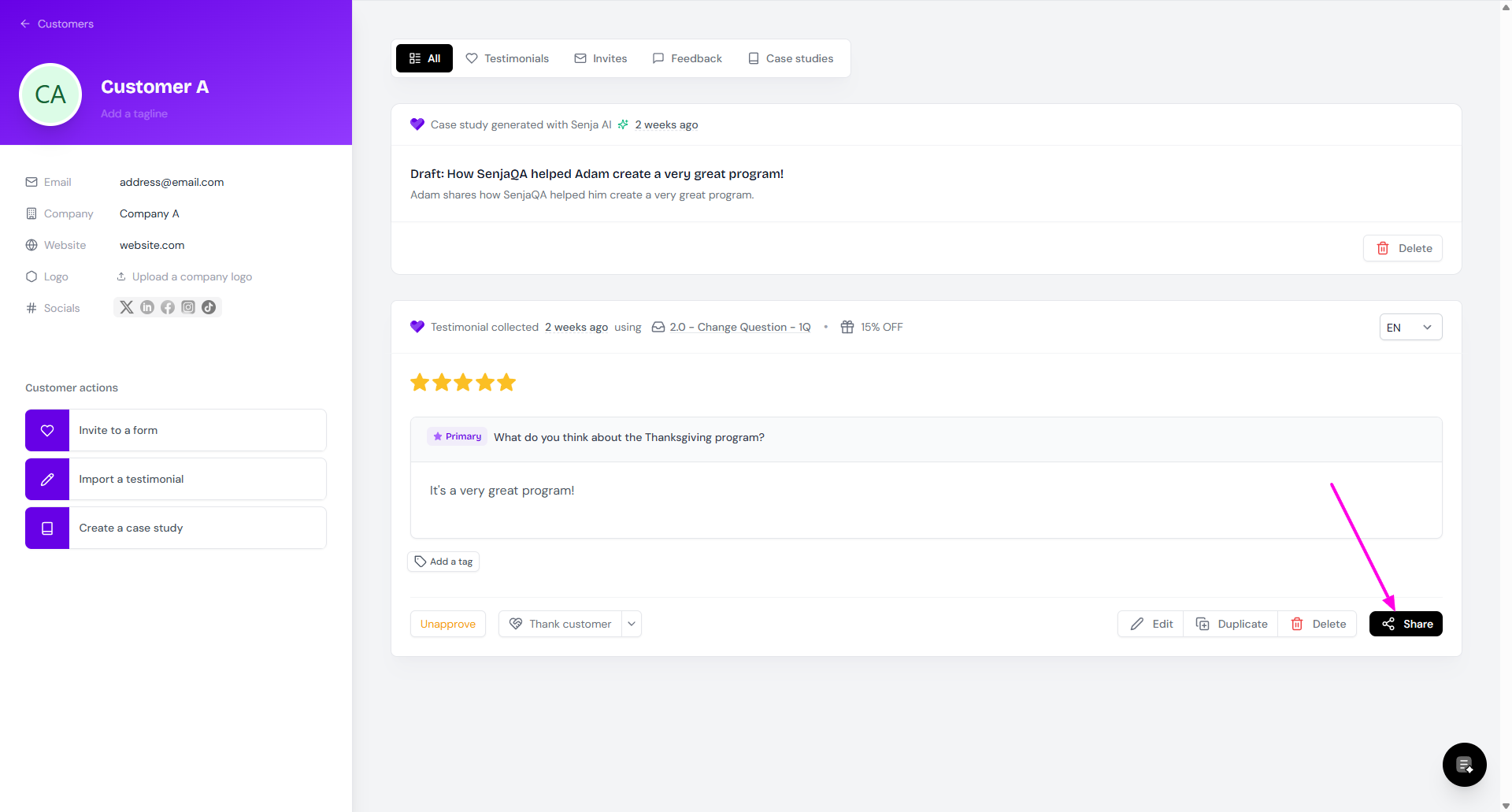
Turn it into image
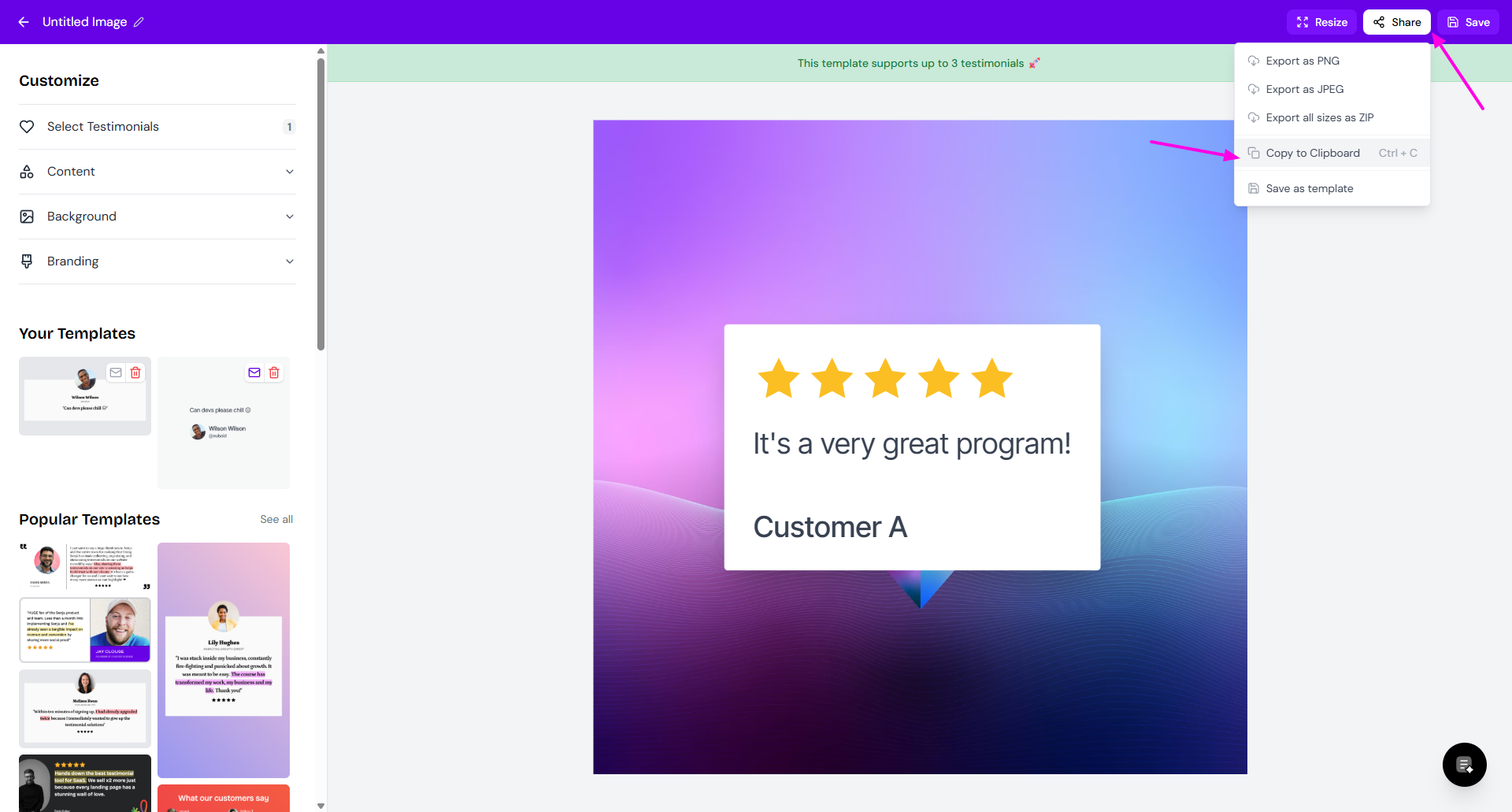
Update the design as you wish, and click Share > Copy to Clipboard when you finish
You can also use Ctrl+C for Windows or Command+C on MacBook
Paste the image on your email draft
Use your testimonial widget as image
Go to your Studio page: https://app.senja.io/studio
Open your widget
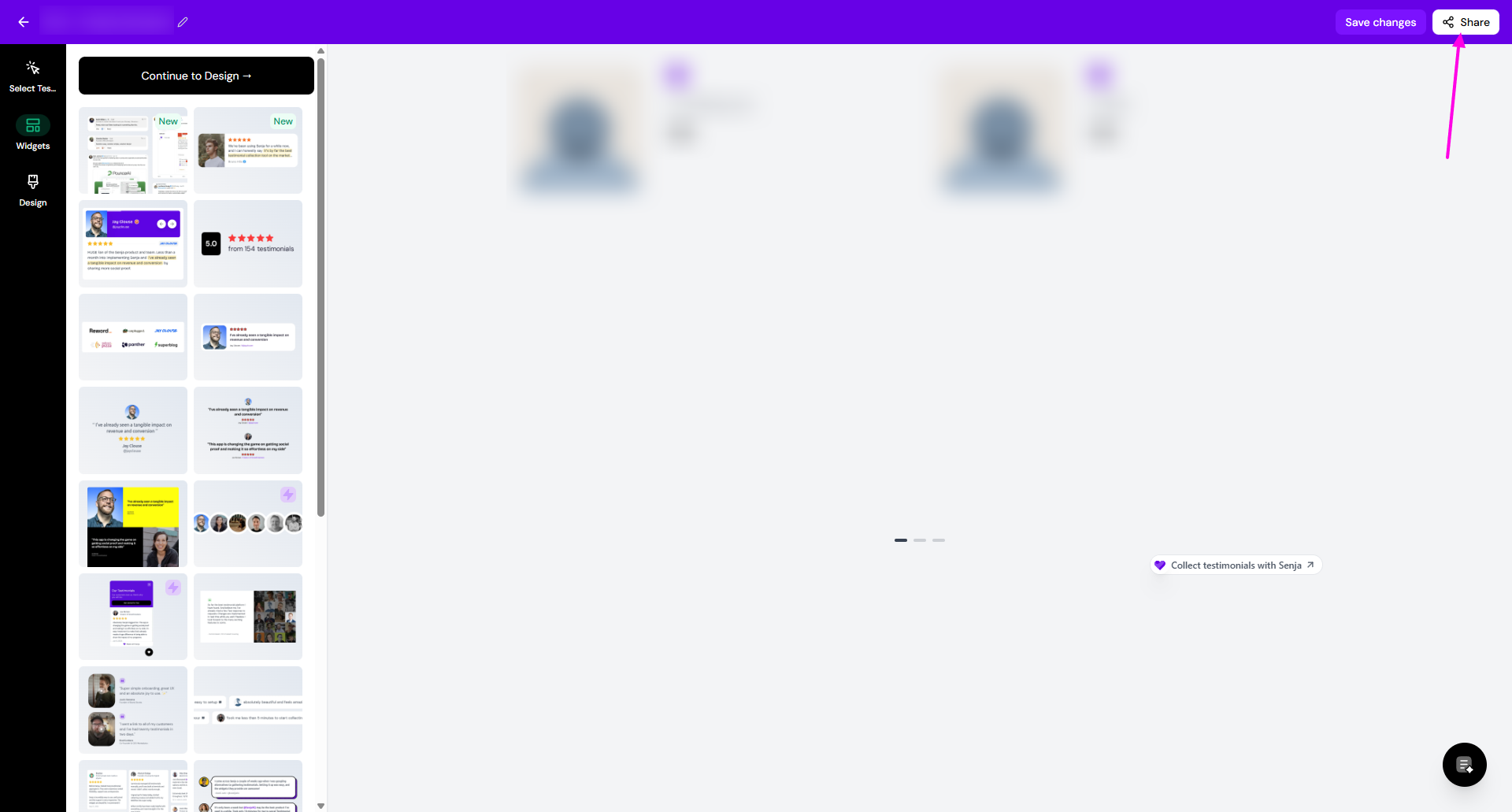
Click Share
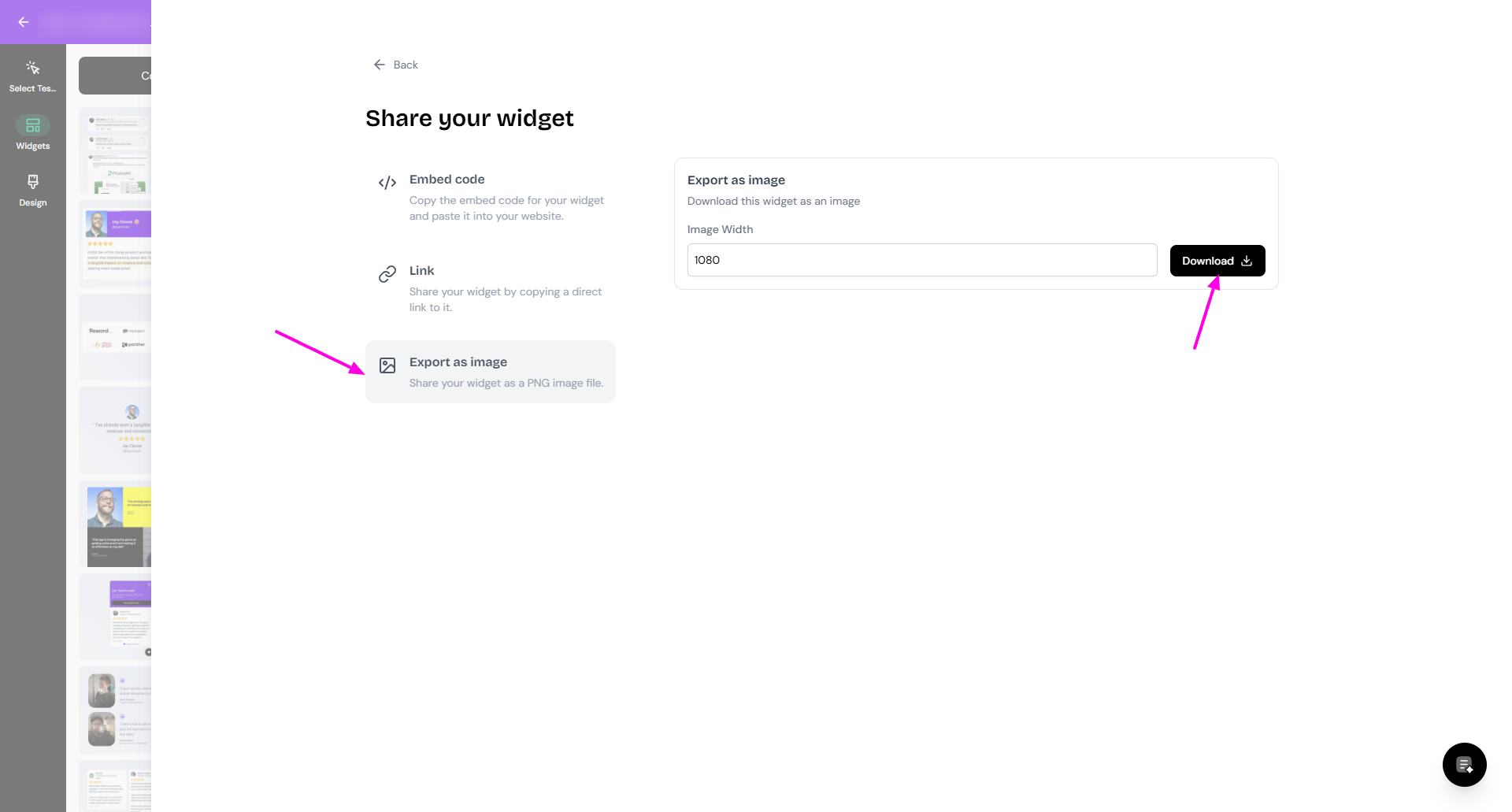
Choose Export as image and click Download
You can upload the image to your email body
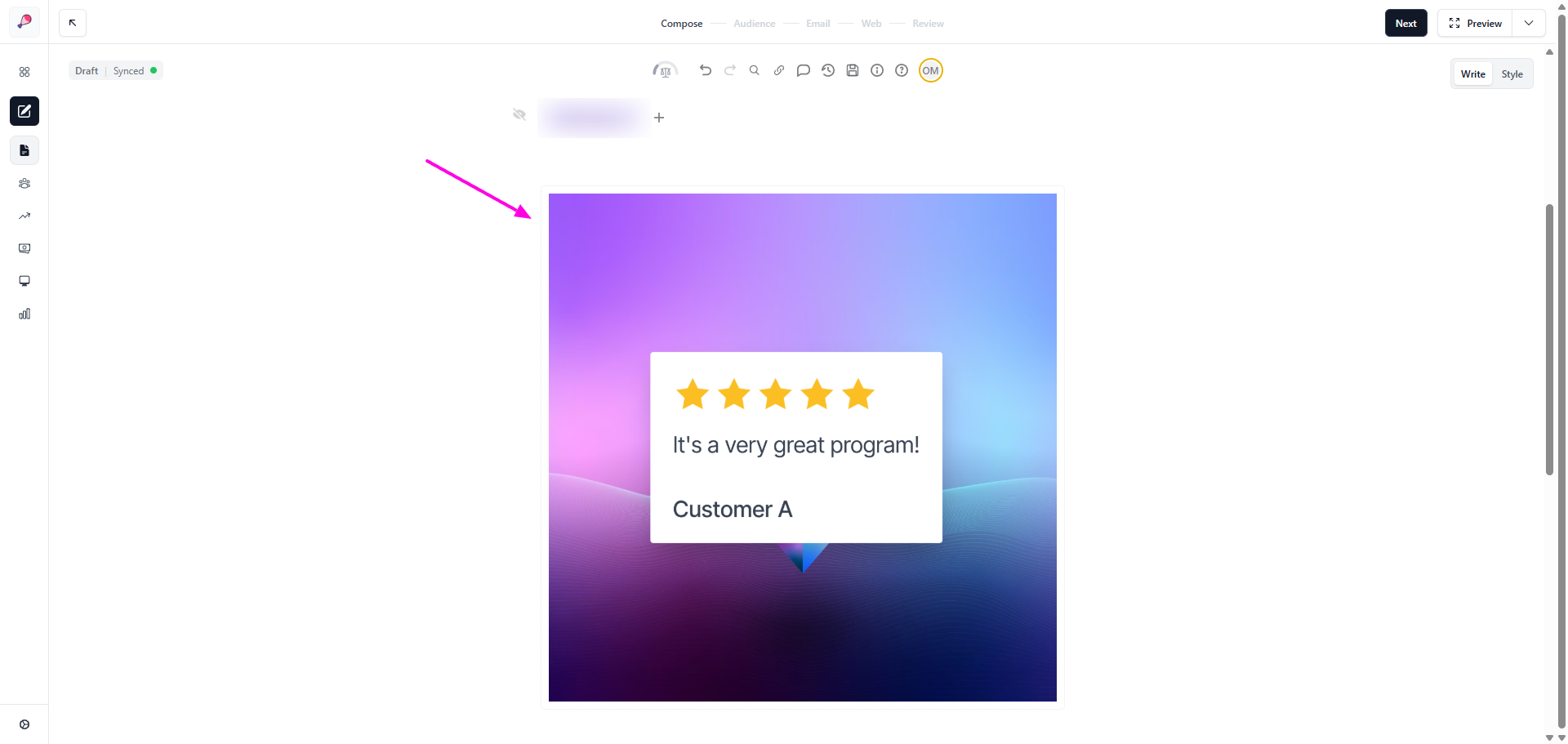
How does it look?
This is an example on how it look on Beehiiv, using the second method.
This method works in most email platforms including Beehiiv, Mailchimp, and GMail.