
How to share video testimonial as link
Video testimonials can boost engagement in your email campaigns. Since most email clients don't support embedded video players, you'll share videos by linking to a hosted video player or using a thumbnail image.
You'll need at least one video testimonial and a video embed widget created in Studio.
Share the video testimonials link
Go to your Proof page: https://app.senja.io/
Choose the video testimonial you want to share
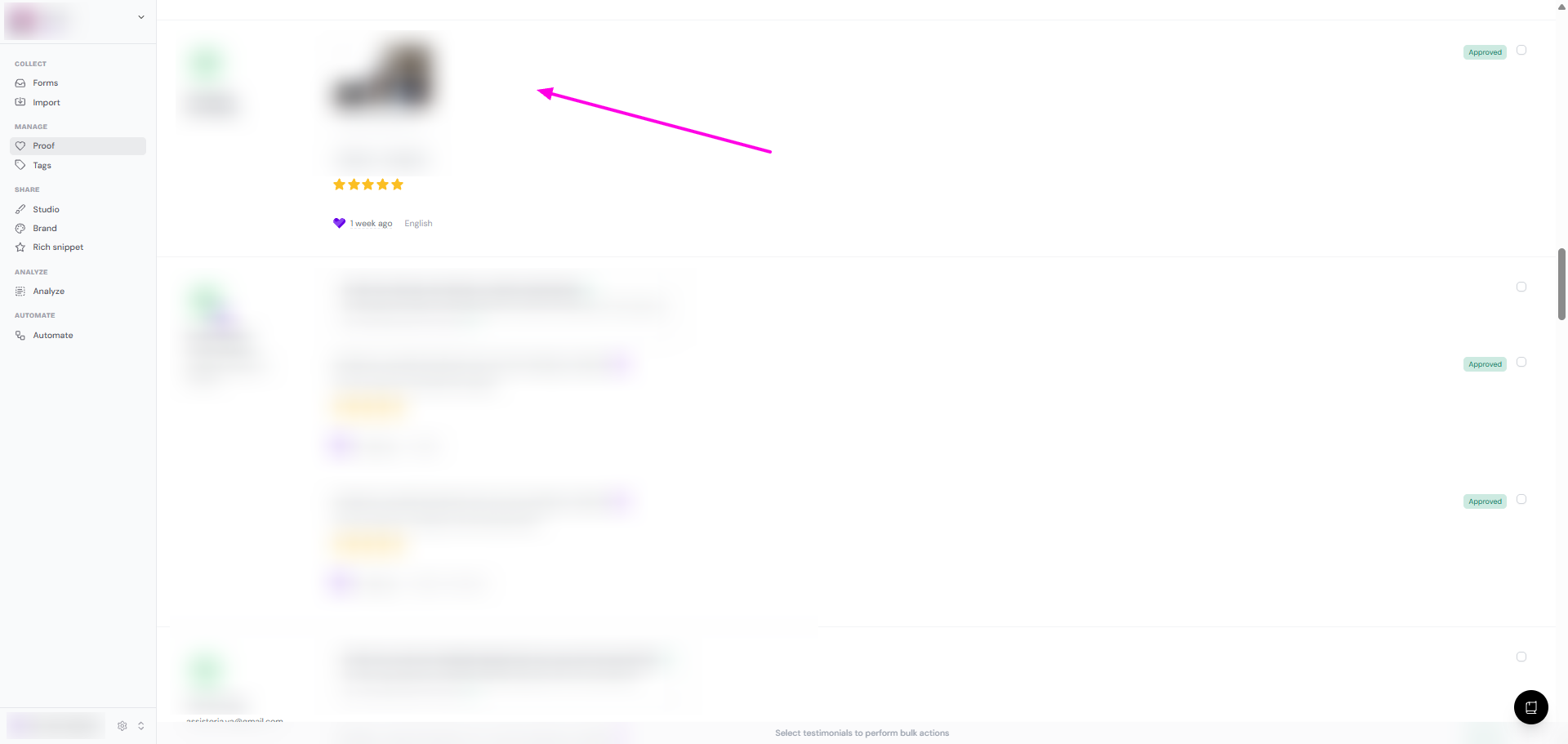
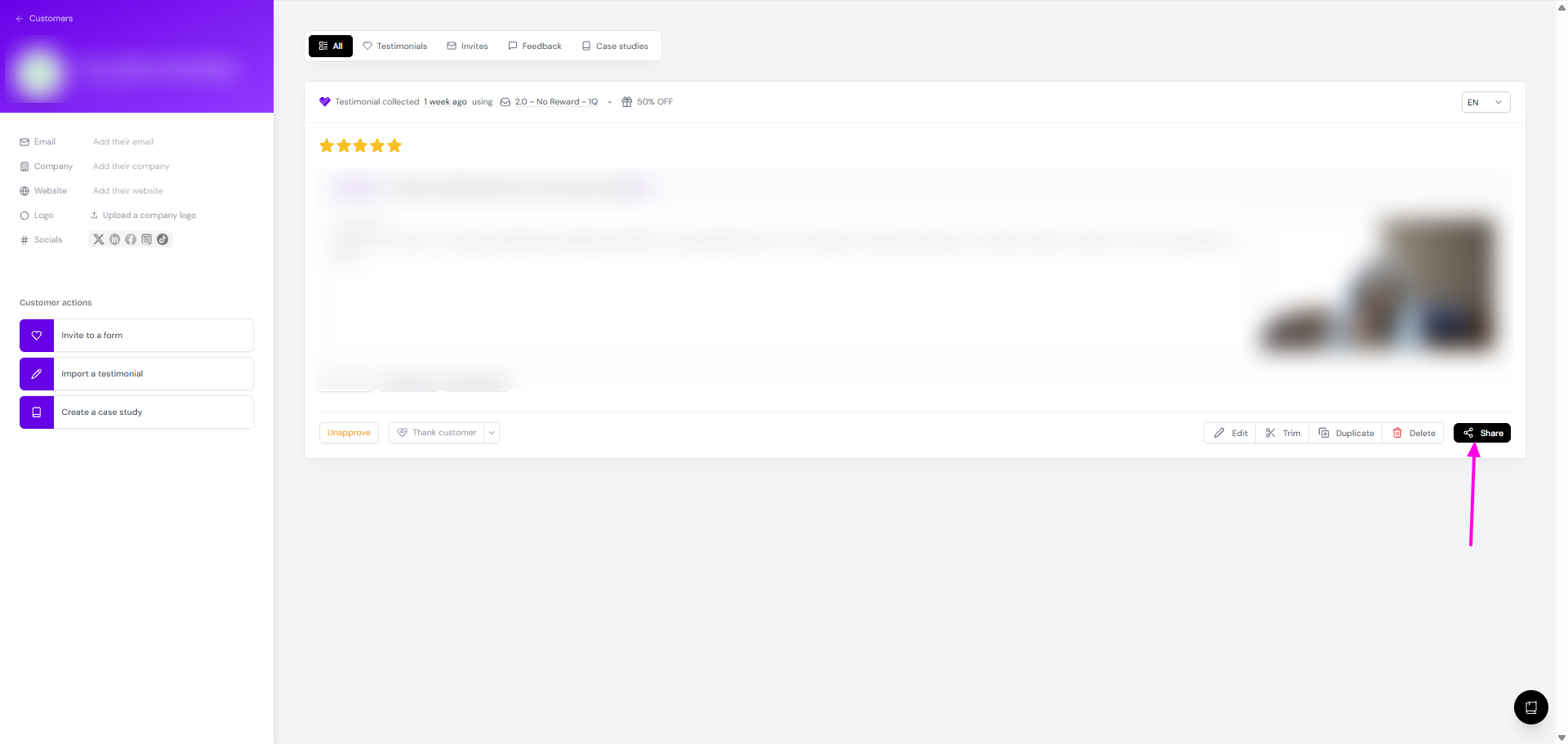
Click Share
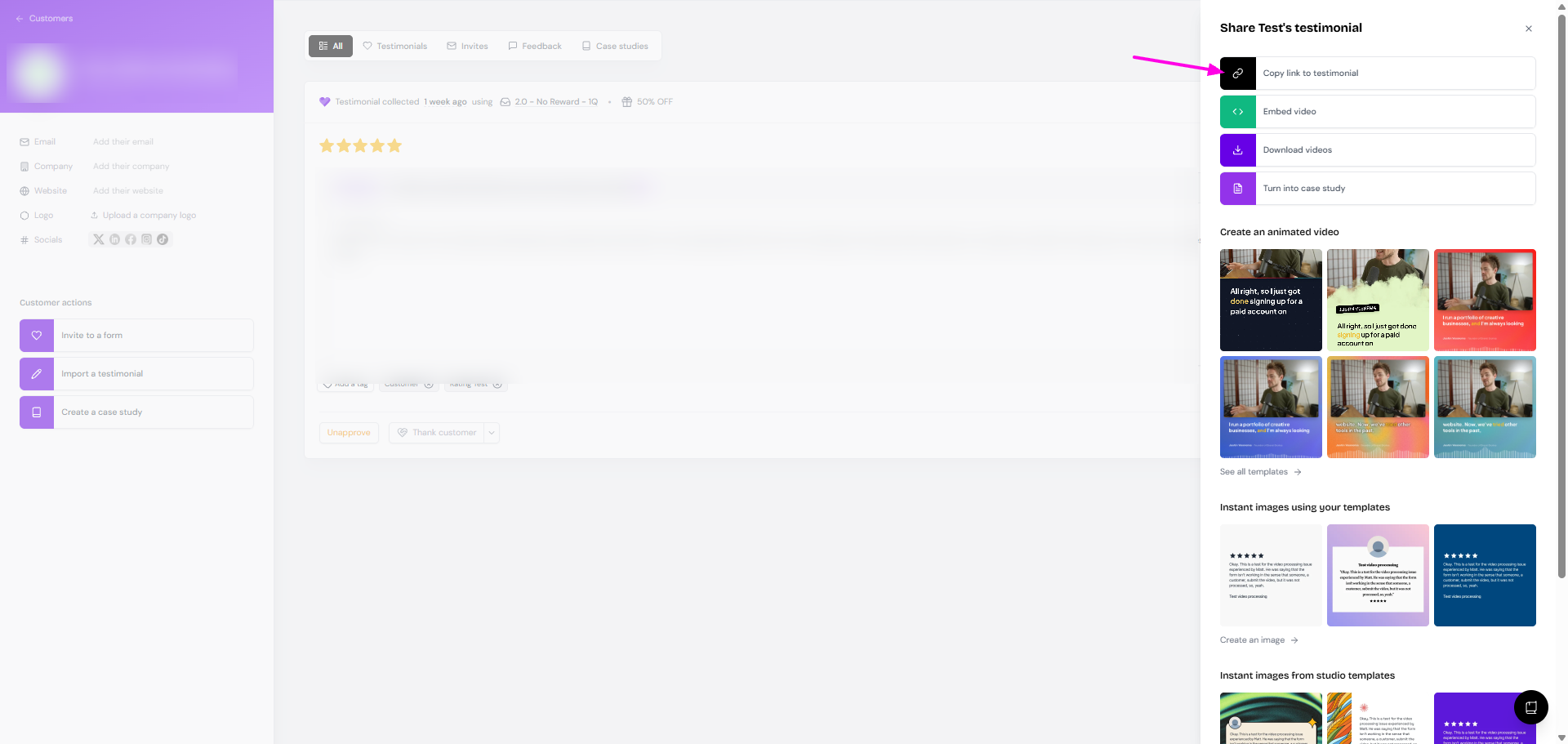
Click Copy link to testimonial
Open the link in a new tab
Click + Add a call to action (this is optional)
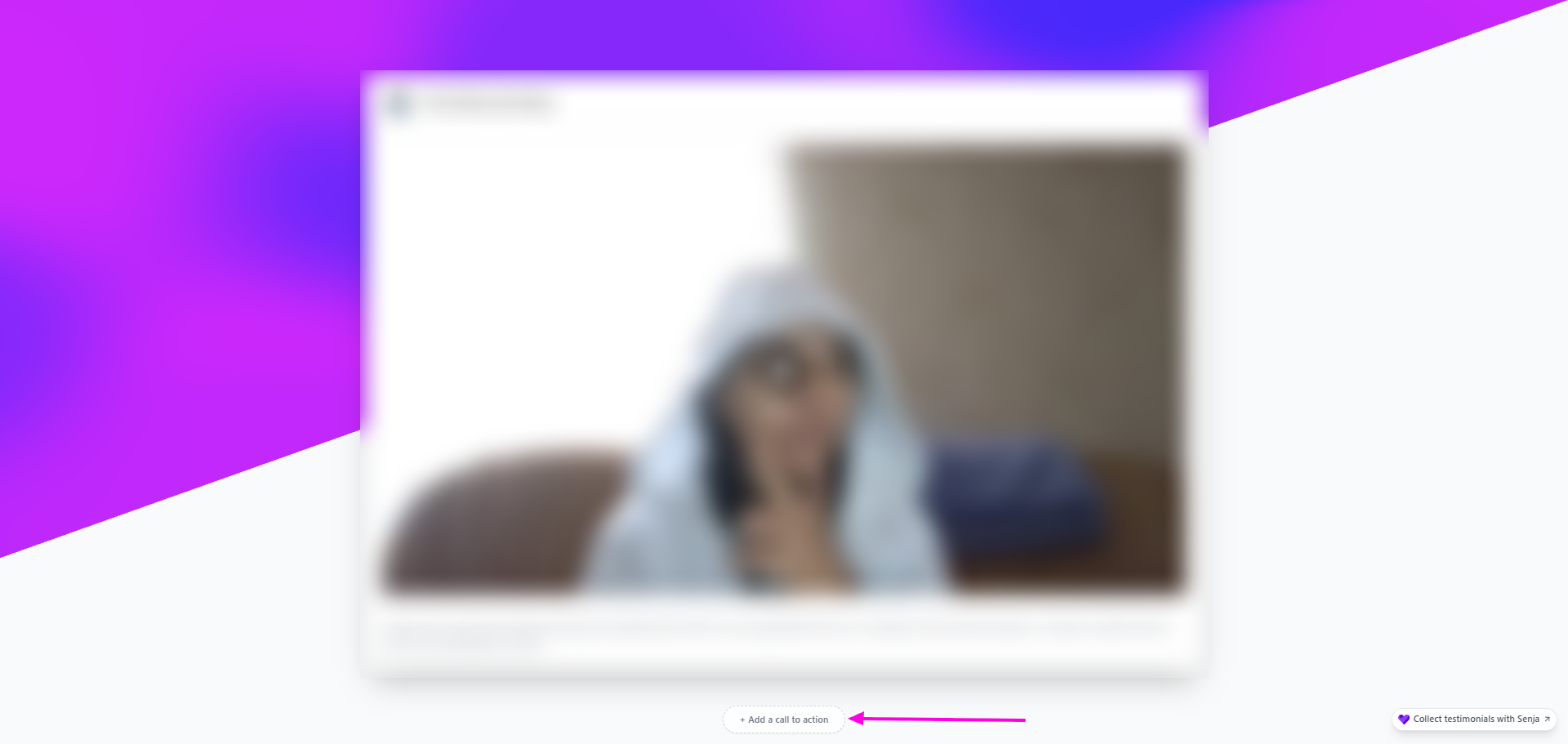
Update the details, click Save when done
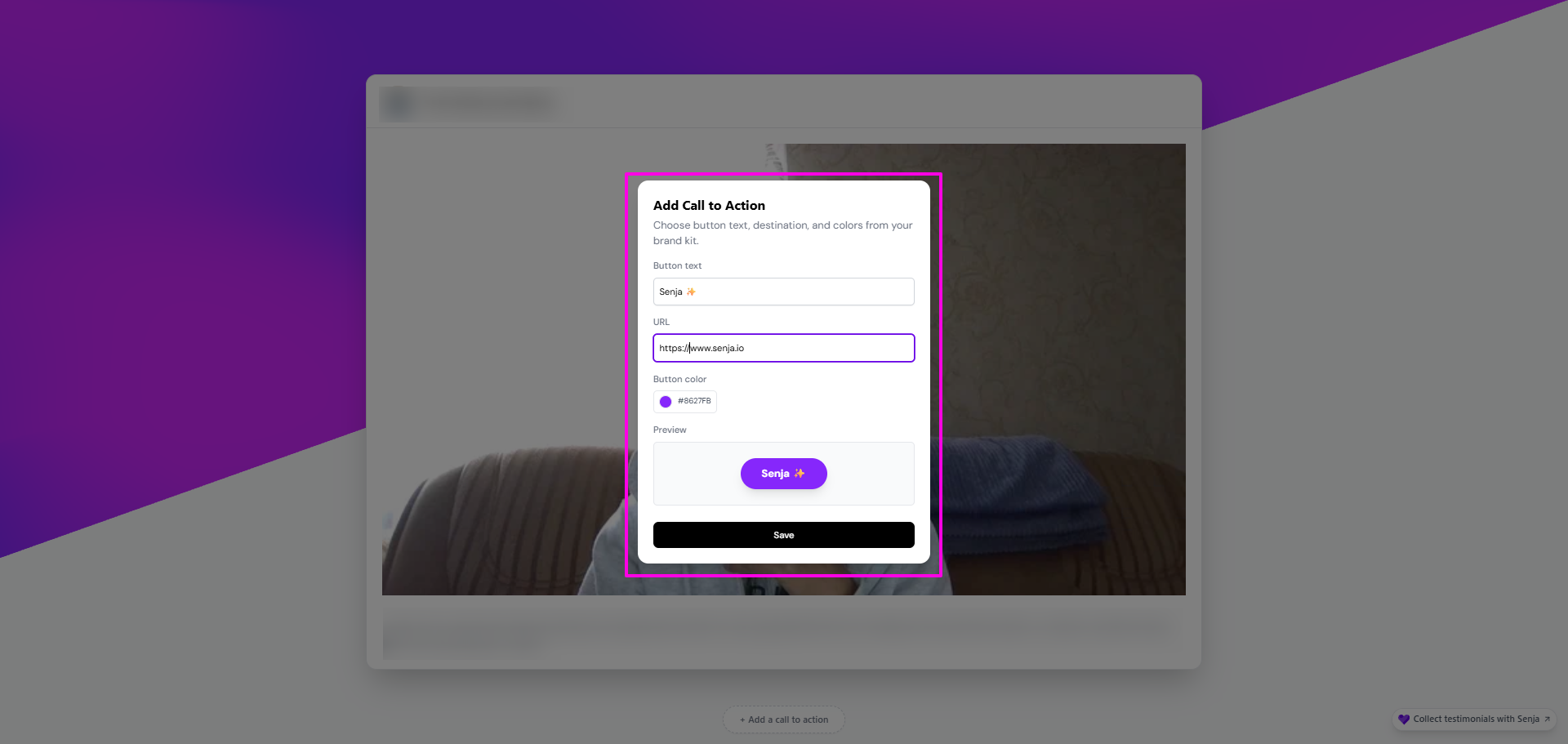
Your CTA will be displayed under the video

Copy the link on the address bar
Paste the link to your email
Share your widget link
If you turned your video testimonial(s) into widget, you can also share the widget as link:
Go to Studio in your Senja dashboard: https://app.senja.io/studio
Open your saved widget
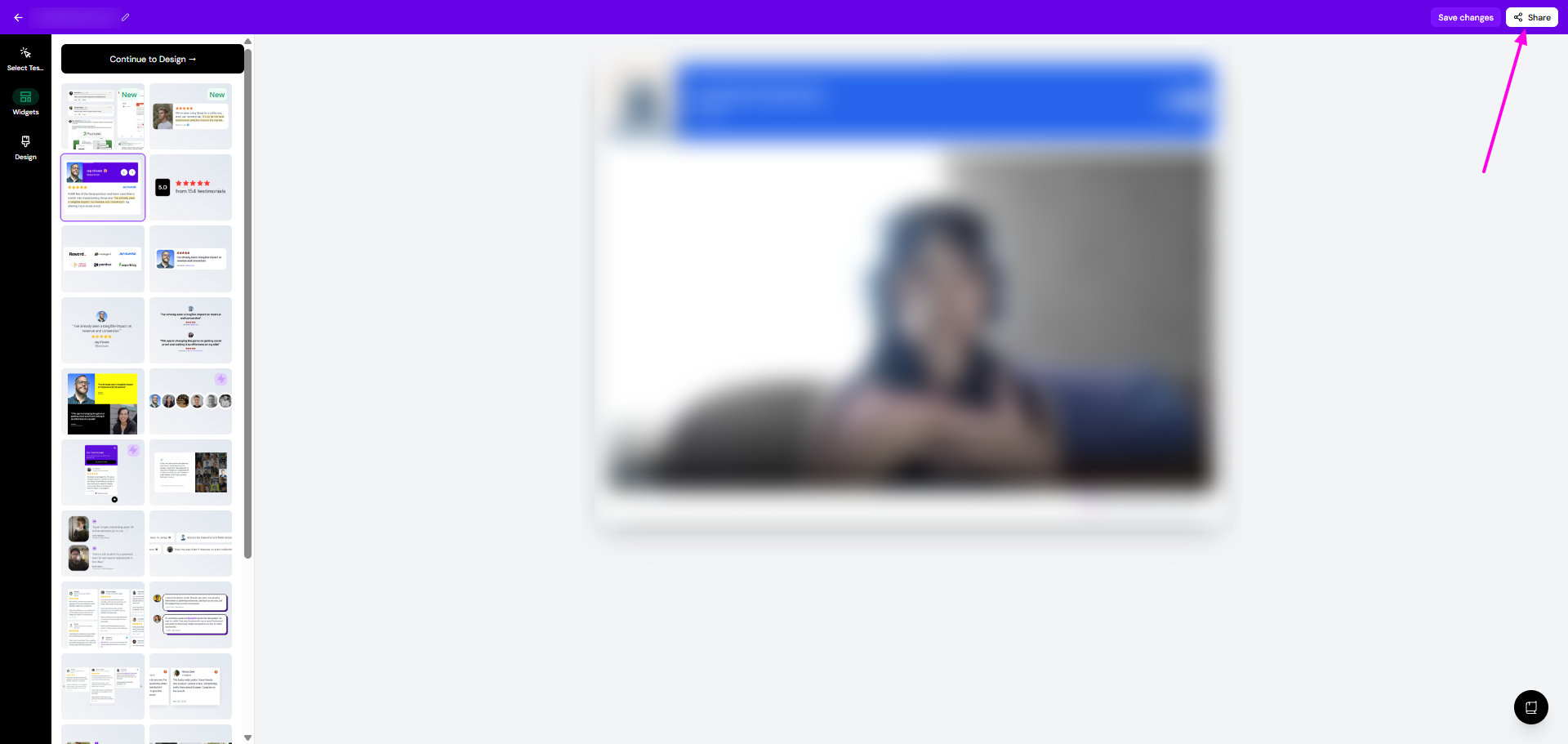
Click the Share button in the top-right
Choose the Link tab and click the copy button
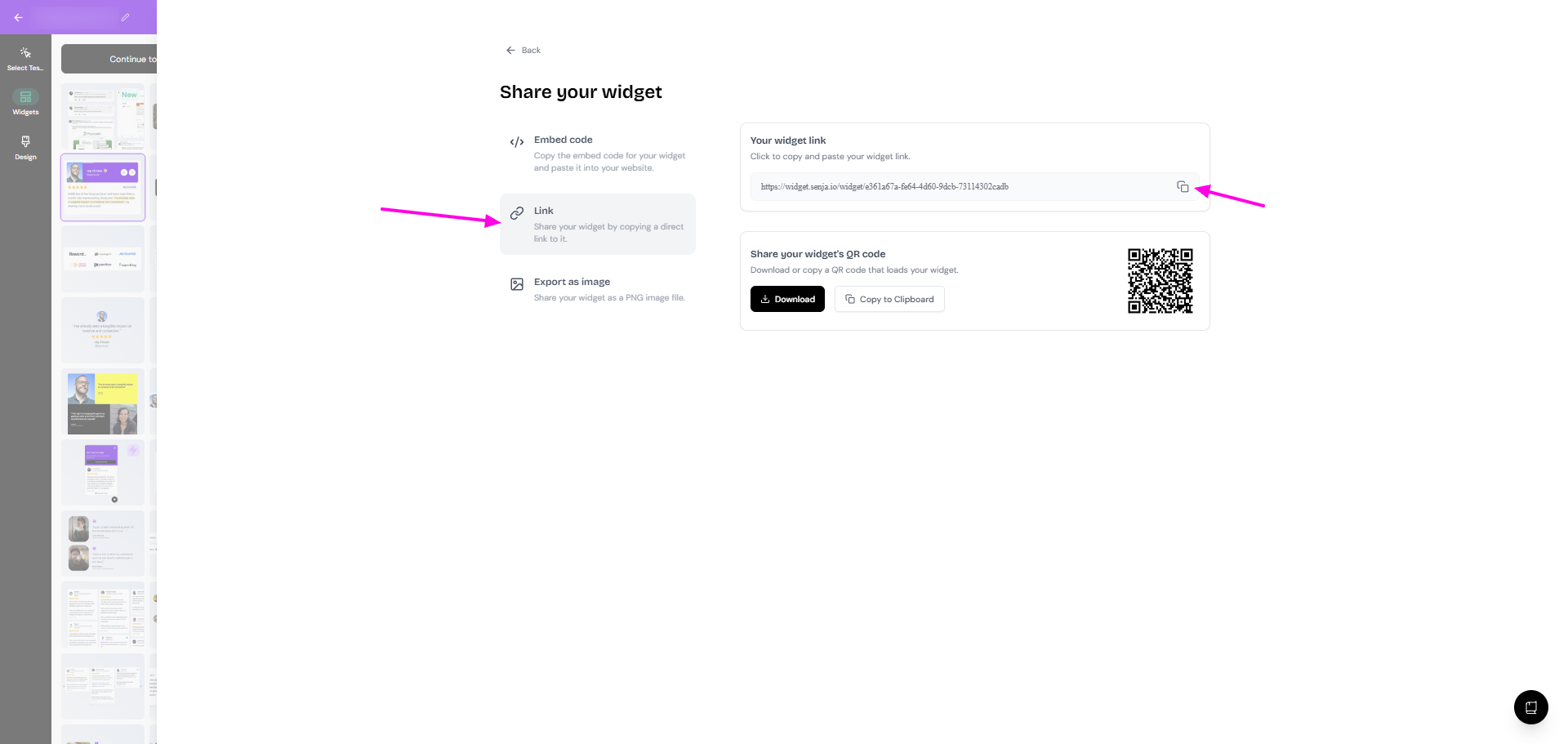
Paste the link to your email copy
Add the link to your email
Paste the link directly into your email, or attach it to a button or image.
Most email platforms let you hyperlink text or images—use a call-to-action like Watch the video or add a thumbnail with a play button overlay.
For a static image option, use the Export as image feature in the Share panel to create a PNG thumbnail you can link to your video.
Why not embed the video player directly?
Gmail, Outlook, and most email clients block video embeds and autoplay for security reasons. Linking to a hosted video player ensures your video works across all email platforms.
Learn more about creating video widgets in How do I turn my video testimonials into video embeds?