
How do I set up Spin the Wheel rewards?
Want to make leaving testimonials more fun? Spin the Wheel rewards let customers spin for a chance to win prizes right after they submit.
This is applicable for all Senja plans: Free, Starter, and Pro.
Setting up your Spin the Wheel
Head to your Forms dashboard
Pick the form you want to add rewards to
Click the ⚙️ icon and choose Edit
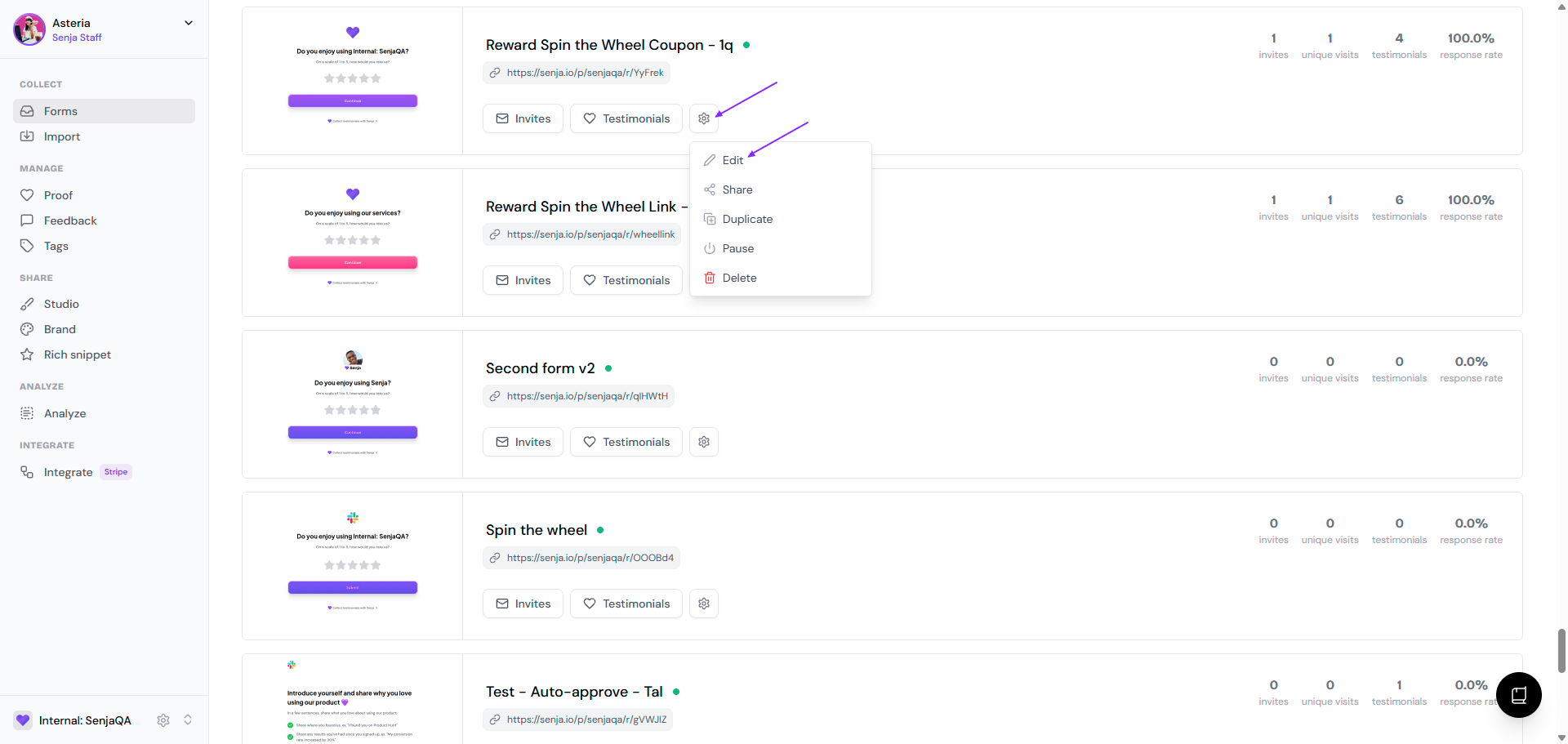
Stay at the Rewards tab
Select the Spin the Wheel card
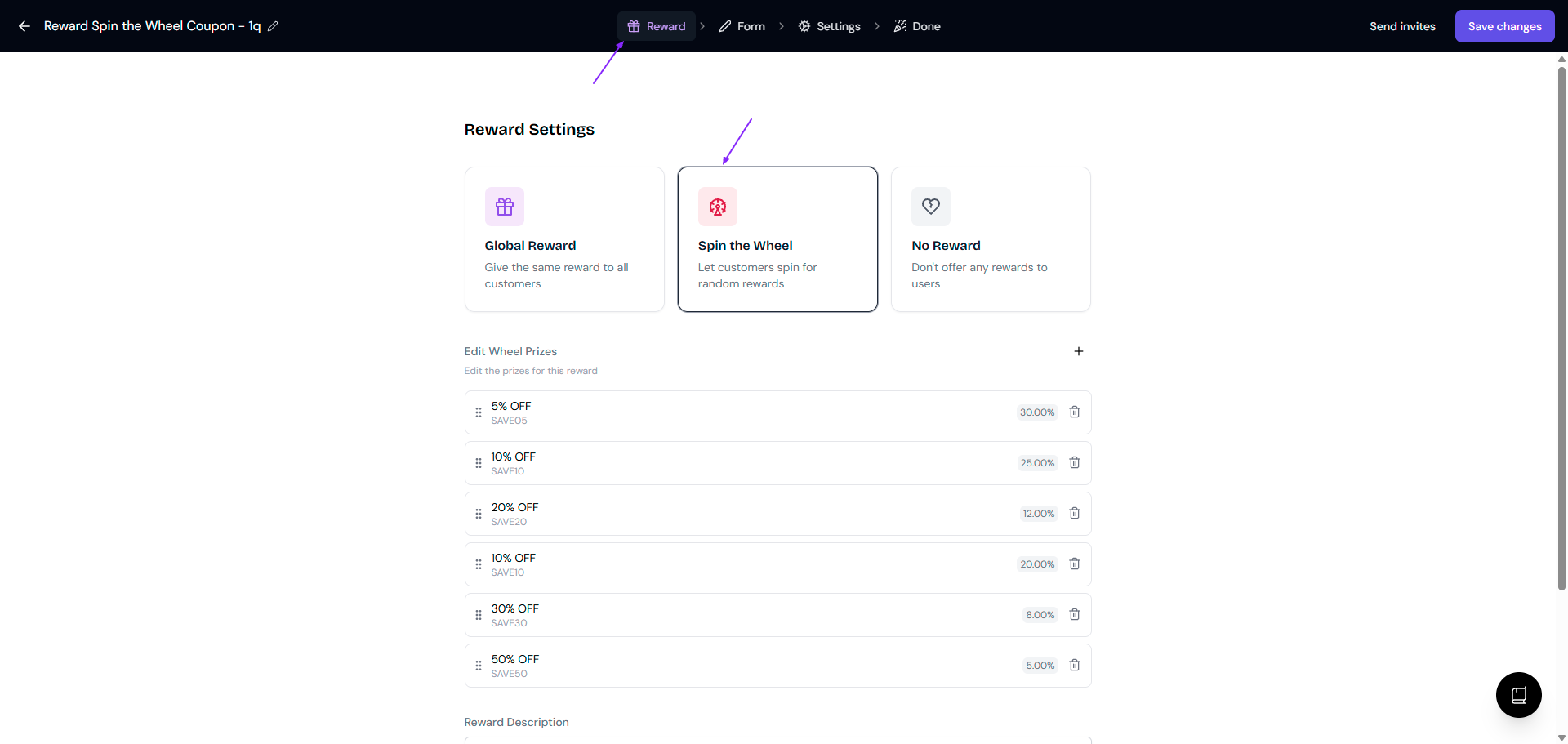
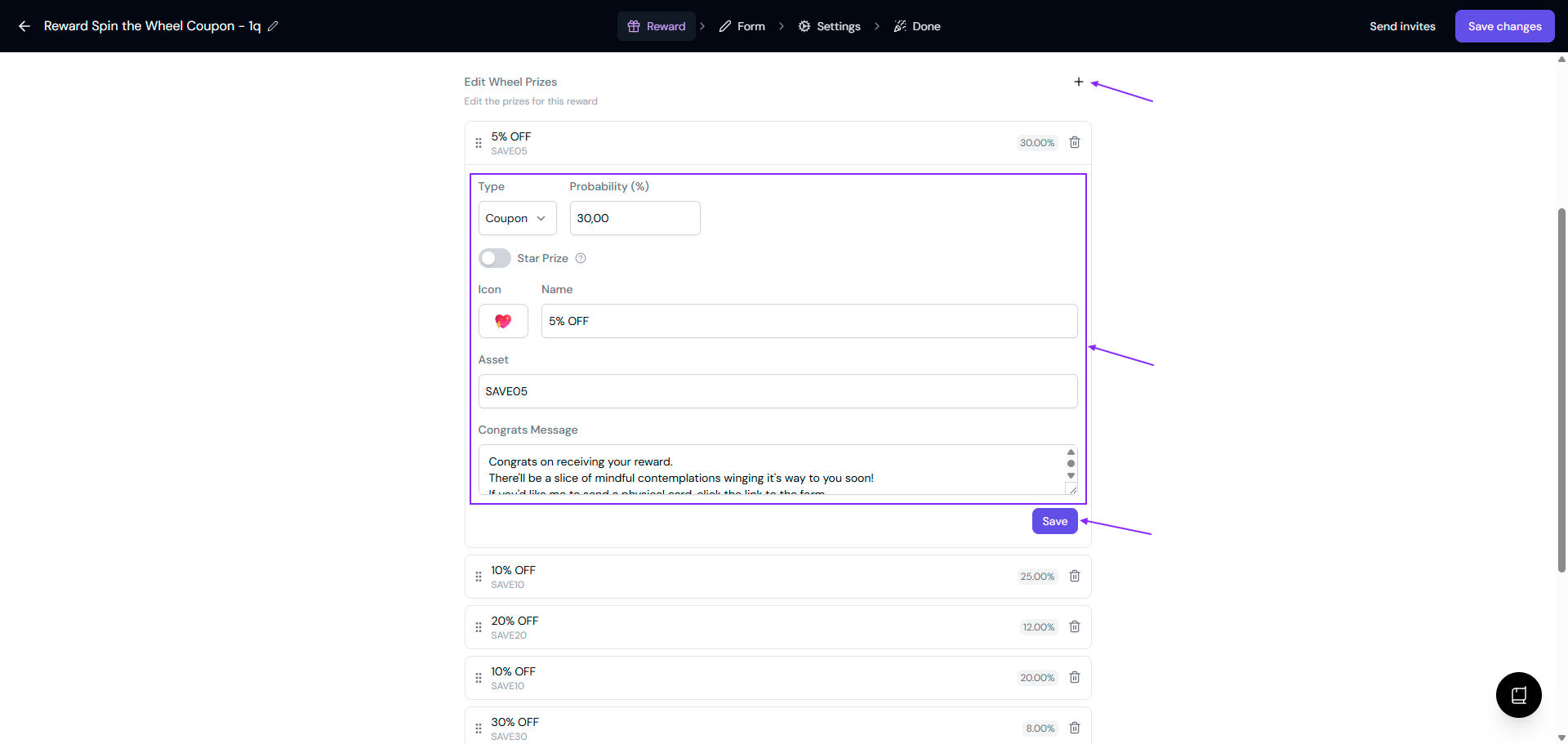
Customize your prizes under Edit Wheel Prizes
Click ➕ to add a new prize
For each prize, set:
Type as Coupon or Link
Read more details on How do I set up Spin the Wheel with reward link.
Probability in % to set the difficulty mode
Star Prize toggle on for the top prize
Icon, this will be the emoji that appears on the wheel for that prize
Name, for example 5% OFF
Asset, this will be the coupon name or the URL
Congrats Message, this will be what your customers see when they win this prize
Click Save for each change
Drag to reorder prize
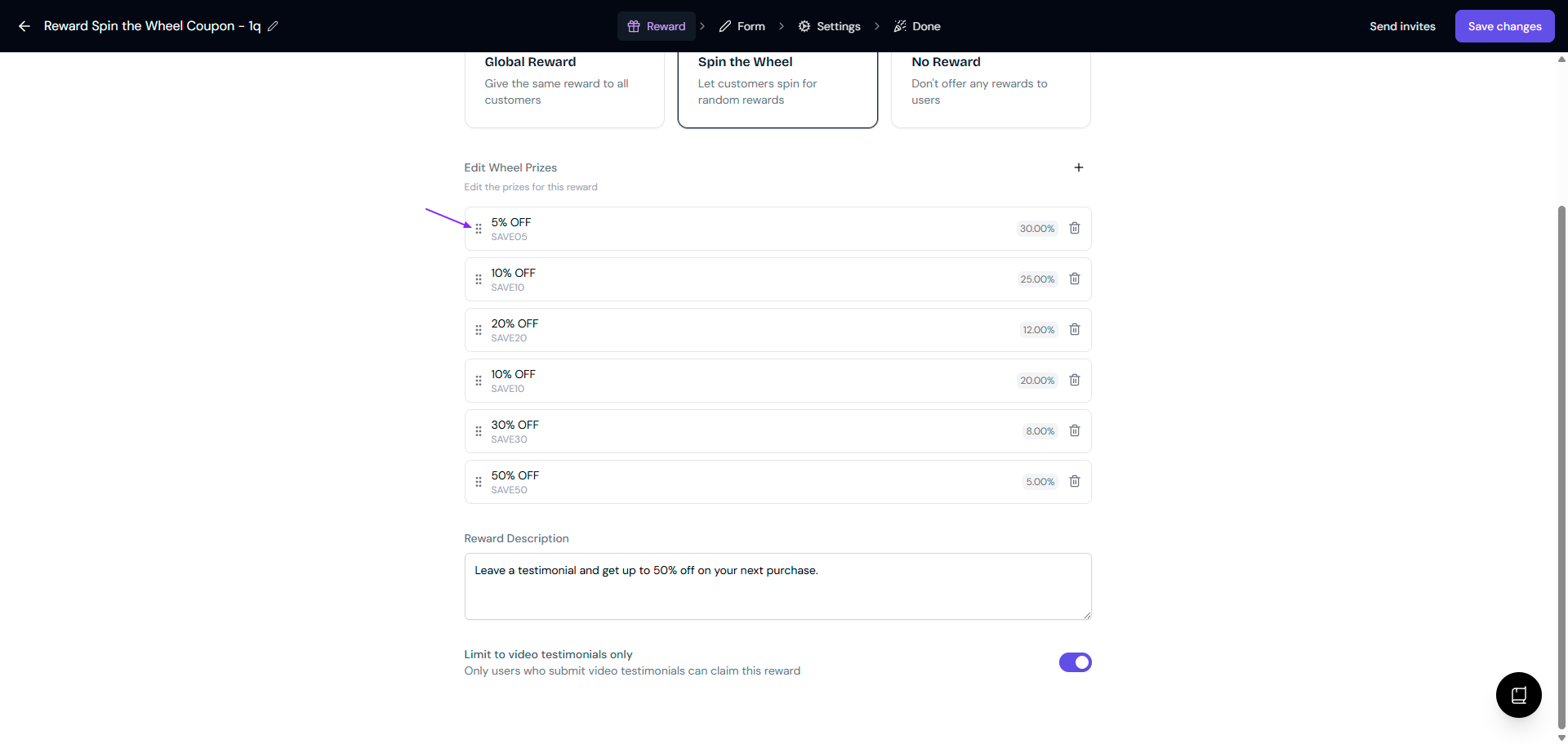
Click the 🗑️ button to delete the ones you don't need
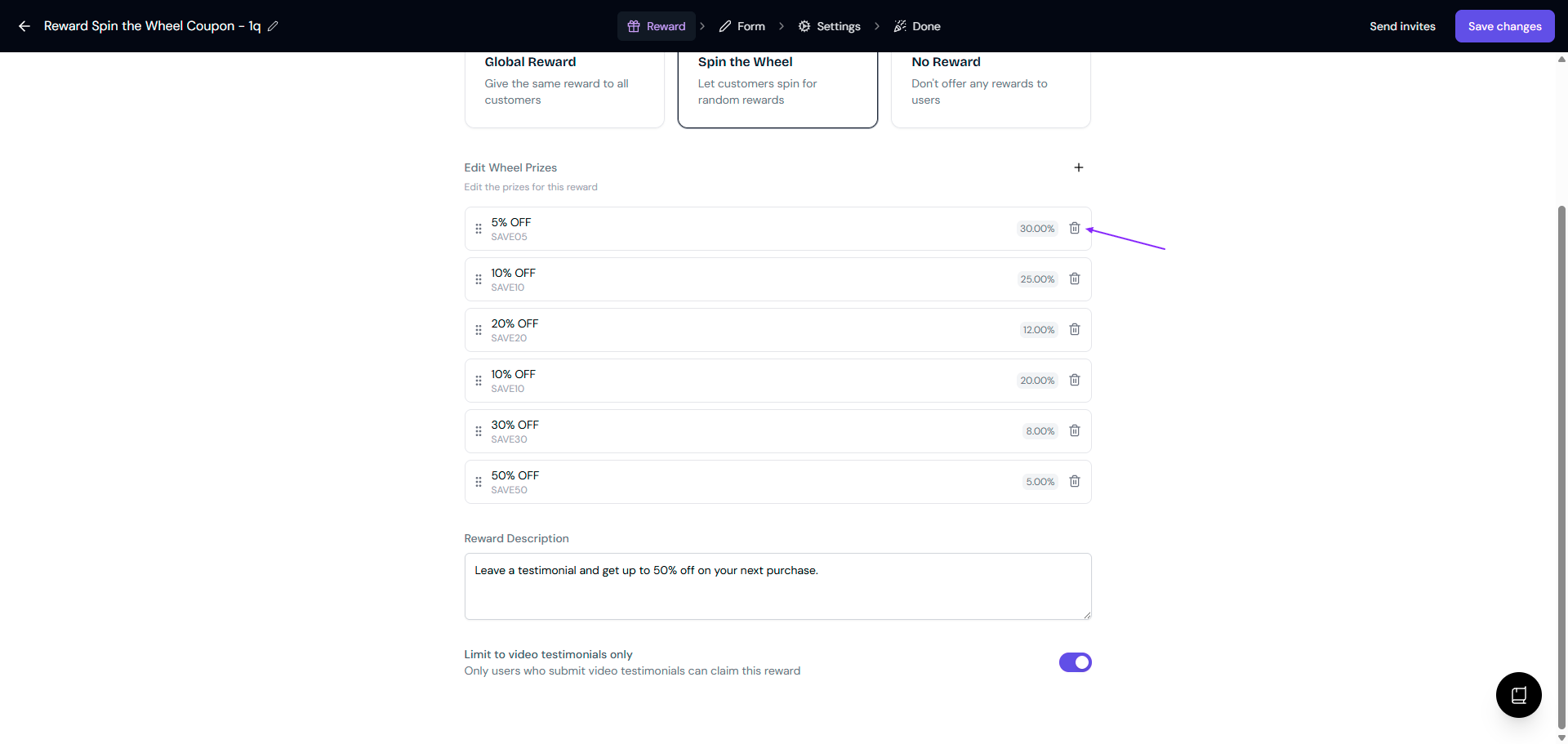
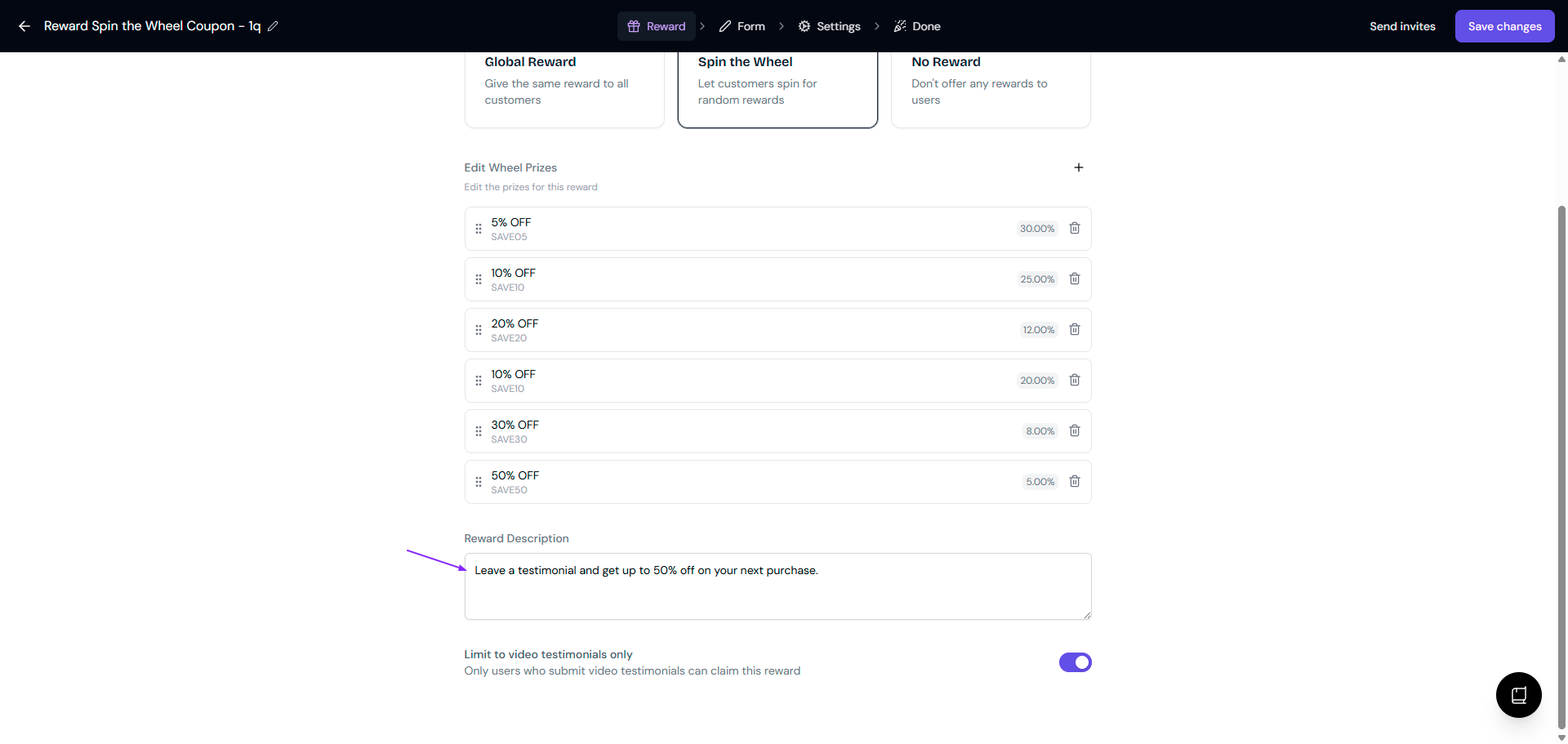
Set the Reward Description
Turn on the Limit to video testimonials only toggle if you want to restrict who can spin
Save changes and you're done!
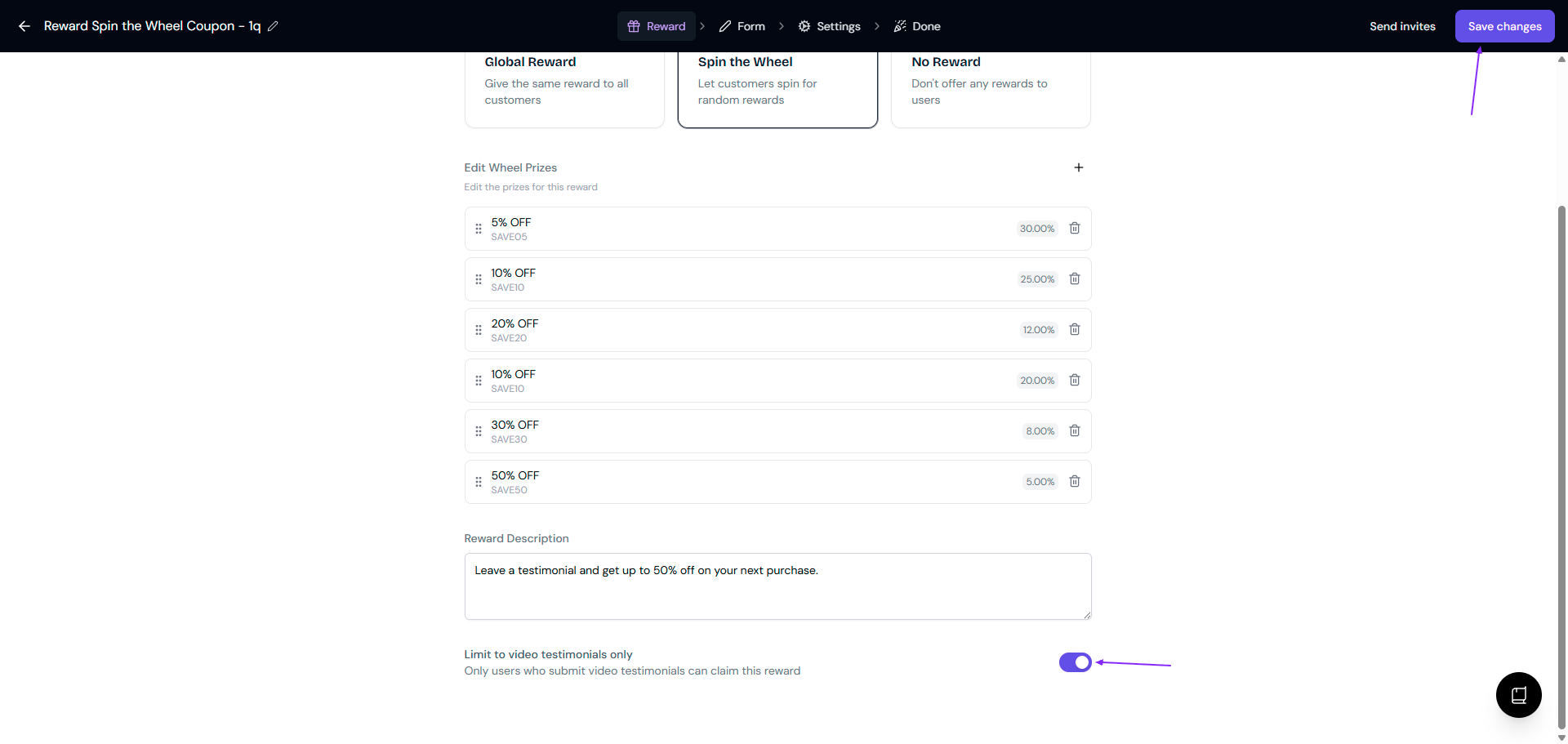
Set different difficulty levels to control how often big prizes get won. "Impossible" prizes are very rare, while "normal" prizes come up more often. The wheel automatically balances probabilities across all segments.
What your customers see
After someone submits a testimonial, here's what happens:
Thank-you screen: They see a Claim your discount button
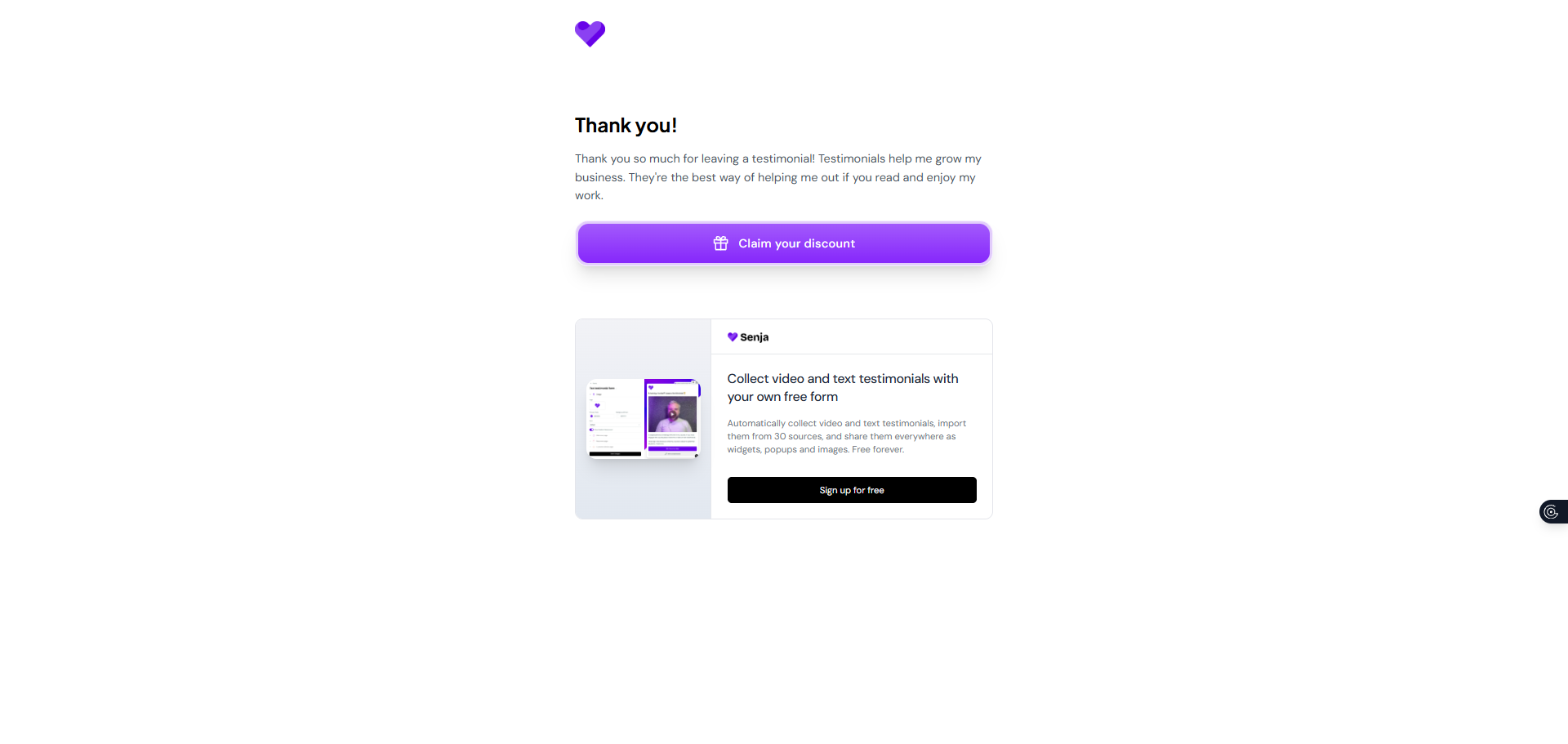
Wheel screen: Click the button and they land on your custom wheel
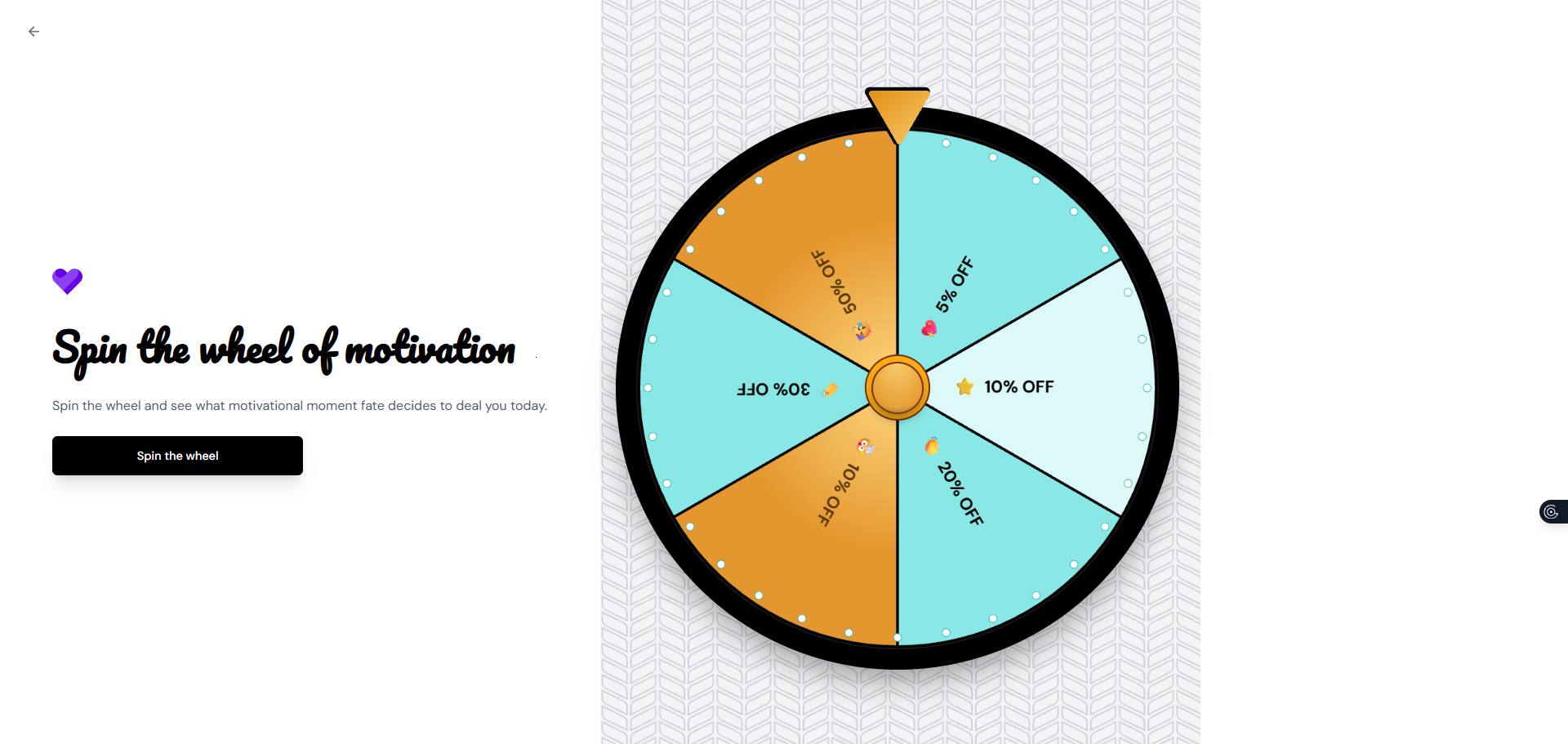
Spin animation: They click the CTA button and watch the wheel spin
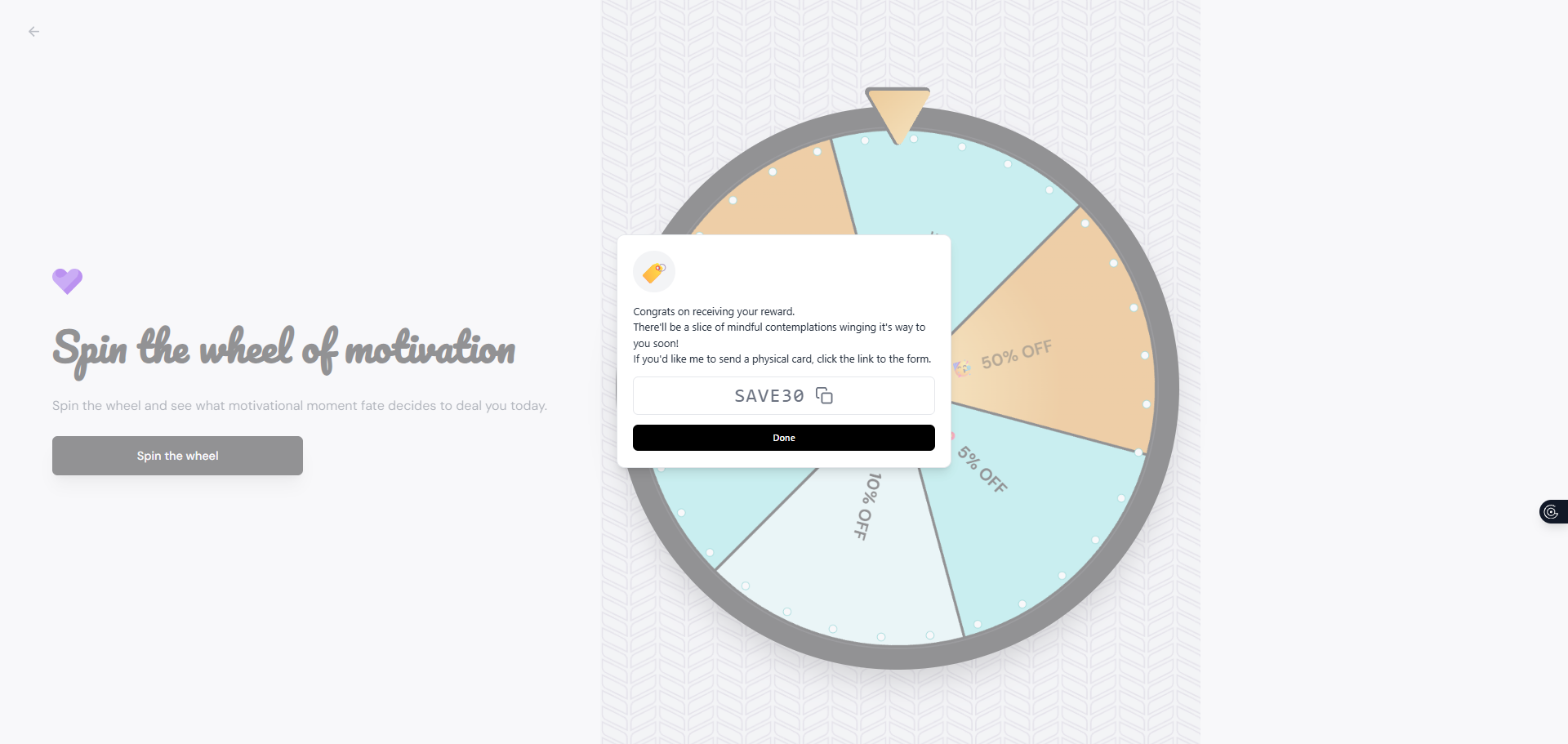
Congrats screen: When it stops, they see the prize they won with your custom congrats message and the prize details
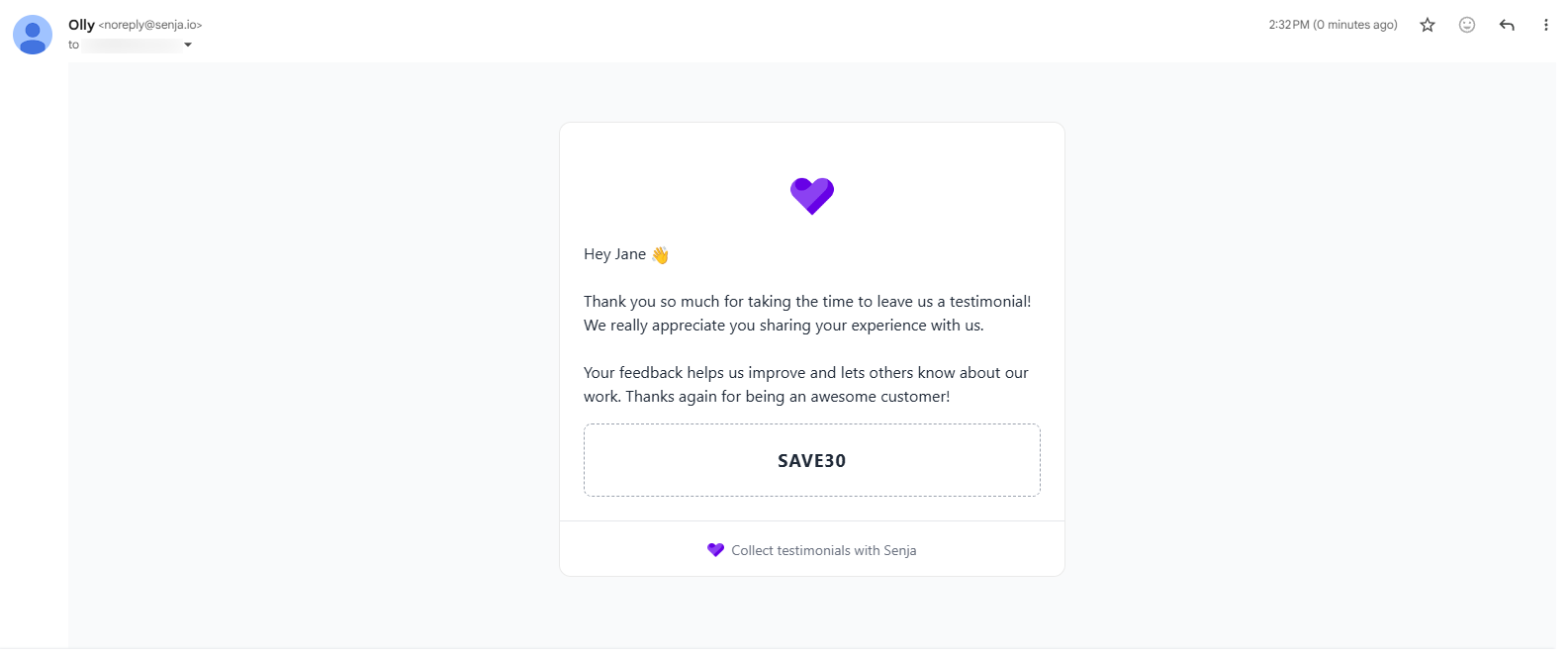
Automated email: If you've made the email field required, Senja sends the prize in a thank-you email
If you turned on Limit to video testimonials only, people who submit text won't see the wheel or get prizes.
If you want prizes sent via email, make sure you've got a required customer email field in your form.
Good to know
Every spin wins something
The wheel always lands on a prize.
No expiry tracking
Senja shows the prize but doesn't check if codes are expired or how many times they've been used.
Email field is a must
To send prizes via email reliably, your form needs a customer email field and it has to be required.
No admin notifications
You won't get notified when someone wins a prize.
To see what someone won, go to your Proof page
Filter by form
Click the testimonial details, and the reward shows at the top
Preview your wheel
You can test how the wheel looks and spins right in the editor before saving.
The wheel might fail to spin in rare cases due to browser or caching issues, but don't worry — the prize email still gets sent automatically. If customers report wheel issues, tell them to check their email.
Troubleshooting
If customers aren't seeing the wheel after submitting:
Check the Limit to video testimonials only or Limit to text testimonials only toggle
Make sure it matches the type of testimonials you're collecting
Turn it off if you want everyone (text and video) to get the reward