
How to import LinkedIn recommendation with Chrome extension
Import LinkedIn recommendations directly to your Senja dashboard using the Chrome extension. This works for recommendations on LinkedIn profile pages.
Before you begin: Install the Senja Chrome extension from the Chrome Web Store and log into your LinkedIn account.
Import recommendations from a profile
Go to your LinkedIn profile
Scroll down to the Recommendations section
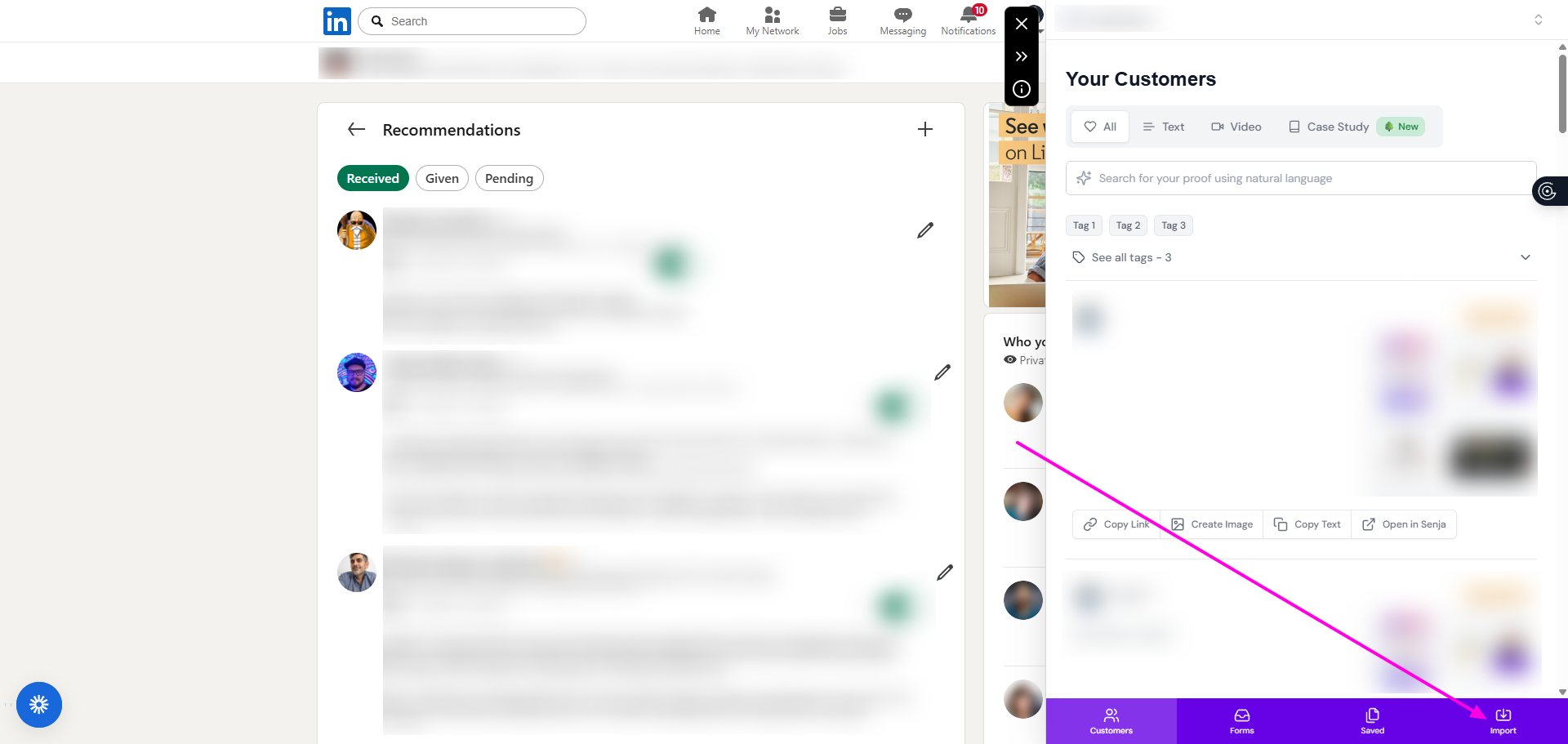
Click the Senja extension icon in your Chrome toolbar to open the sidebar
Click the Import tab at the bottom of the sidebar
Make sure the Import Testimonial page is shown, on Text testimonial
Click the magic-cursor icon to grab the info from the page
Click the magic-cursor
Hover over the text/image you want
A suggestion block will appear
Click, and the info is grabbed
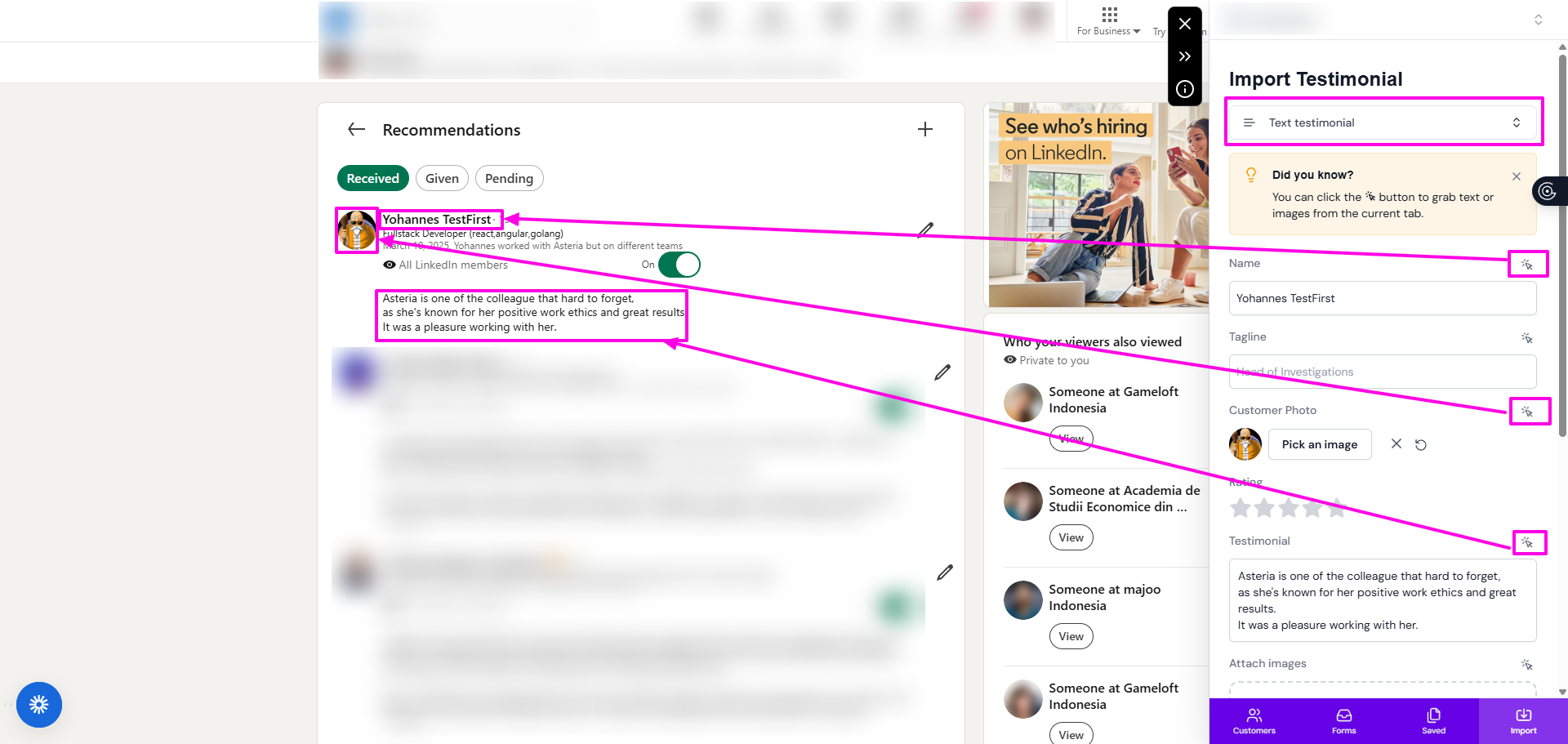
Scroll down, click Import testimonial button when you're doneSelect LinkedIn from the dropdown menu
Use the full profile URL, not individual recommendation links. The extension only works on complete profile pages.
Your imported testimonials appear in the Proof page of your Senja dashboard, where you can review and approve them.