
How do I use tags?
One of Senja’s most powerful features is tagging. We encourage you to use tags to help you and your team find the most relevant testimonial when you need it.
Tags are a way of grouping testimonials
To make it easier and more intuitive to find your tags, use categories to organize and group tags together. You can group testimonials using tags for:
A product
A customer business type
Its length
The objection it addresses
The feature it mentions
What are categories and when would I use them?
Categories allow you to group tags together so that when you’re looking for a tag later, it’s easier and more intuitive.
You can choose from one of the default categories
You can not create a custom category at the moment
Later, you can then search for testimonials by tag and category to share them, or add them to widgets.
How to create tags in Senja
Go to your Tags page: https://app.senja.io/tags
Click + Create new
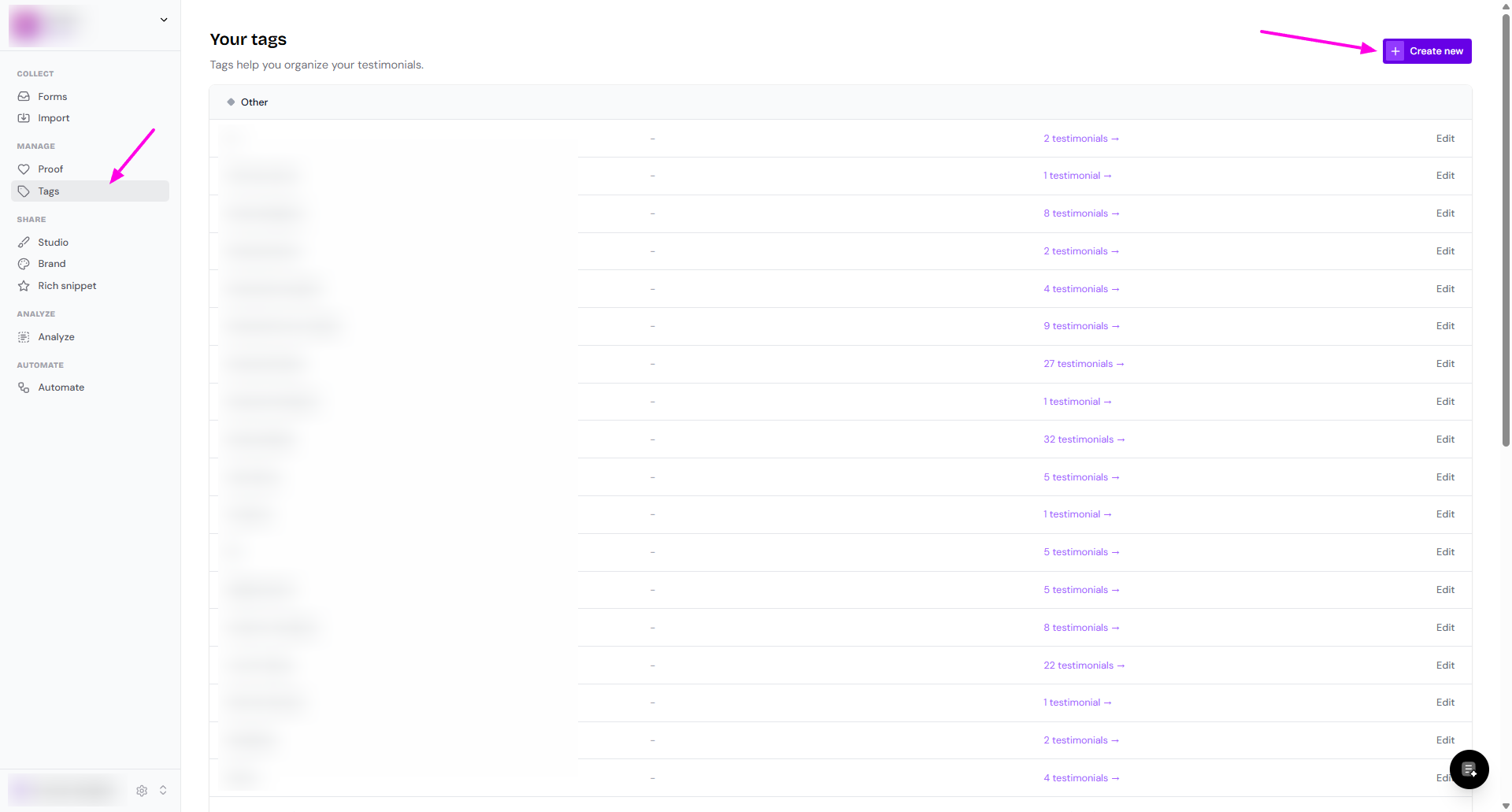
Select the category, click Next when done
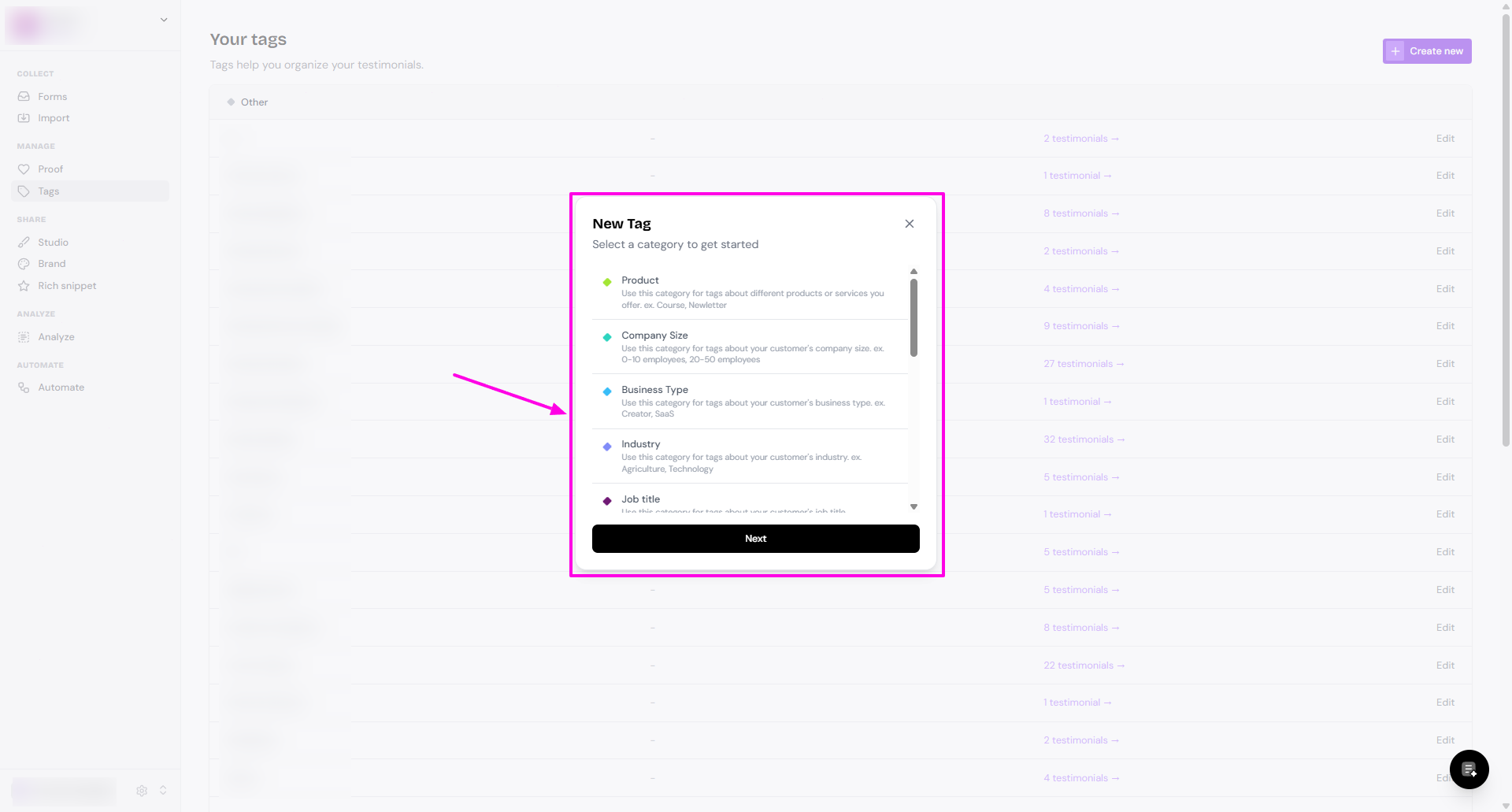
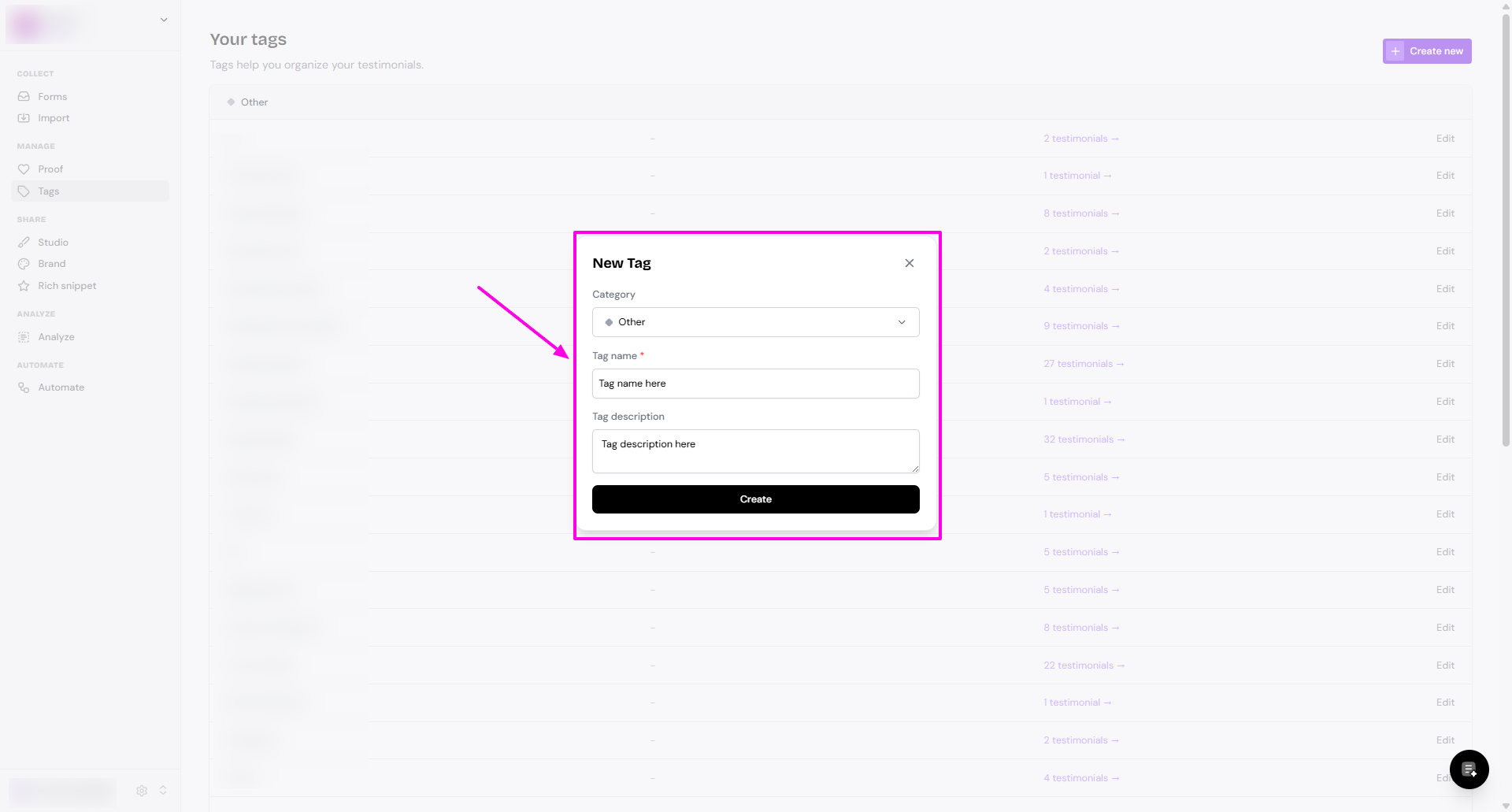
Complete the info:
Add the Tag name
Add the Tag description (optional)
Click Create
Where can I apply tags?
You can apply tags from different pages in Senja:
Apply auto-tagging in Forms: https://app.senja.io/forms
Add tags when importing testimonials: https://app.senja.io/import
Tagging (or bulk-tagging) collected testimonials in Proof page: https://app.senja.io/
Read here to see how
How do I make use of the tags?
Find testimonials easily
If you manage different events or have multiple products, adding a tag will help when you want to find specific testimonials.
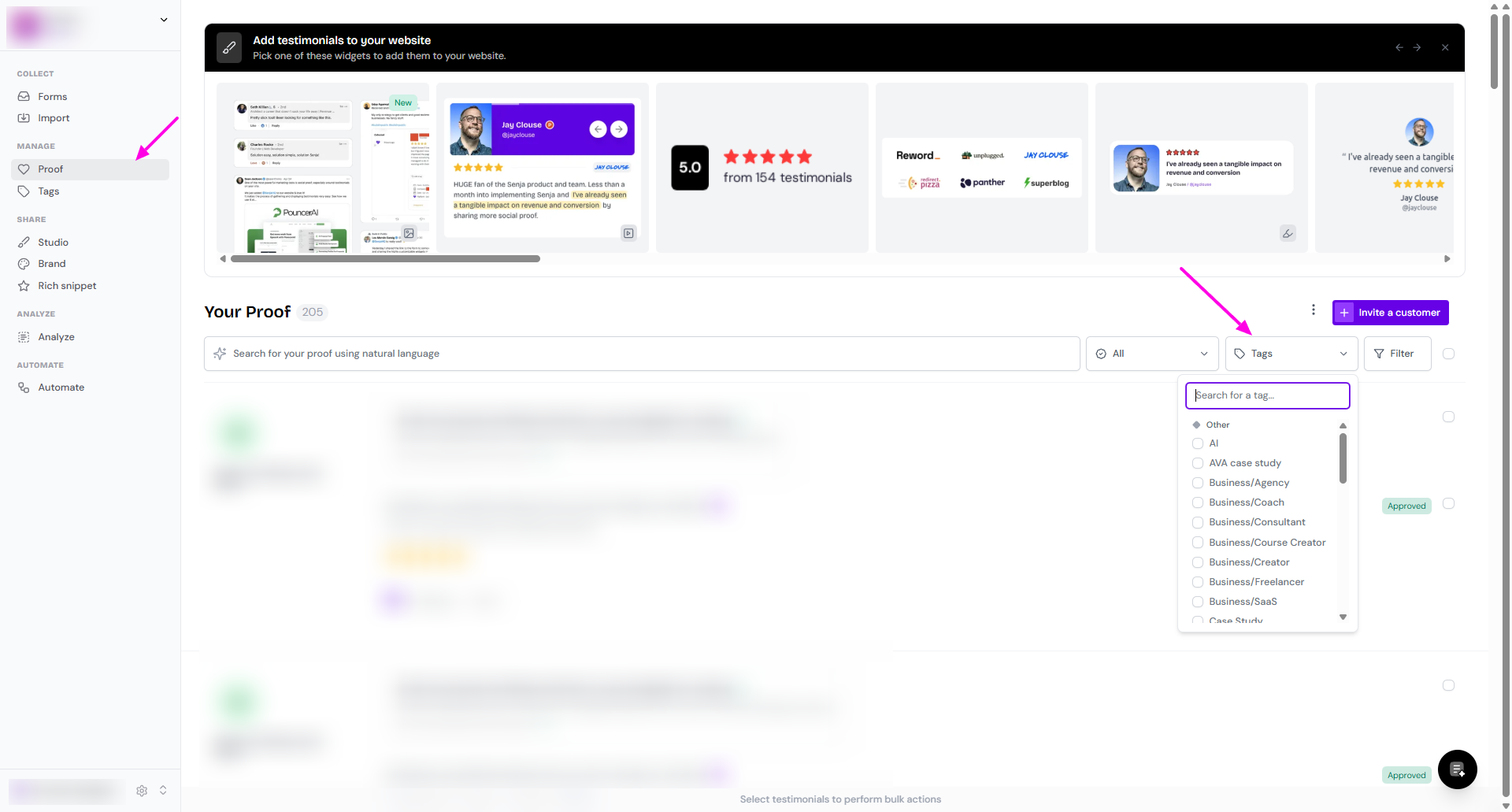
Go to your Proof page: https://app.senja.io/
Set the Tag filter, choose the tag(s) that you want to see
It will show all testimonials that have the chosen tag(s)
Filter out testimonials used in the widget
When you create multiple widgets, one for each product, or one for different page, you can use the tag to filter out the testimonials.
Go to your Studio page: https://app.senja.io/studio
Create new/open your widget
Go to Select Testimonials
Click Tags on the Filters sidebar
Choose the tag(s)
If you select by Auto-add, all testimonials matching the tag will be automatically added to the widget, including the new testimonials coming after you set the widget
If you select by Manual selection, you will need to choose the testimonials by yourself from the testimonial preview
Click Save Selection

Filter out testimonials to analyze
Go to your Analyze page: https://app.senja.io/analyze
Click Select Testimonials
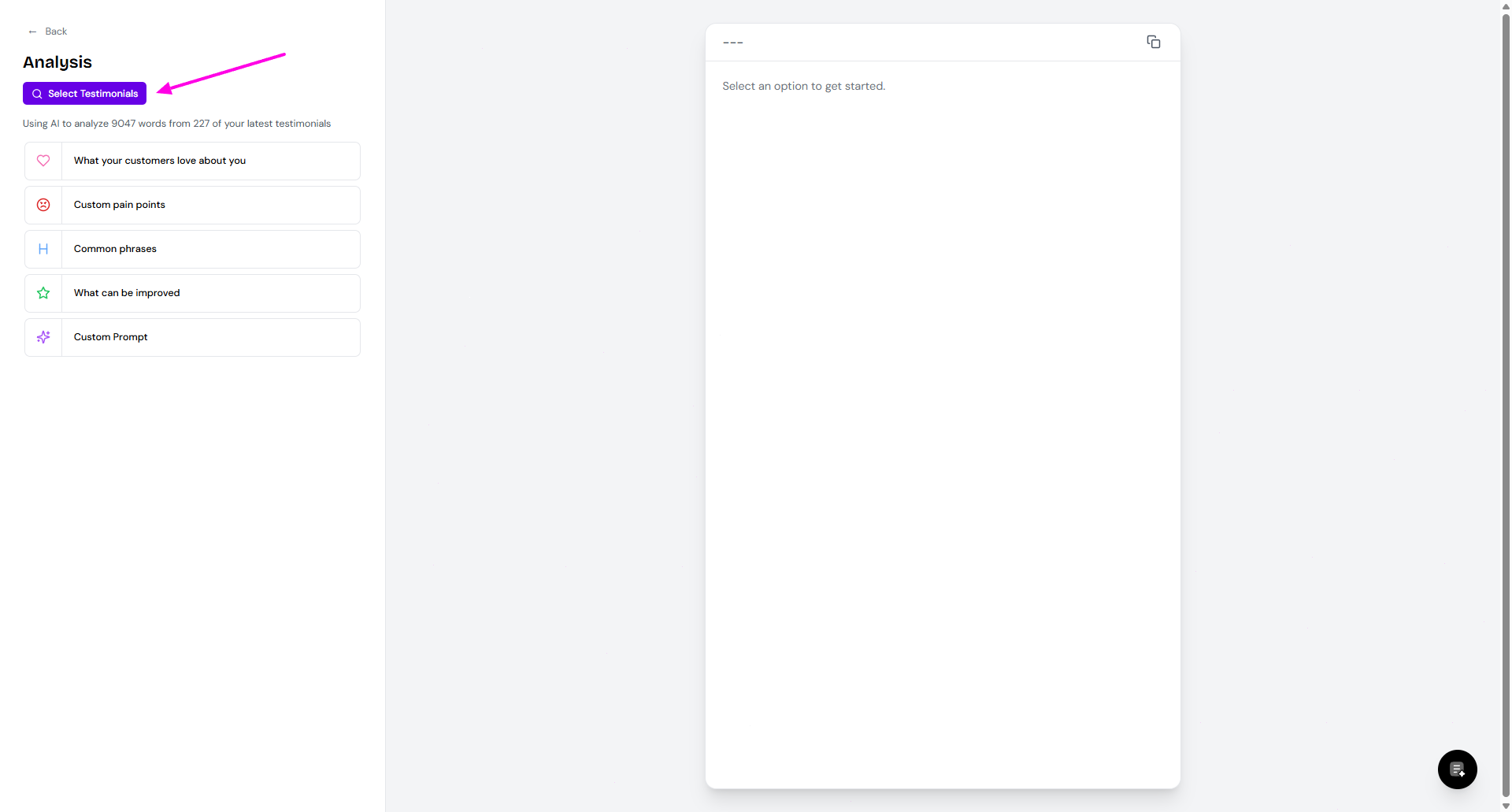
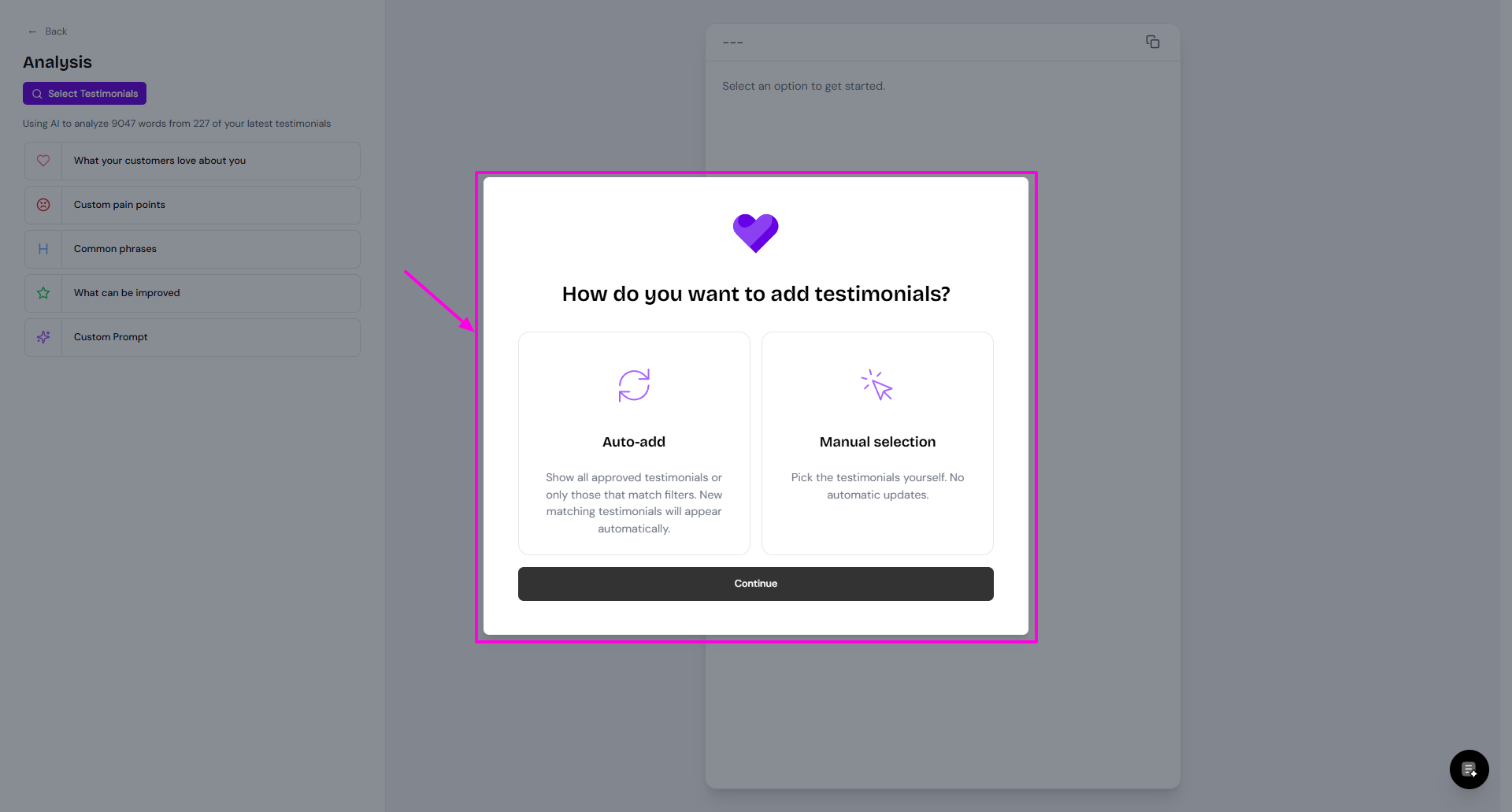
Choose Auto-add or Manual, click Continue
Click Tags on the Filters sidebar
Choose the tag(s)
If you select by Auto-add, all testimonials matching the tag will be automatically added to the list to analyze
If you select by Manual selection, you will need to choose the testimonials by yourself from the testimonial preview
Click Save Filters
