
How to add testimonials to your Canva presentation
Senja makes it easy to add your testimonials to your Canva presentations. In this guide, we'll show you how.
Can I…
Add testimonials to Canva as images? | Yes |
Add widgets to Canva by exporting the widget as an image | Yes |
Add widgets to Canva using Senja's code snippet | No |
Add your Senja widget to your Canva presentation
Canva presentations don't support embedded code. Instead of using Senja's code snippet, export your widget as an image.
In Senja
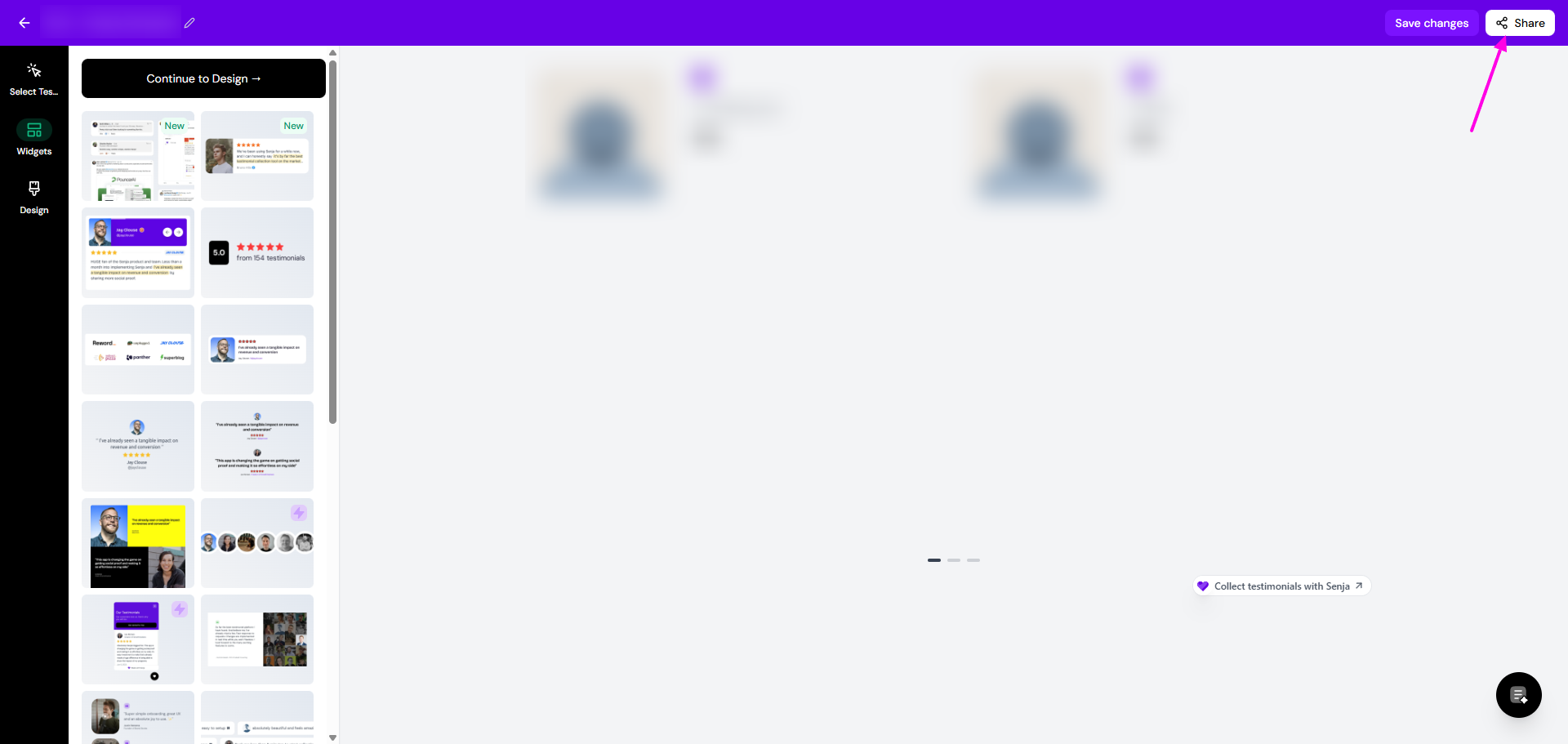
Navigate to the Social Proof Studio and click on the widget you'd like to use
Click the Share button at the top-right of the page
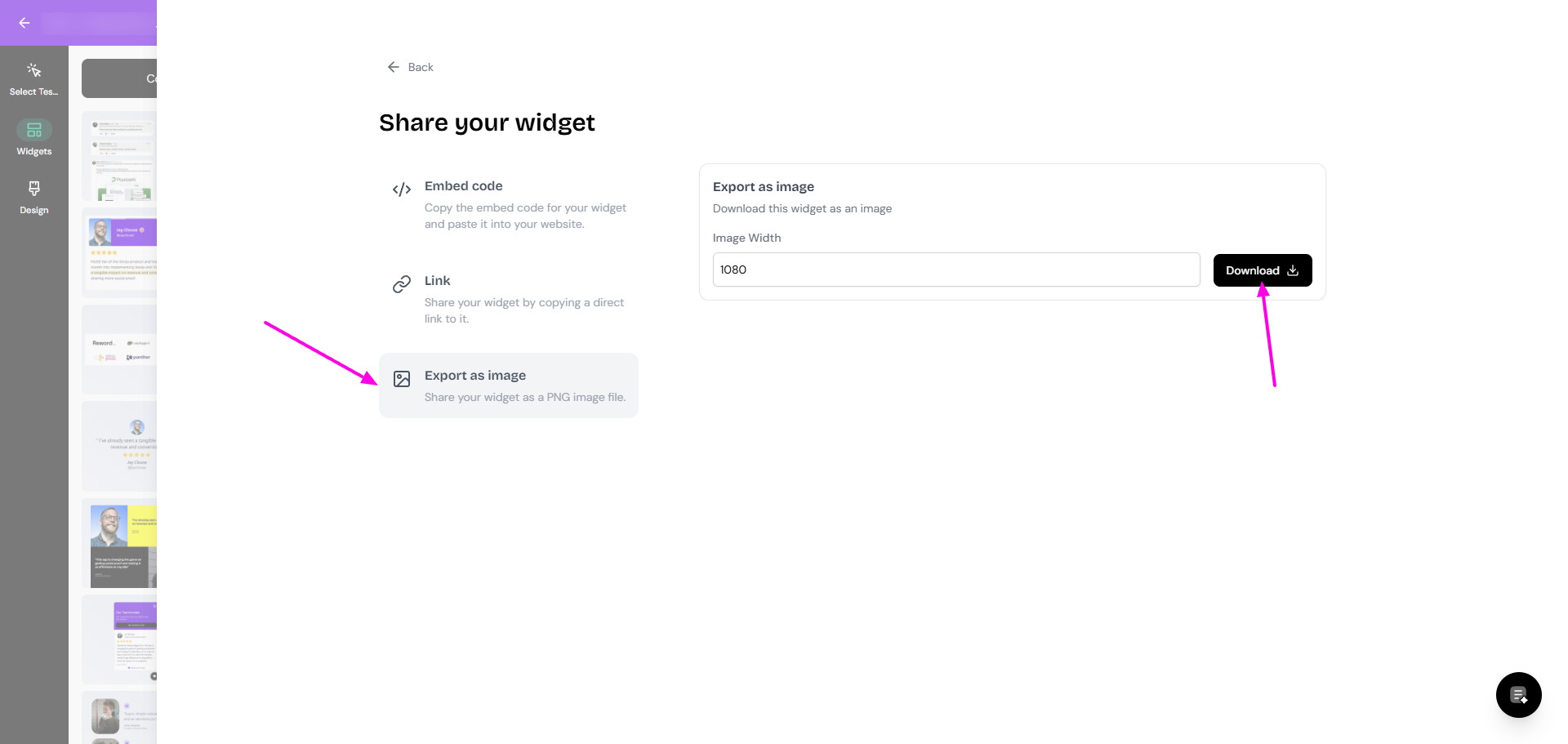
In the Share panel, click Export as image
Set your preferred Image Width and click Download
In Canva
Open your presentation
Go to Uploads in the left sidebar
Upload the image you downloaded, or drag and drop it onto your slide
That's it, your testimonial is now in your Canva presentation 🥳 Not working? Contact Senja Support to help you.